AI Team Settings
3 minute read
You manage AI Team settings from the Settings tab in AI Team. Settings are organized into two sections: General and Memory.
General
The General section controls which AI models your teammates use by default and which models are restricted.
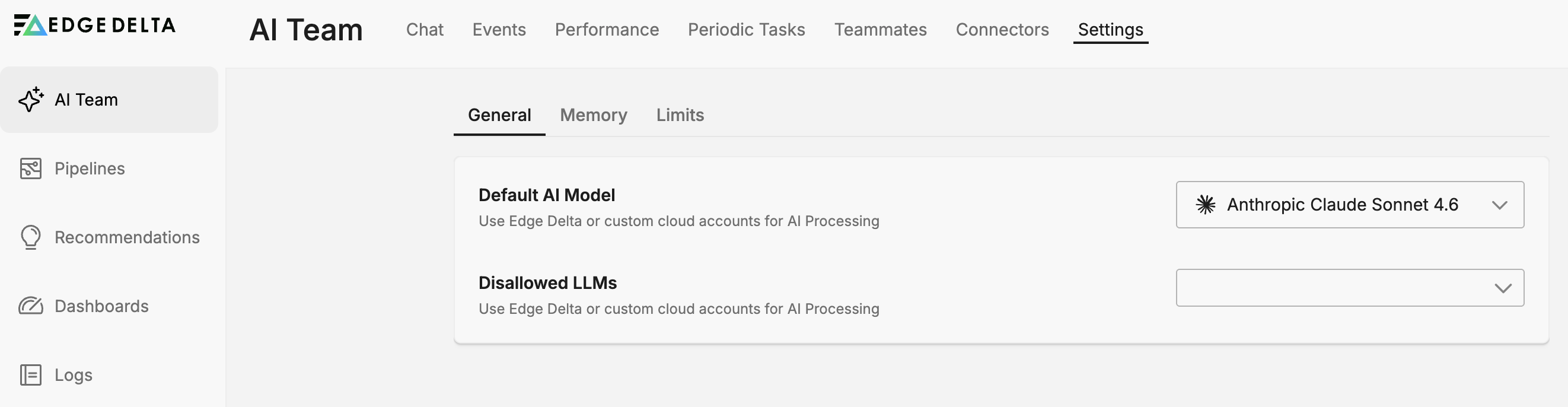
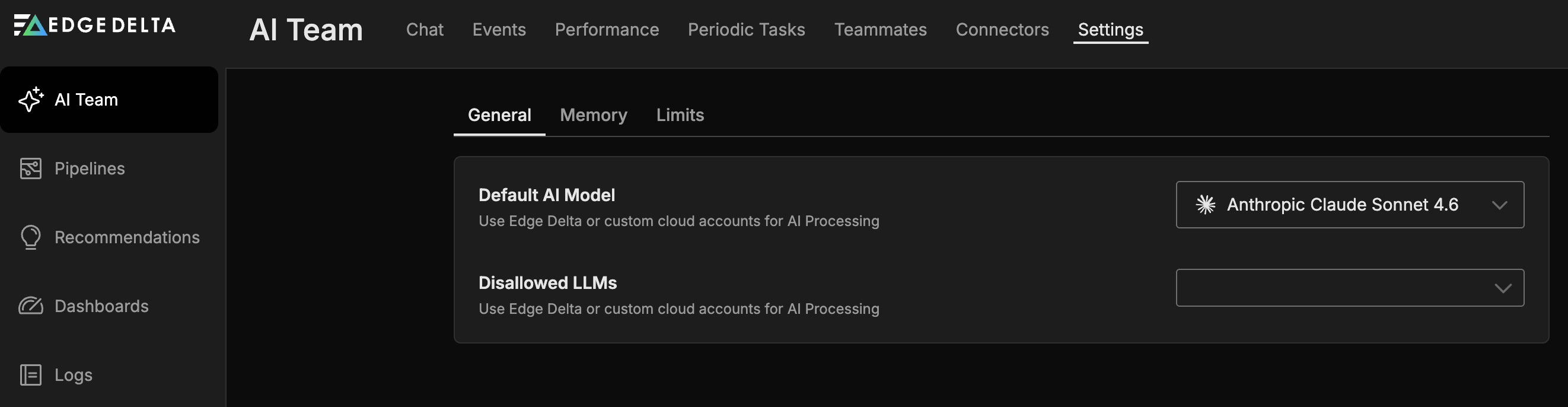
Default AI model
Select the model that new AI teammates use by default. Available models include options from Anthropic, OpenAI GPT, and Google Gemini. Existing teammates keep their currently configured model. To change the model for an existing teammate, update it in the teammate’s configuration on the Teammates tab.
For example, you might set the default to Anthropic Claude Sonnet 4.6 for a balance of speed and capability.
Disallowed LLMs
Specify models that AI teammates are not allowed to use. This lets you enforce organizational policies around model selection, whether for cost control, compliance, or performance reasons.
For example, you could disallow Anthropic Haiku 3.5 if your team requires higher-capability models for production workloads.
This setting is a blocklist: you specify models that teammates cannot use. All available models are hosted by Edge Delta’s vetted providers and undergo vendor security and compliance review. See AI Team Fundamentals and the AI section in the Edge Delta Trust Center for details.
Memory
The Memory section controls how AI teammates retain and use context from past conversations. Only users with the Admin role can view and manage memory settings.
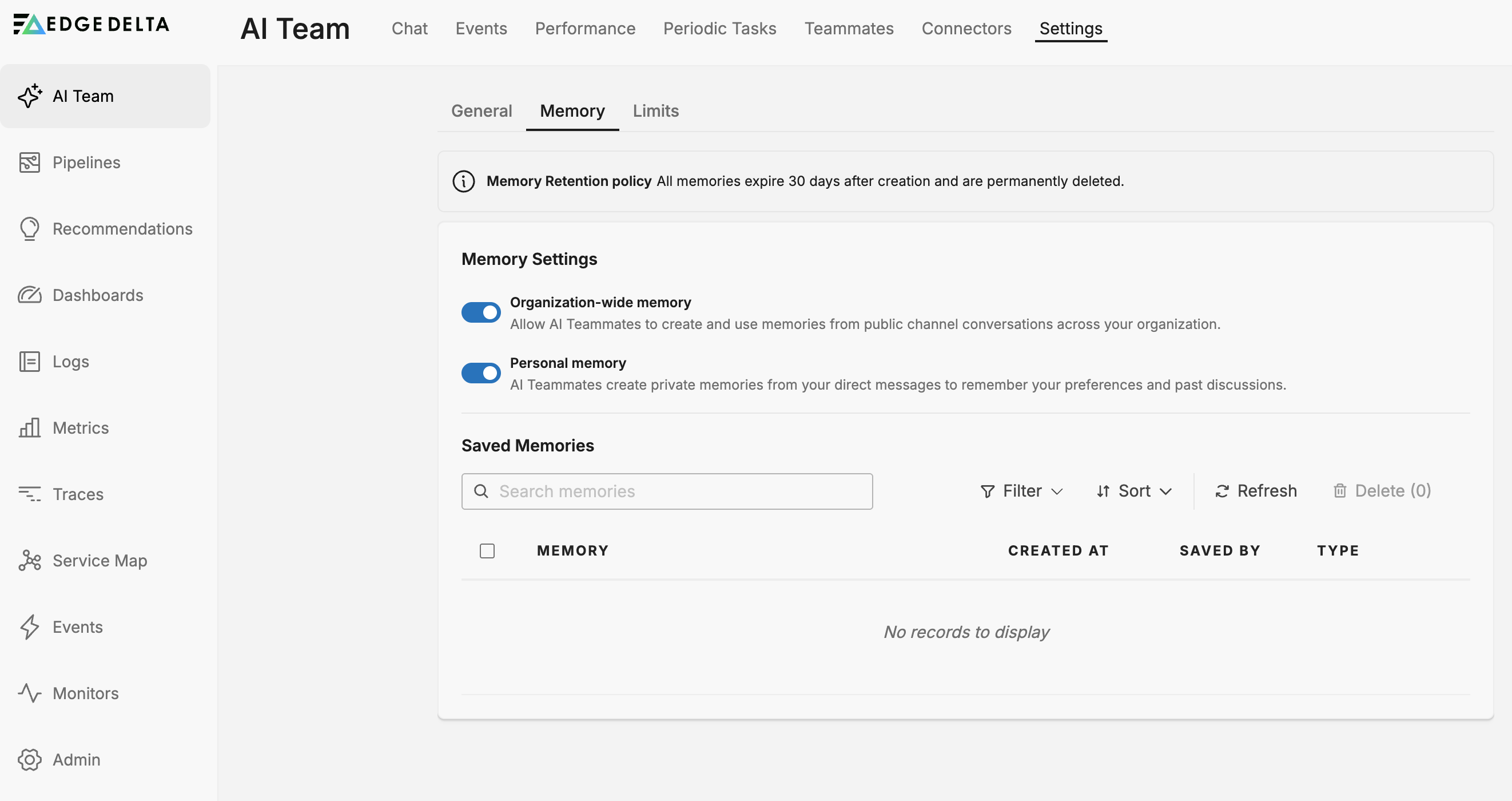
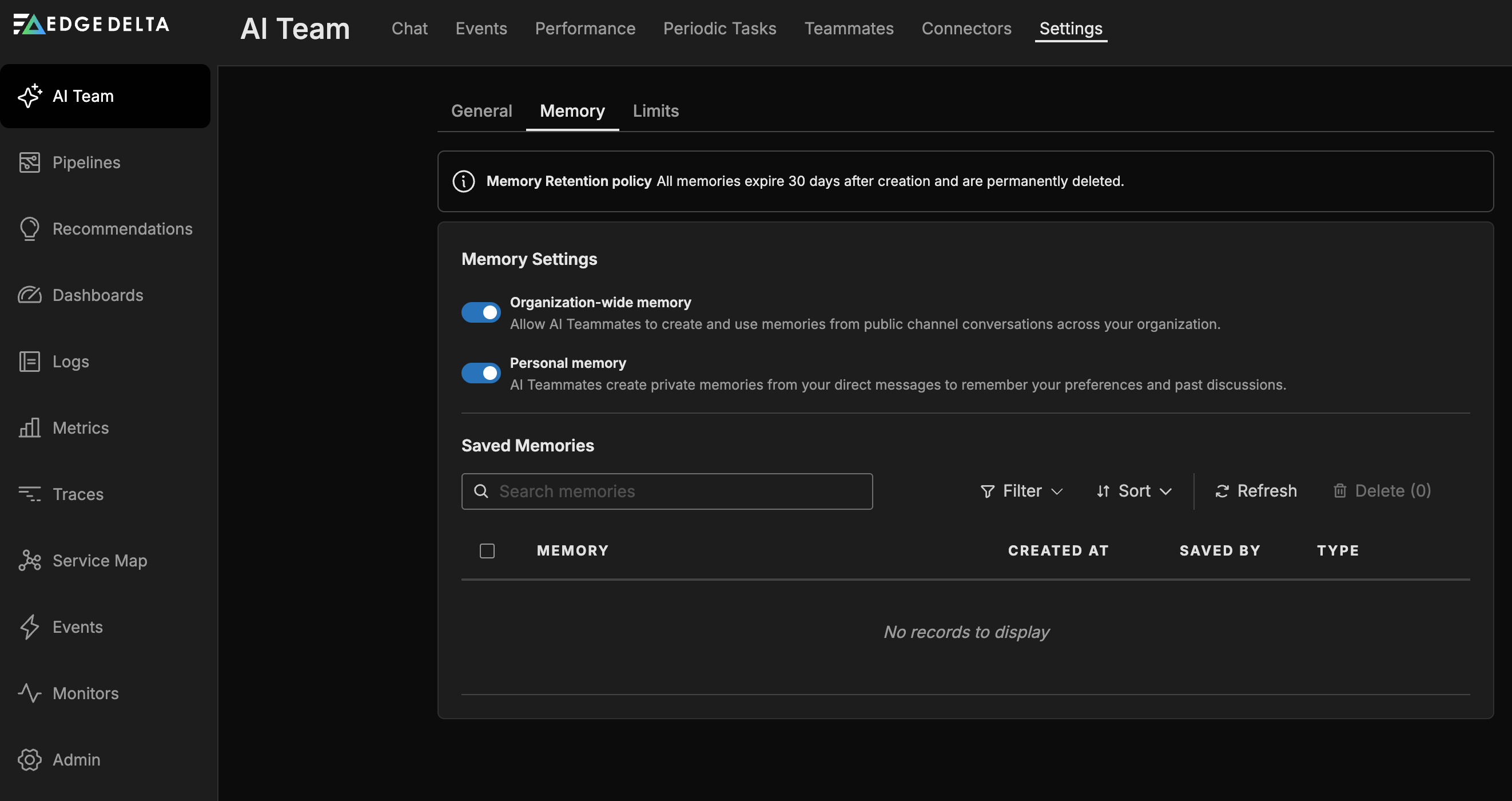
Memory retention policy
AI teammates store two kinds of memories, each with a different retention rule:
- Learnings — automatically removed after 30 days of inactivity.
- Preferences — retained indefinitely.
This policy applies to both organization-wide and personal memories. Memories are distinct from model training—Edge Delta does not use customer data to train AI models. See the AI section in the Edge Delta Trust Center for details.
Memory settings
Two toggles control memory behavior:
- Organization-wide memory: When enabled, AI teammates create and use memories from public channel conversations across your organization. These memories are available to all teammates and provide shared context for investigations.
- Personal memory: When enabled, AI teammates create private memories from your direct messages. These memories store your preferences and past discussions so teammates can personalize responses over time.
Saved memories
The Saved Memories table lists all stored memories with the following columns:
| Column | Description |
|---|---|
| Memory | The content of the saved memory |
| Created At | When the memory was created |
| Saved By | Which teammate or user created the memory |
| Type | Whether the memory is organization-wide or personal |
Use the search field to filter memories by keyword. For example, an organization-wide memory saved by OnCall AI might read: “Forced push to a GitOps branch with automated sync, prune, and self-heal settings in ArgoCD increases operational risk.”
See also
- Edge Delta Plans to understand credits, usage limits, and model pricing
- AI Team Overview for an introduction to AI teammates and their capabilities
- Connectors to configure the tools and data sources available to teammates
- Channels to organize conversations and investigations