Bring Your Own Model or Provider
7 minute read
Use Bring Your Own Model (BYOM) when you host a model and want teammates or tasks to send requests to your endpoint. Use Bring Your Own Provider (BYOP) when the model you want is already in the Edge Delta catalog and you want calls to run on your provider account. For example, to use a catalog Claude model through your AWS account, connect AWS Bedrock. To use a model that you serve at your own URL, add a custom model endpoint.
Open AI Team > Settings > General. Expand Advanced model settings, then Bring your own model or provider. Click Manage next to the option you want.
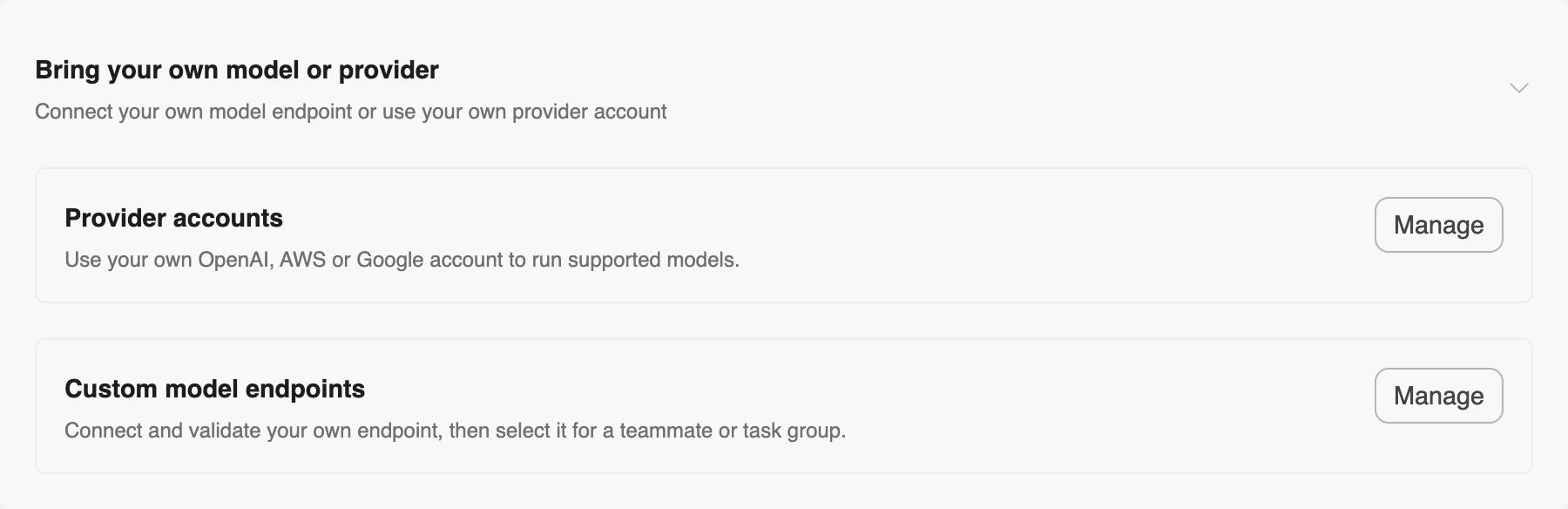
Only Enterprise organizations can use BYOM and BYOP. Edge Delta enables each option separately. If the page says an option is unavailable for your organization, contact your Edge Delta representative. An organization admin can add, validate, edit, and delete endpoints and manage provider credentials. Other members can inspect custom endpoints and select eligible models where they have permission to edit a workload.
Connect a custom model endpoint
Add the endpoint
- Open Custom model endpoints and click Add endpoint. Each organization can register up to 20 models.
- Under Identity, enter a Display name for model pickers and a Short name for badges. The description is optional.
- Under Connection, enter the Base URL of your OpenAI-compatible API and the Model ID your server expects in the request’s
modelfield. For example, if your server acceptsPOST https://llm.example.com/v1/chat/completions, enterhttps://llm.example.com/v1. Edge Delta appends/chat/completions. Open Limits and timeouts here if you need to tune concurrency or response timeouts for your hardware. - Under Capabilities, enter the context window and maximum output in tokens, the maximum number of tools per request, and the data types your endpoint accepts. Configure temperature and reasoning only if your server supports them.
- Under Headers, enter the authentication your endpoint expects, such as an
Authorizationheader with the valueBearer <your-token>. Remove the empty header row if your endpoint requires no headers. Edge Delta encrypts header values and shows only their names after you save. - Click Add endpoint. The new model opens as a draft.
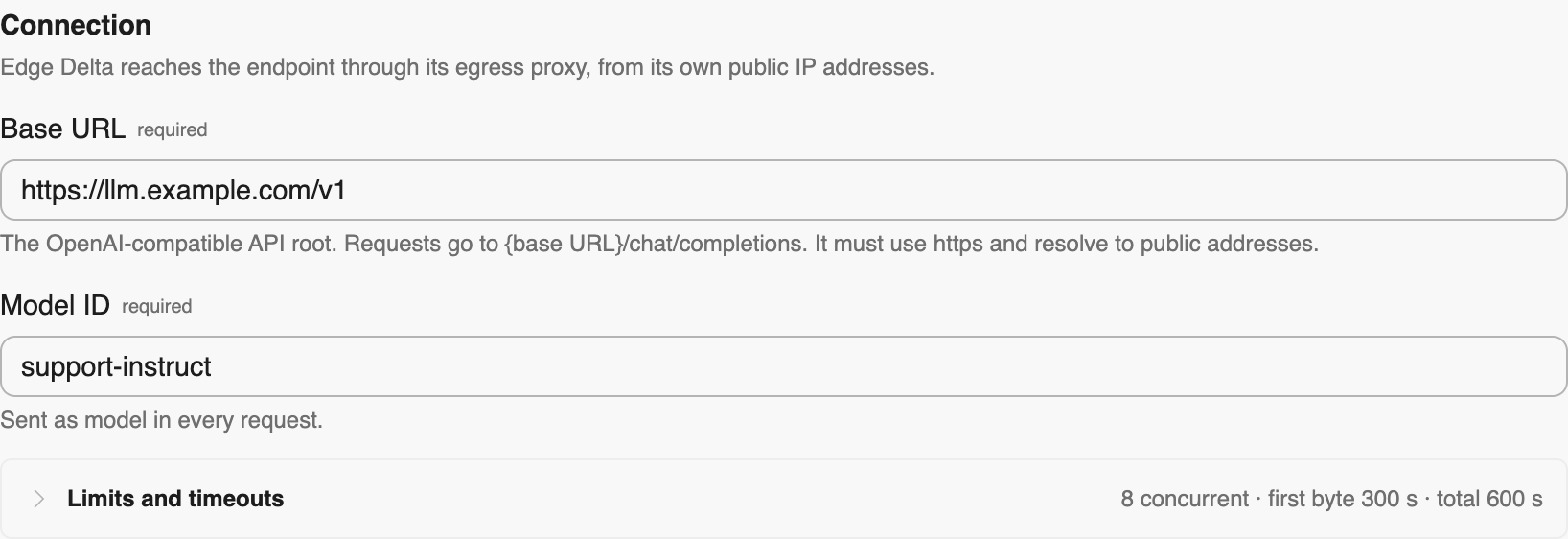
Edge Delta connects through its egress proxy. The endpoint must use HTTPS and resolve to public addresses on port 443, 8443, 8000, or 8080. Use a URL without embedded credentials, a query string, or a fragment. If your firewall restricts inbound traffic by source, ask Edge Delta for the egress IP addresses to allow.
Validate the model
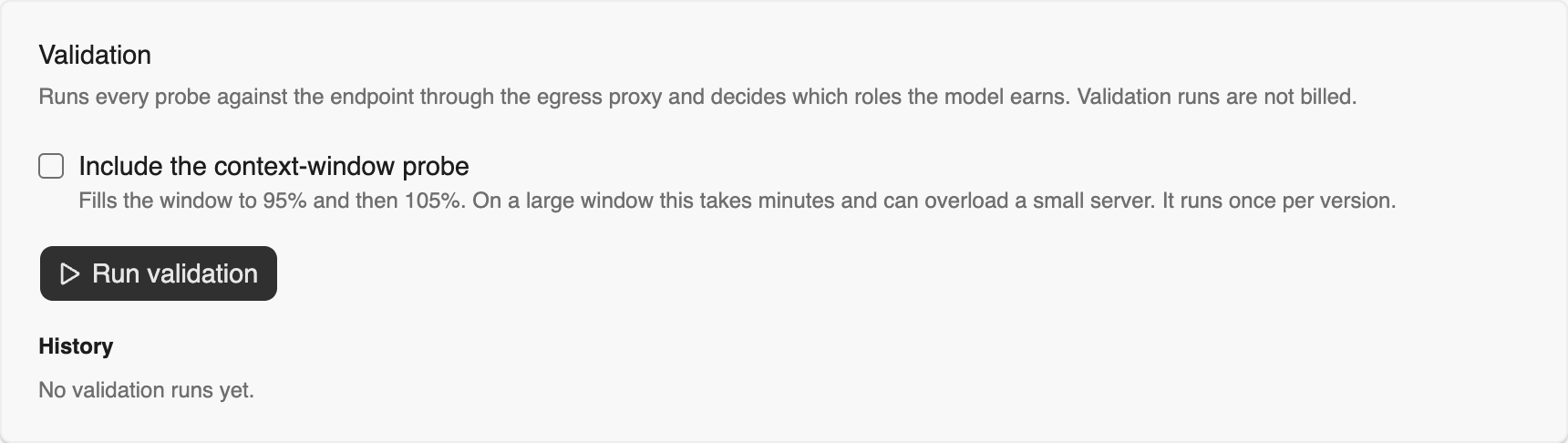
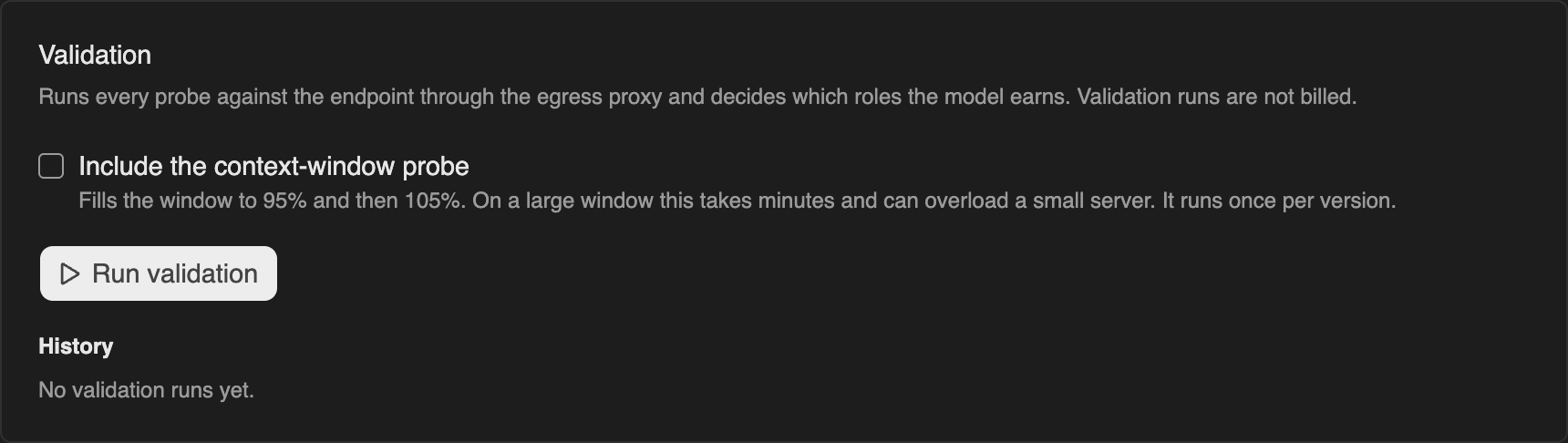
- On the model’s detail page, find Validation. Select Include the context-window probe if you want the model to qualify for medium or complex built-in tasks. This test sends prompts at 95% and 105% of the declared window. Allow time and capacity for both.
- Click Run validation. Edge Delta sends test requests through the same proxy used for model calls. It checks capabilities such as streaming, tool calls, and structured responses. Edge Delta does not bill for validation runs.
- Review the status and role badges. If a probe finds a mismatch, review Declared versus measured, apply the suggested correction when appropriate, and validate again. After fixing a failure, use Re-run failing steps when available.
Assign the model
In the model picker, open Your models and select your endpoint by its display name. A Ready model appears in pickers for the roles it earned. For example, if it earned Teammate but you need it in a workflow Task node, check the workflow and structured-output probe results.
| Validated role | Where to select the model |
|---|---|
| Teammate | Open Settings > Agents, edit the teammate, and select Model or Fallback model (optional). You can also open an objective’s loop editor and choose Model > Pinned model > Pin a model. |
| Task node | Open the workflow, select a Task node, and choose its Model. |
| Default | In Settings > General, select Organization default model. This role requires both the teammate and task-node checks to pass. |
| Easy, Middle, or Complex | Under Advanced model settings > Built-in task models, select the matching Simple tasks, Medium tasks, or Complex tasks group. Middle requires a confirmed context window of at least 64,000 tokens and Complex requires at least 128,000, in addition to their other checks. |
To see which built-in tasks use your endpoint, open Built-in task models > Task model assignments and expand a group. The table shows the current model and the source of each assignment. A Fallback entry identifies an additional model the task can use. Fixed tasks, independently configured workloads, and fallbacks can still use other models. Edge Delta continues to process and store conversations in threads, run journals, and logs.
Update or remove an endpoint
- Change capabilities. On a serving model, Save changes creates a pending version. The current version serves requests while you validate the new one. A passing run promotes the pending version. You can also discard it.
- Change the connection or rotate headers. Save connection applies the new connection immediately and starts reachability checks. Editing headers replaces the whole set. Re-enter every value you want to keep, including when changing the base URL of an authenticated endpoint. A Degraded model keeps its assignments, but calls may fail. Fix the connection and run validation again.
- Delete an endpoint. Click Delete on the model. If the dialog lists places that use it, assign another model there and retry. Deletion destroys the stored headers and preserves the model name in usage history.
Connect a provider account
A provider connection applies across the organization to the catalog models served by that provider, including built-in tasks. Memory extraction continues to use Edge Delta’s keys. Expand Supported models and availability on a provider card to see which models it covers. Check the serving provider when choosing a credential. For example, some GPT models run on AWS Bedrock.
| Provider card | What to prepare |
|---|---|
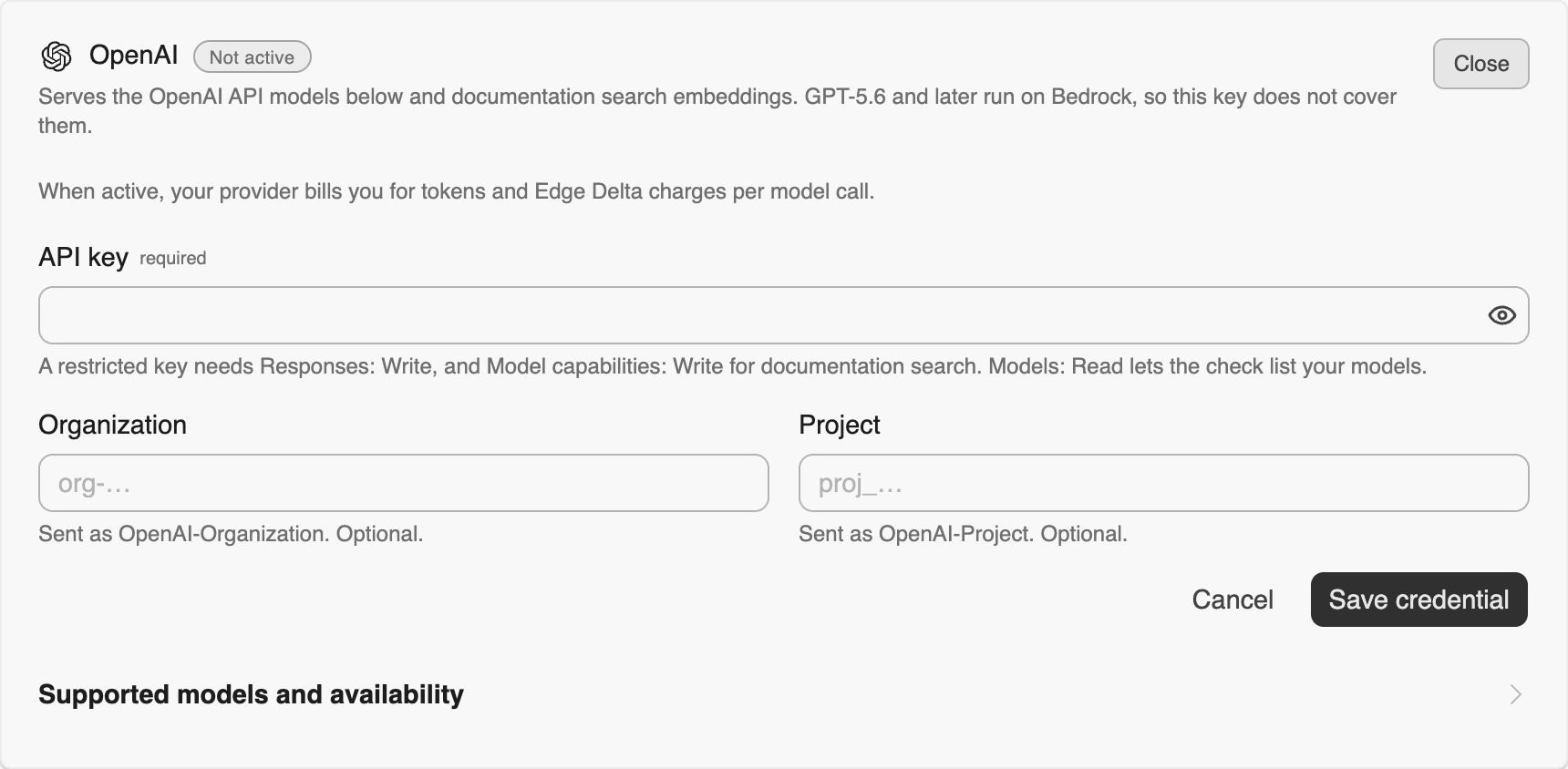
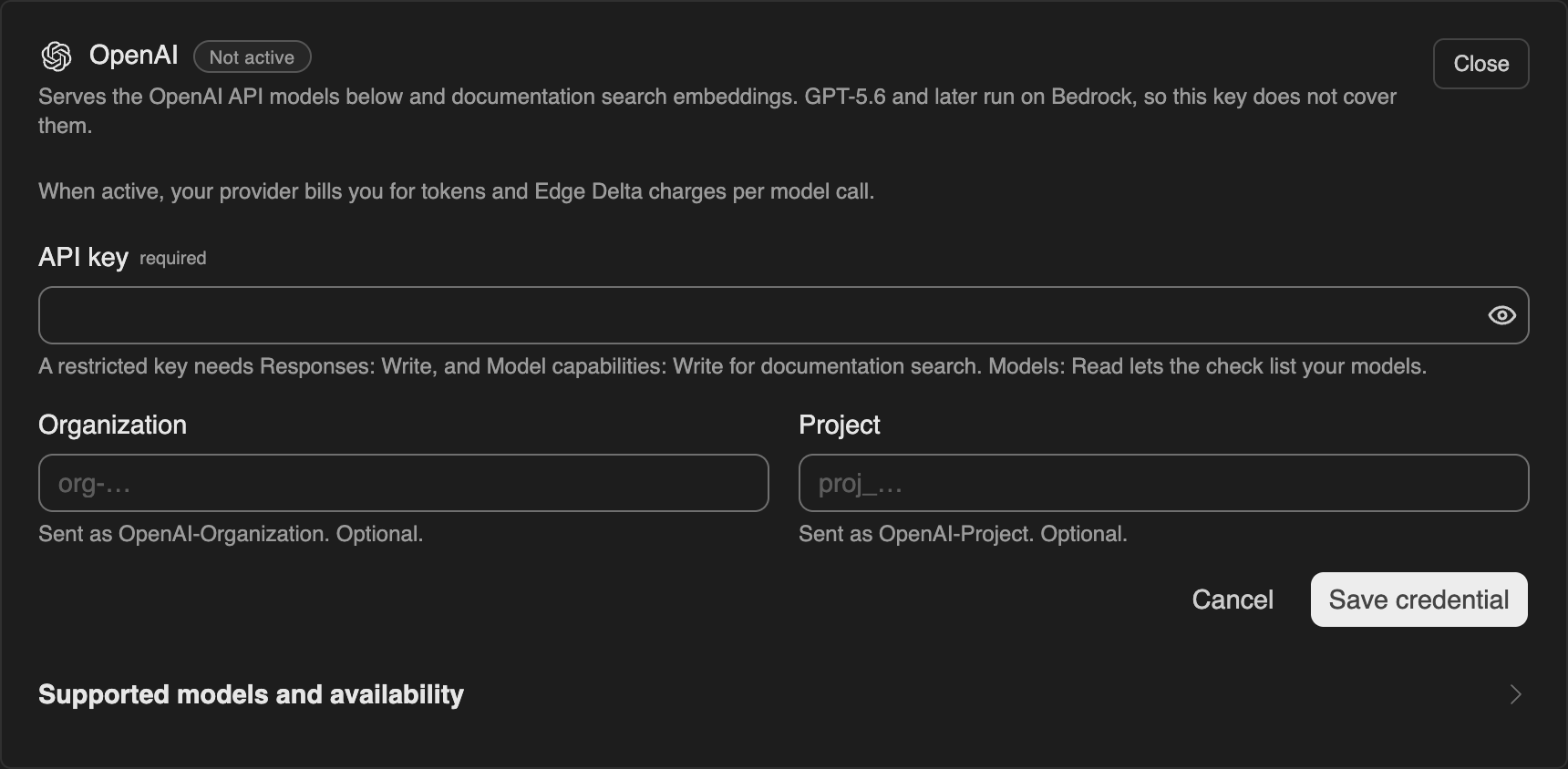
| OpenAI | An API key and, optionally, an organization ID and a project ID. A restricted key needs Responses: Write for inference and Model capabilities: Write for documentation search embeddings. Models: Read lets the availability check list your models. |
| AWS Bedrock | A dedicated IAM user’s long-term Access key ID, Secret access key, and Region. Expand Least-privilege IAM policy on the card and attach the displayed policy to the user. Bedrock Mantle models run in the selected region. Global inference profiles can serve requests from other regions. |
| A Gemini API key restricted to the Generative Language API. Confirm that the Google Cloud project has billing enabled. This connection also covers the image model used for teammate avatars. |
Check and activate the credential
- Under Provider accounts, click Connect on the provider card. Enter the credential and click Save credential. Edge Delta encrypts the credential, hides its value after saving, and automatically checks which models your account can use.
- Expand Supported models and availability to review individual results. If a model you need is unavailable, check its access, region, quota, or key permissions with the provider. Click Run check after correcting the problem.
- When the card shows Ready to activate, click Activate and confirm. If activation is blocked, the dialog lists models in use that the account cannot serve. Enable those models and rerun the check, or reassign the listed workloads to available models and try activation again.
- Confirm that the card shows Active. Runs that start after activation use your credential for covered models. The model picker marks those models Your account.
Rotate or disconnect the credential
Open Manage on the provider card. Choose Replace credential to rotate a key. On an active account, the replacement serves requests immediately and the availability check runs after saving. Verify the check before revoking the old key with your provider.
If an active account loses access to a model in use, the card can show Degraded. Calls to the affected model fail until you restore access or change the assignment. Edge Delta does not automatically switch to its own keys. To return to Edge Delta credentials, select Deactivate and delete and confirm. New runs use Edge Delta’s keys and token pricing. For a credential you have not activated, choose Delete credential.
Billing and usage
Edge Delta charges per model call for custom endpoints and for catalog models served by your provider account. You pay the hosting or provider costs separately. One teammate run can make multiple model calls. Retries of the same call to the same model count together. A successful or stopped call whose last attempt exceeds 60 seconds costs twice the normal call rate. A failed call uses the normal rate if a request was sent.
Catalog models served on Edge Delta’s account continue to use token pricing. Review consumption in the Usage Report and check your organization’s rates under Plan.