Event Threshold Monitor
2 minute read
Create an Event Threshold Monitor
To create an Event Threshold monitor, click Monitors, select the Triggered tab, click + New Monitor, and select Event Threshold.
Configure Event Threshold Monitor
The Event Threshold Monitor evaluates event counts across agents in the pipeline. It works similarly to the Log Threshold Monitor but operates on event items, with additional filtering by event domain and event type.

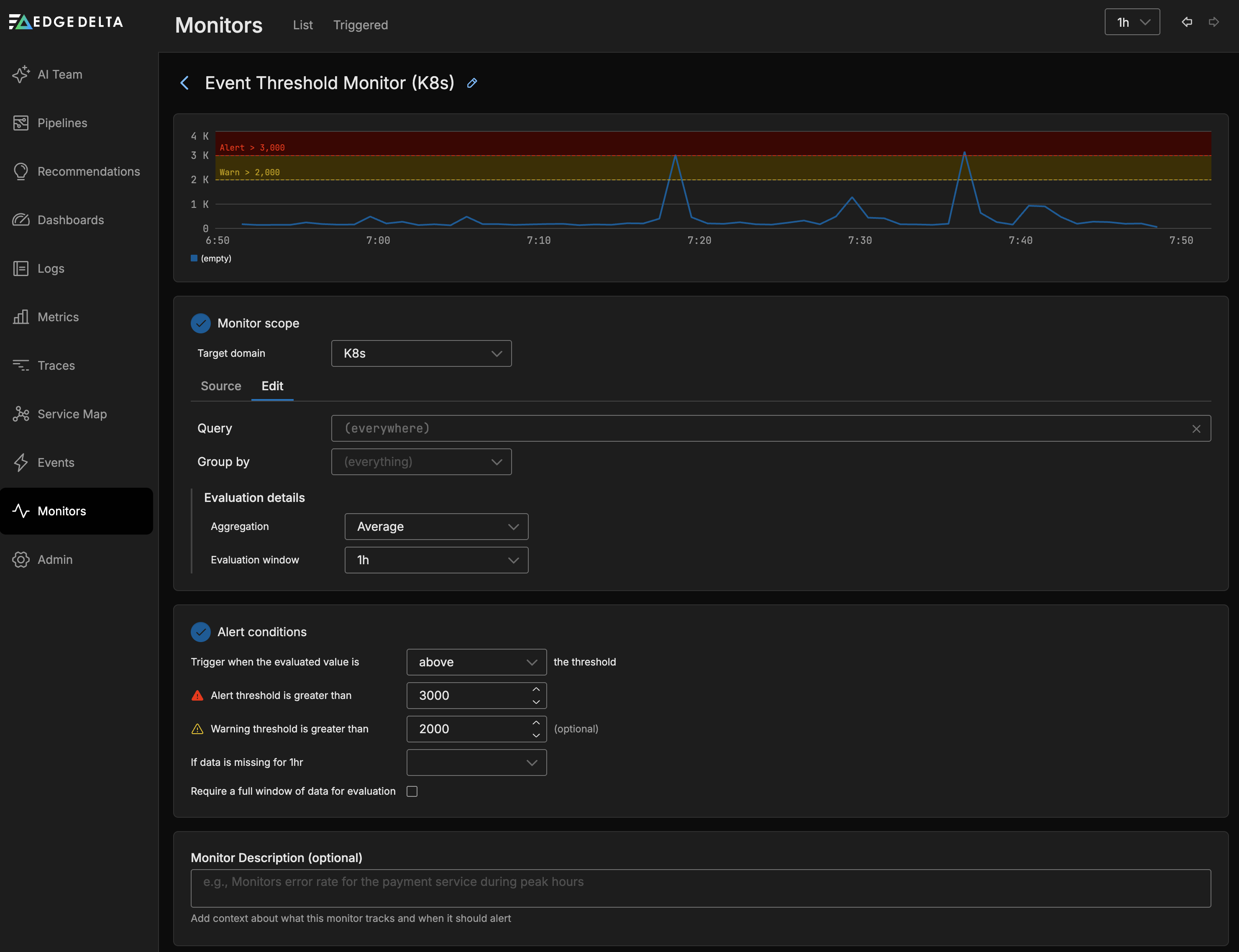
Monitor Scope
- Target domain: Select the event domain to monitor, such as K8s.
- Source: Use autocomplete to select the sources you want to monitor. If you leave this blank all sources will be monitored.
- Group by: Group the monitored item by dimensions such as agent tag, host, or namespace. This option is required if you want to split notifications by group. See Monitor Limits for group-by limits.
- Query: Filter events using a query expression.
Evaluation Details
The Evaluation Details options evaluate the source data to determine a value.
- Aggregation: The function applied to the data to determine a value for evaluation against the thresholds (for example, Average, Count, Sum).
- Evaluation Window: The duration at which to apply the aggregation function (for example, 1h, 30m).
Alert Conditions
Configure the thresholds that the monitored item should be evaluated against. You can set a warning and an alert threshold. As you add thresholds they are displayed in the graph relative to the current source’s values. You can choose to trigger when the evaluated value is Above, Above or equal to, Below or Below or equal to the thresholds.
If Data is Missing
The If data is missing for <evaluation window> dropdown controls how the monitor behaves when no data points are available during the evaluation window:
- Evaluate as 0: Treats missing data points as zero values and proceeds with evaluation.
- Show No Data: Displays “No Data” status without sending notifications.
- Show No Data and Notify: Displays “No Data” status and sends alert notifications.
- Show OK: Treats missing data as normal and displays OK status.
Require a Full Window of Data for Evaluation
When enabled, the monitor waits for a complete evaluation window before making a decision. This prevents premature alerts during monitor startup or after data gaps.
Monitor Description
Add context about what this monitor tracks and when it should alert. This description is included in notifications.
Notification
To use source fields in the notification you must specify them in the Group By field in the Monitor Scope section and in the Group notifications by field in the Notifications section.
This feature requires Edge Delta agent version v2.13.0 or higher.