GitLab Connector
Configure the GitLab connector to enable AI Team members to manage merge requests, issues, and search code in GitLab repositories.
3 minute read
Overview
The GitLab connector enables AI Team members to interact with your GitLab repositories through GitLab’s Model Context Protocol (MCP) server. By connecting GitLab to AI Team, AI teammates can manage merge requests, create and update issues, search code, and help coordinate development activities.
The connector provides access to merge requests, issues, and code search capabilities, allowing AI teammates to assist with code review, issue triage, and development workflow coordination.
Add the GitLab Connector
To add the GitLab connector, you authenticate with GitLab using OAuth.
Prerequisites
Before configuring the connector, ensure you have:
- A GitLab.com account or access to a self-managed GitLab instance
- GitLab Duo Core enabled on your account
- Beta and experimental features enabled in GitLab settings
- Appropriate repository permissions based on your use cases
See GitLab MCP Server documentation.
Configuration Steps
- Navigate to AI Team > Connectors in the Edge Delta application
- Find the GitLab connector
- Click the connector card to open the configuration panel
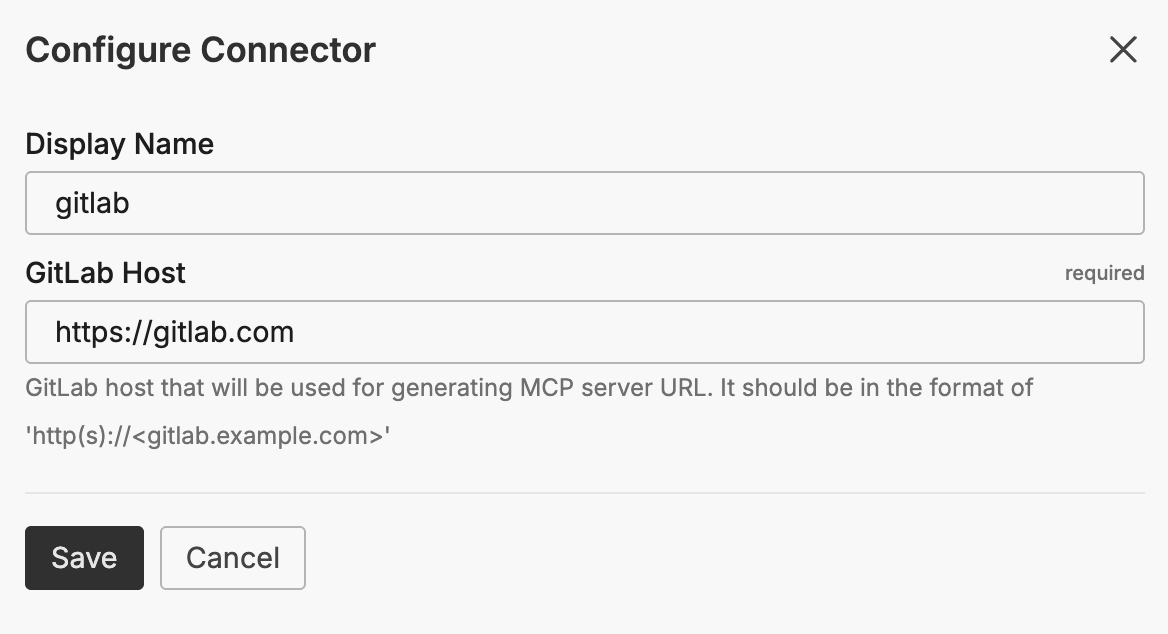
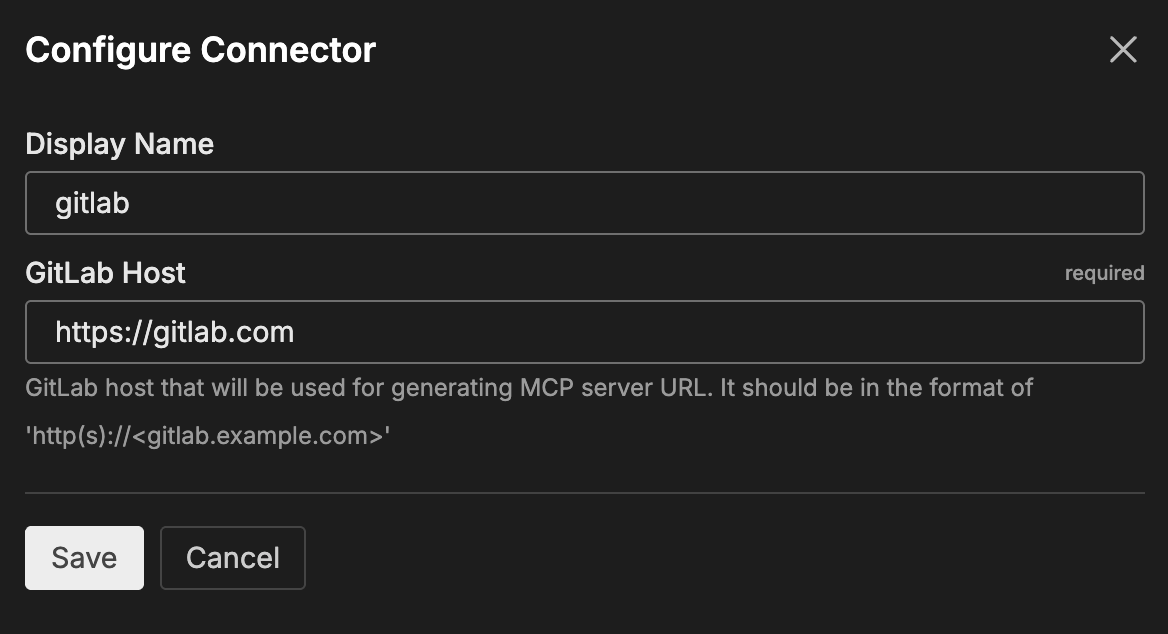
- Enter a name and the GitLab host URL (for example,
https://gitlab.comfor GitLab.com) - Click Save to authorize the connection
- Click Authorize to complete the OAuth authorization in GitLab
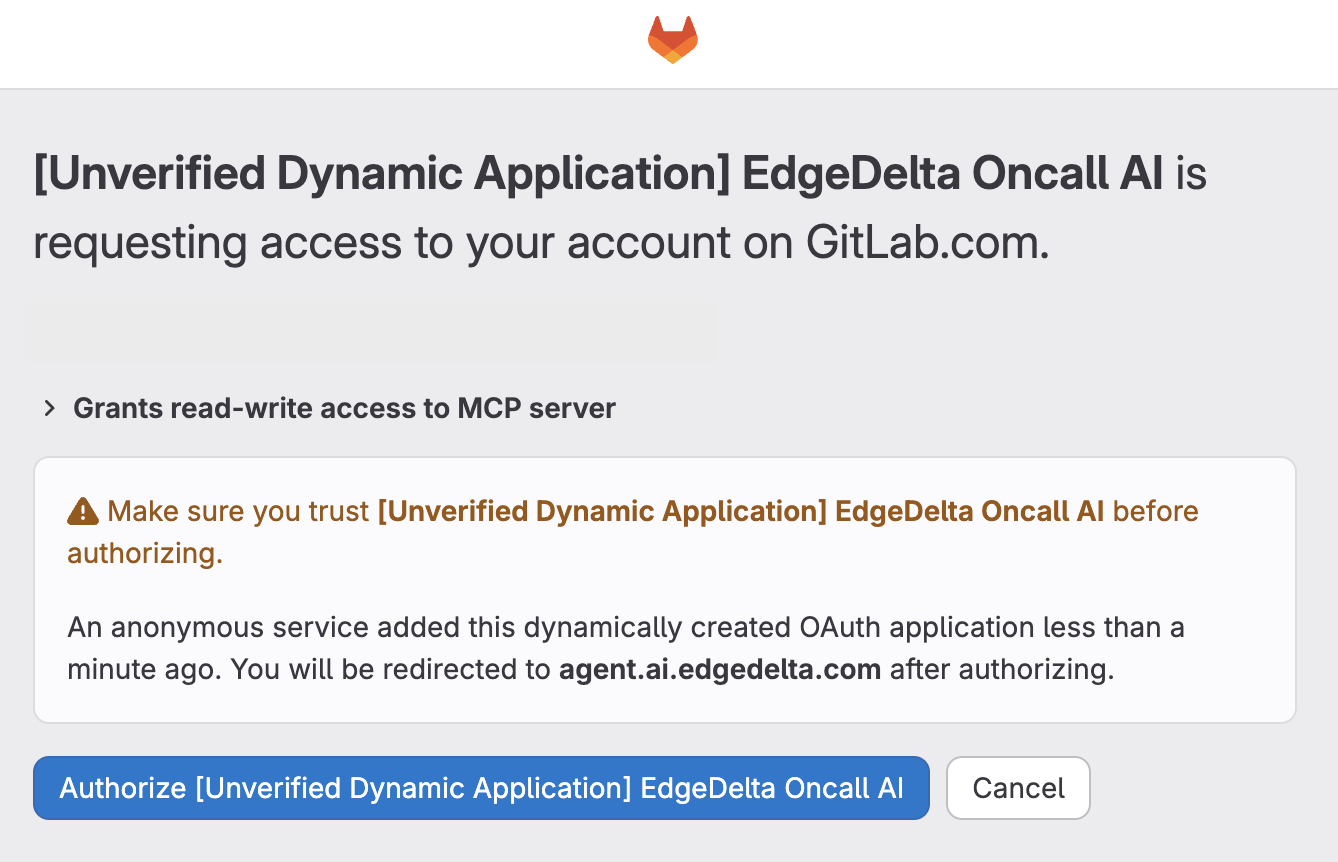
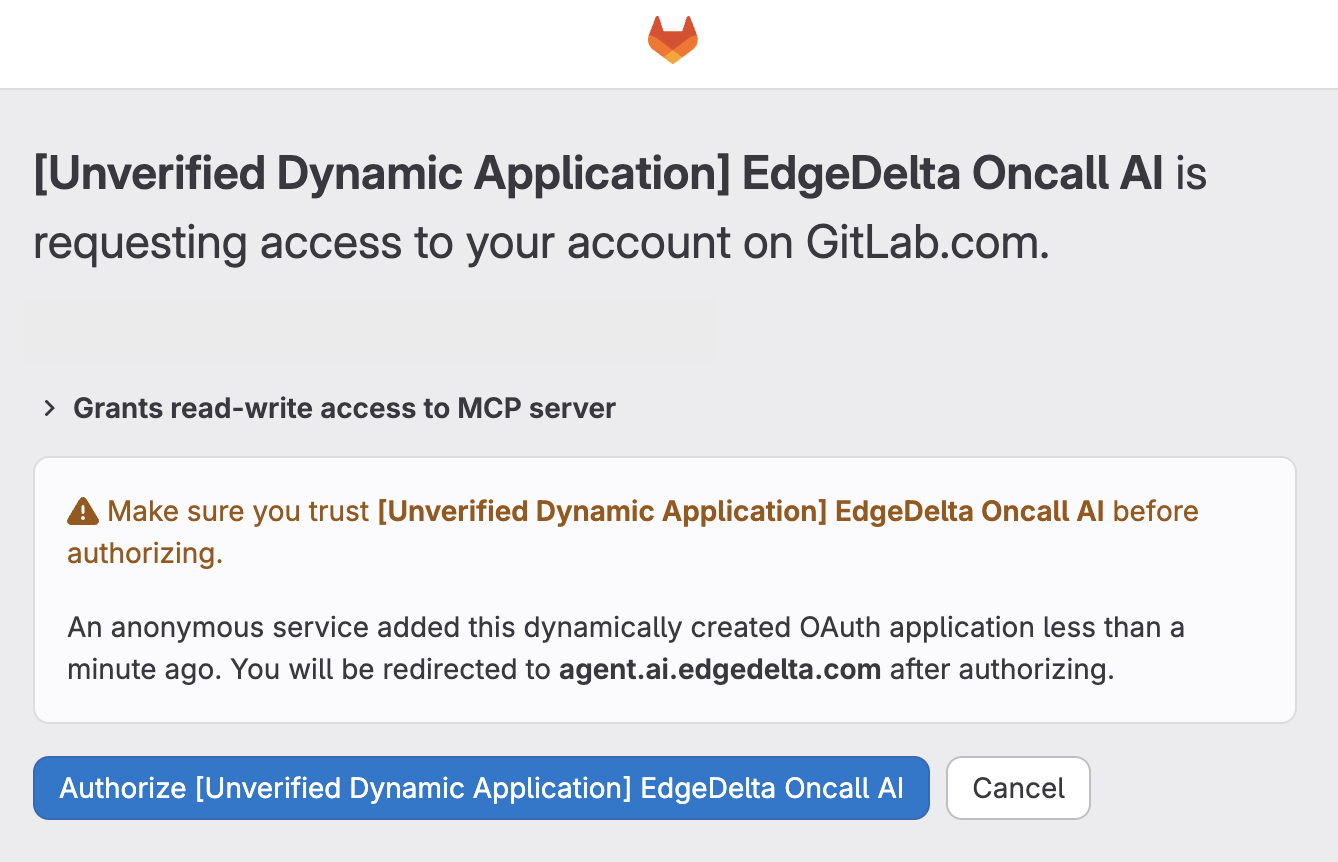
The connector is now available for use by AI Team members who have been assigned this connector.
General Options
GitLab Host
The URL of your GitLab instance. Use https://gitlab.com for GitLab.com or your self-managed GitLab instance URL.
Tools
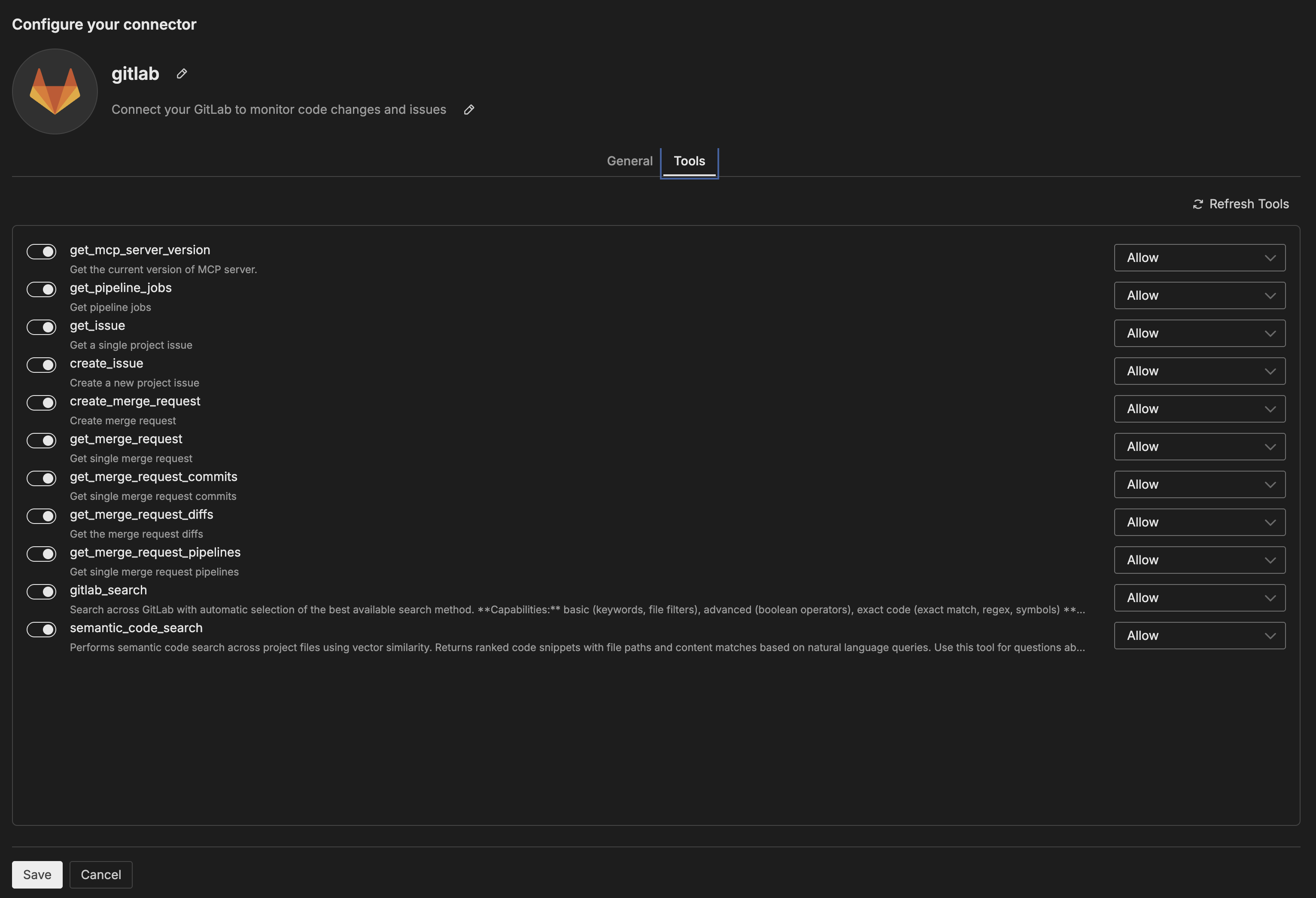
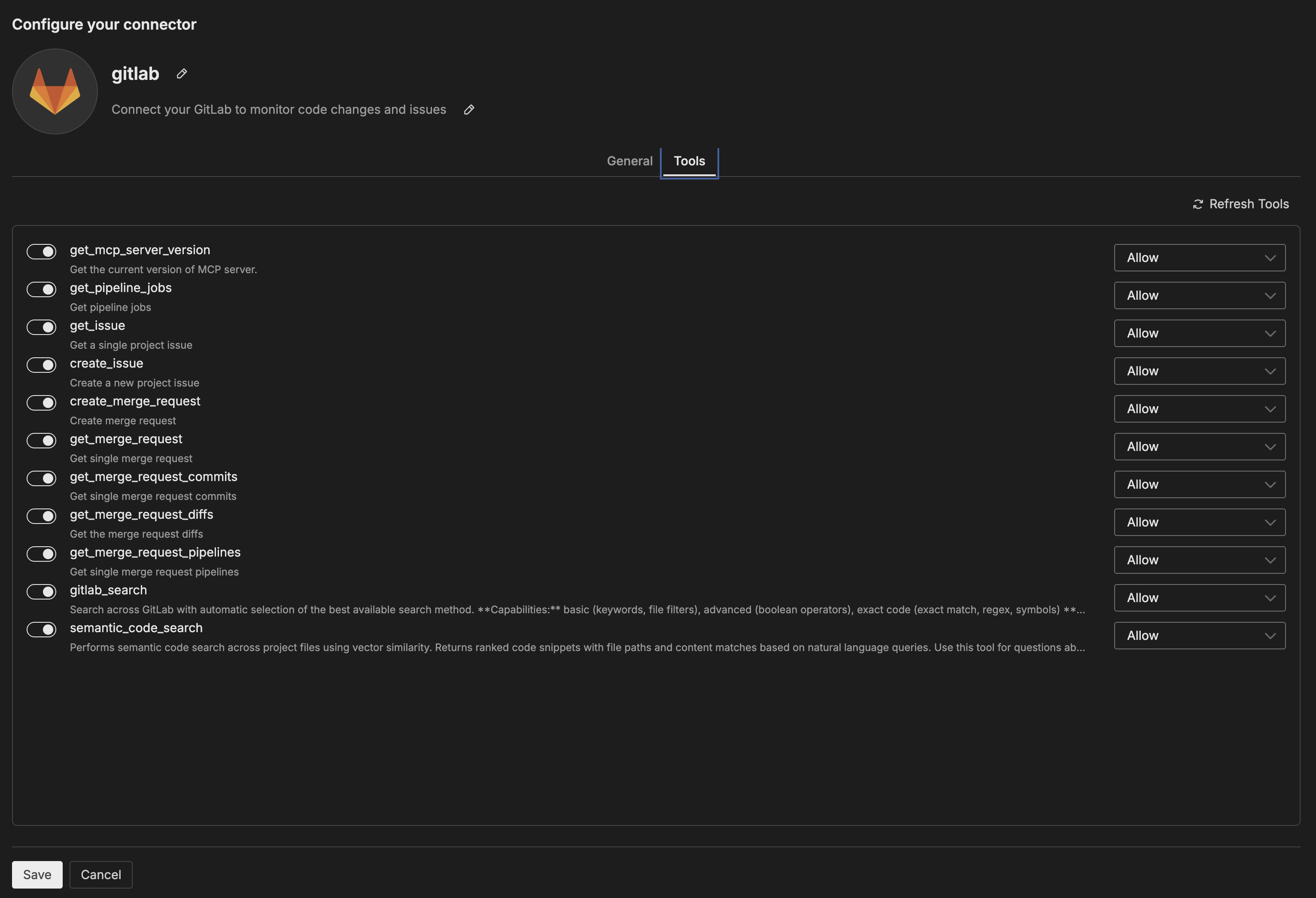
The GitLab connector provides tools for interacting with merge requests, issues, and code search.
Merge Request Operations
create_merge_request- Create a new merge requestget_merge_request- Get merge request detailslist_merge_requests- List merge requests in a project
Issue Management
create_issue- Create a new issueget_issue- Get issue detailslist_issues- List issues in a projectupdate_issue- Update an existing issuesearch_issues- Search for issues across projects
Comments and Notes
create_note- Create a note or comment on an issue or merge request
Code Search
search_code- Search code across repositories
How to Use the GitLab Connector
The GitLab connector integrates with AI Team, enabling AI teammates to manage merge requests, handle issues, and search code based on natural language queries. Once configured, AI teammates can interact with your GitLab projects to help with development workflows.
Use Case: Merge Request Review
When a developer opens a merge request, AI teammates can review the changes and provide feedback. For example, when asked “Show me the open merge requests”, the AI can list active MRs, examine their details, and help prioritize reviews.
Use Case: Issue Management
AI teammates can help create, update, and organize GitLab issues. When investigating incidents or planning work, the AI can create issues with appropriate details, add comments with findings, and search for related issues. This helps keep development work organized and tracked.
Use Case: Code Search
AI teammates can search across your GitLab repositories to find relevant code. When troubleshooting or understanding implementation details, the AI can locate specific functions, configurations, or patterns across your codebase.
Troubleshooting
OAuth authorization fails: Ensure you have GitLab Duo Core and beta/experimental features enabled in your GitLab settings. Without these features, the OAuth flow will fail with a 404 error on the callback.
Permission errors: Verify the authenticated account has access to the projects you want to interact with. For private projects, ensure your account has the necessary role assignments.
Host URL errors: Ensure you enter the correct GitLab host URL. For GitLab.com, use https://gitlab.com. For self-managed instances, use your instance URL without trailing slashes.
Next Steps
- Learn about creating custom teammates that can use this connector
- Explore other connectors to integrate additional tools