Domain Overrides
5 minute read
Overview
Most teams do not want a single autonomy setting for everything they own. Letting an agent tune a noisy monitor without asking is a different decision from letting it roll back a production deploy. Domain overrides let you make those decisions separately.
Rather than configuring autonomy per connector, Edge Delta groups tools into six domains by what they act on. You do not manage CircleCI and Argo CD as separate policies. You decide how much autonomy deployments get, and every deployment tool follows.
The six domains
| Domain | Covers |
|---|---|
| Code & PRs | Source repositories, pull requests, and code review. |
| Deployments & Infrastructure | Deploys, rollbacks, and infrastructure changes. |
| Pipelines & Data | Telemetry pipelines and data routing. |
| Monitors & Incidents | Monitors, alerts, and incident records. |
| Collaboration | Chat, tickets, and documents. |
| Agents & Models | Teammate and model configuration. |
Each tool a connector exposes is classified into one of these domains. Tools that have not been classified yet are listed in the review section of the posture report.
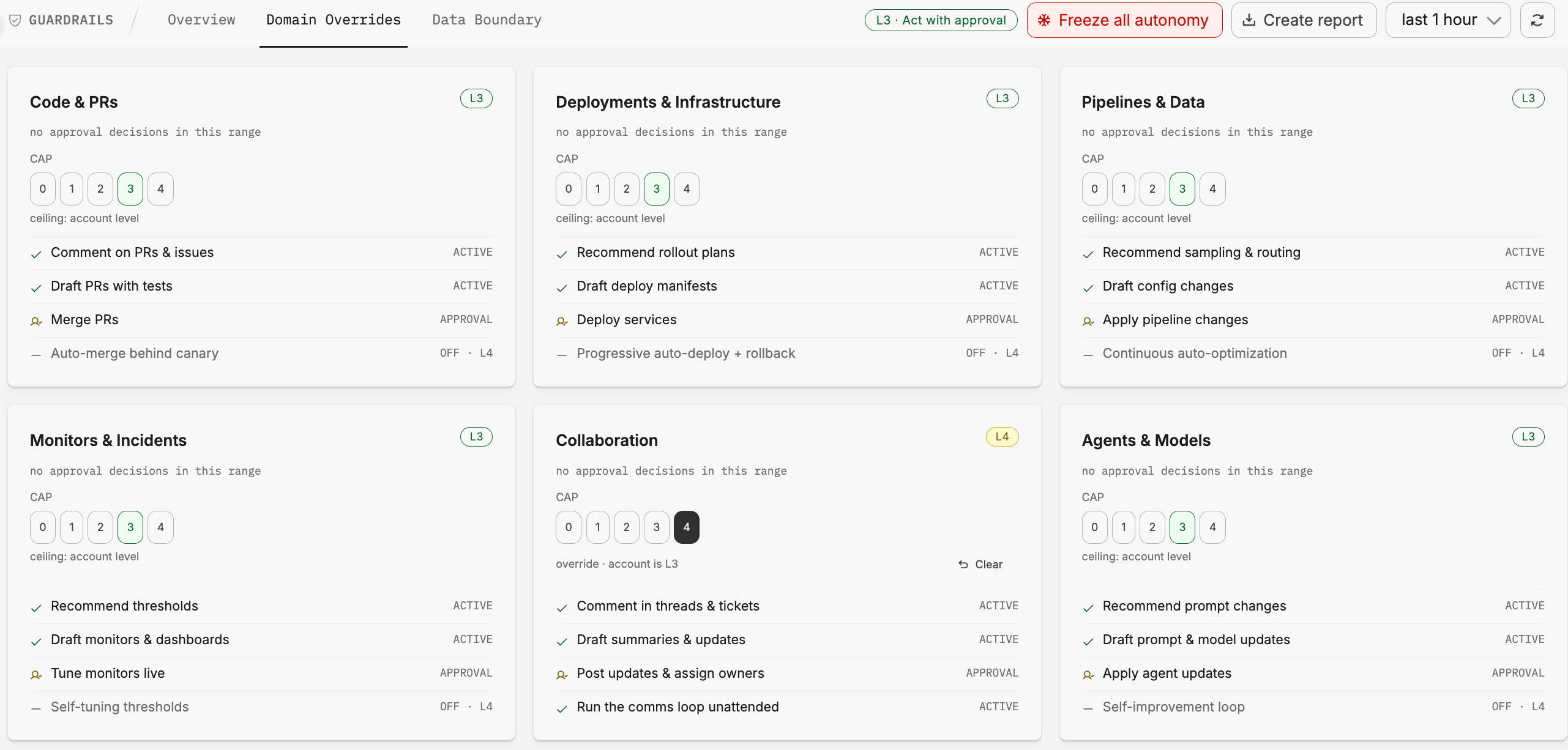
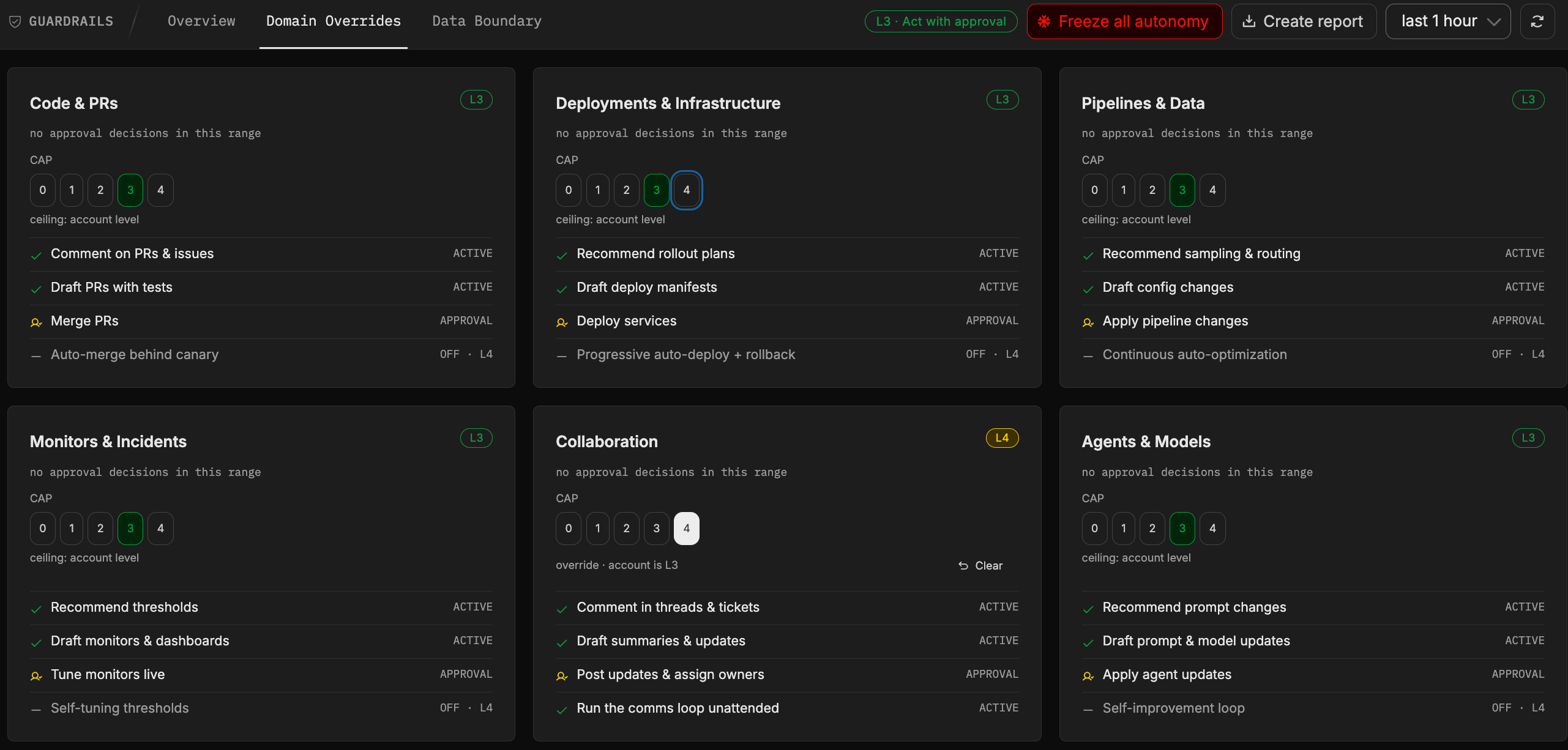
Each domain has a card showing the level selector, 0 through 4, and the capabilities that domain covers with their current state:
| State | Meaning |
|---|---|
| Active | Runs without asking. |
| Approval | Runs only after a human approves it. |
| Off | Not available at the current level. The card shows the level that would unlock it, for example off until L3. |
This makes the effect of a level concrete before you change it. In Deployments & Infrastructure, for example, drafting deploy manifests may be active while deploying services stays off until L3 and progressive auto-deploy with rollback stays off until L4.
How the effective level resolves
Every domain has an effective level, which is what actually governs a tool call. It resolves in this order:
- If autonomy is frozen, the effective level is
L0for every domain. Nothing else is consulted. - If the domain has an override, the override is the effective level.
- Otherwise, the account level applies.
A domain override is not a ceiling. It is a substitution. If your account sits at L1 and you override Monitors & Incidents to L3, that domain runs at L3, which is higher than the rest of your organization. Overrides raise as readily as they lower, so review them whenever you change the account level.
This has a practical consequence worth stating plainly: once you use overrides, no single number describes your organization. “We run at L2” stops being true the moment one domain sits somewhere else. Read the effective level table rather than the account badge.
It also means an override pins a domain in place. Moving the account level leaves every overridden domain exactly where it is, so raising or lowering the account is not a way to move the whole organization at once. The level-change preview makes this explicit, counting how many domains actually move and noting that a domain with a cap of its own keeps it. If you want an overridden domain to follow the account again, clear its override.
Reading the effective level table
The Effective level resolution table on the Domain Overrides page shows the resolution for all six domains at once, and recomputes as you make changes:
| Column | Meaning |
|---|---|
| Domain | The domain being resolved. |
| Account level | Your account-wide default. |
| Domain cap | The override on this domain, if one is set. |
| Effective | The level that actually applies. |
| Decided by | Which rule won: freeze, domain override, or account level. |
The Decided by column is the one to check when a tool behaves differently than you expected. It tells you whether a domain is following your account default or something more specific.
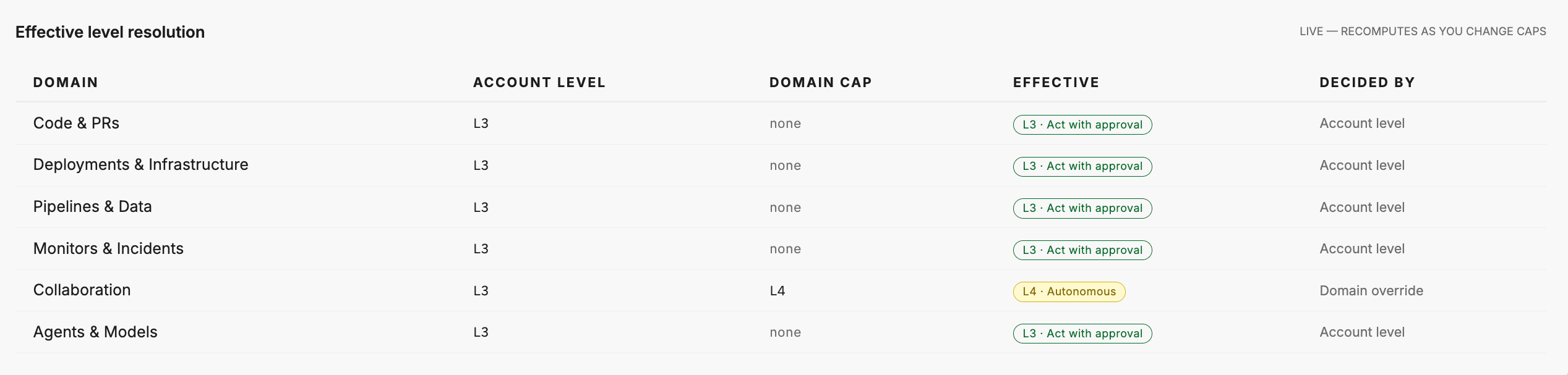
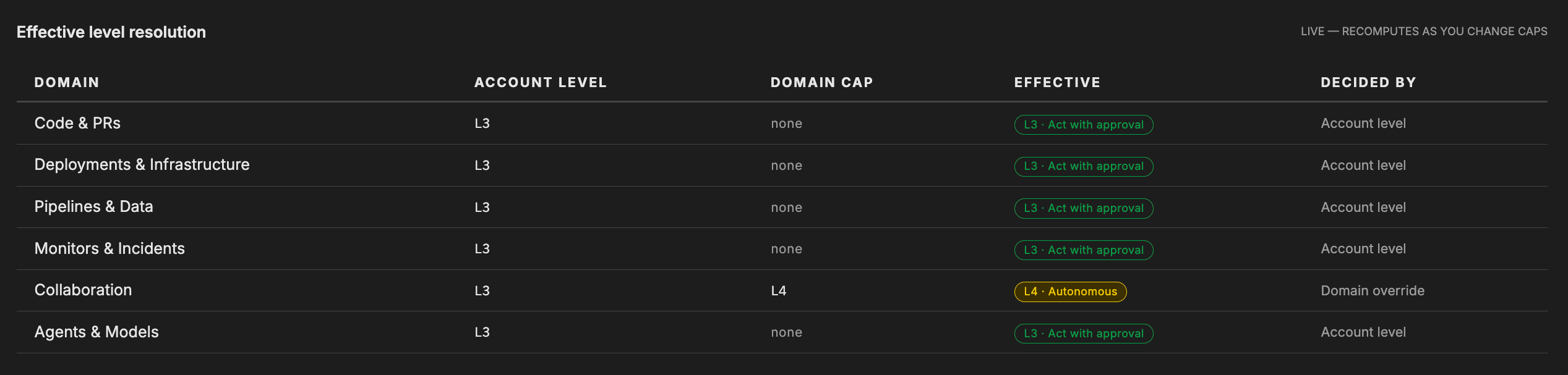
The table above is a worked example of the rule. Five domains have no cap, so they inherit L3 from the account. Collaboration carries an override of L4 and therefore runs a rung above the rest of the organization, which the Decided by column attributes to the override rather than the account.
Setting an override
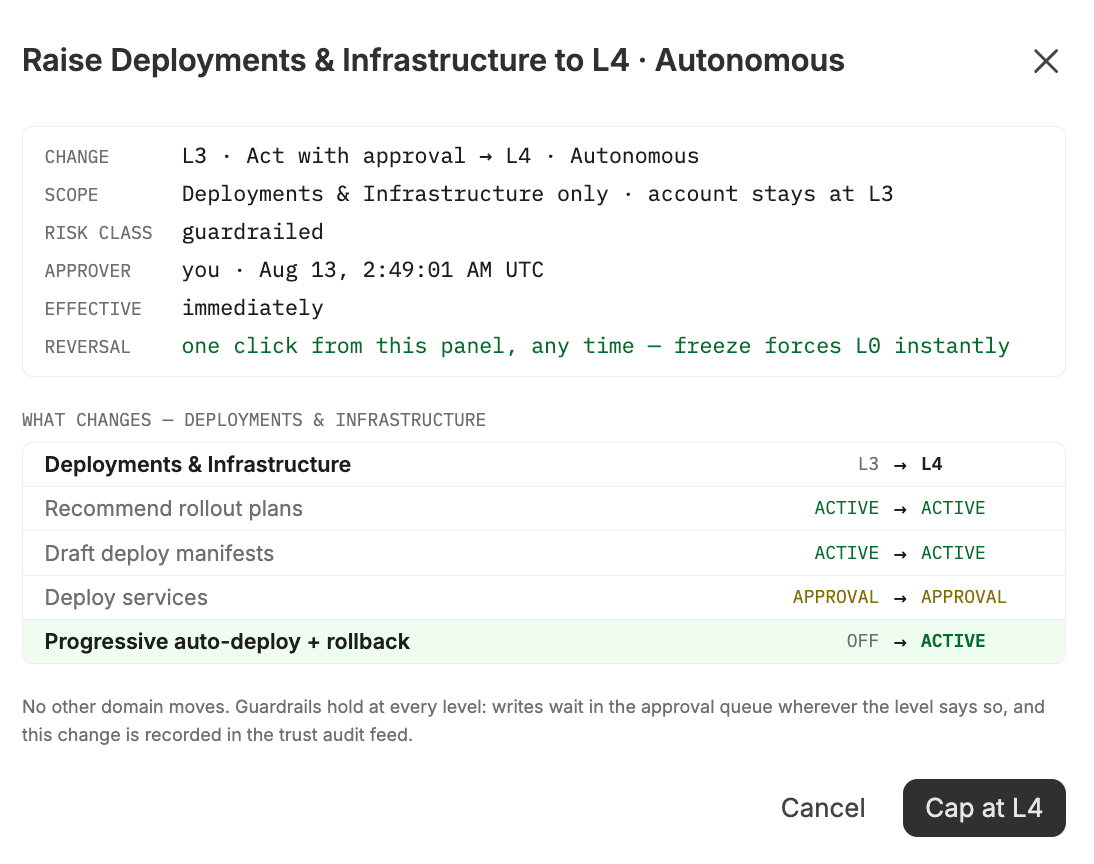
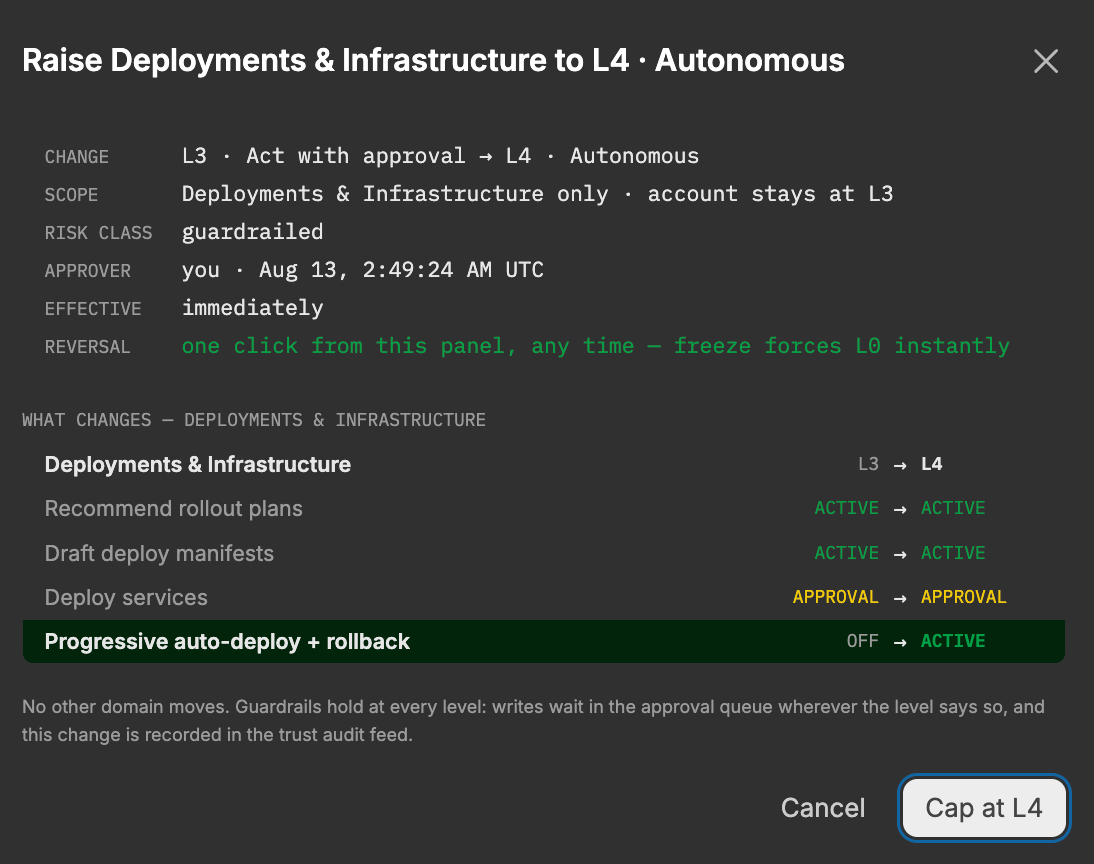
Setting or clearing an override opens the same preview as an account-level change, scoped to the single domain. The preview shows the risk class, the approver and timestamp for the audit record, which capabilities move, when the change takes effect, and how to reverse it. Nothing applies until you confirm.
The scope line is the part worth reading. It names the domain and states that the account level is unchanged, and the diff below lists only that domain’s capabilities, followed by a note that no other domain moves. This is the clearest place to see that an override is scoped rather than global.
Only organization admins can set or clear overrides.
Clear on a domain card removes its override and returns the domain to the account level. It does not set the domain to a specific value, so a later account-level change moves it along with everything else. In the effective level table, a cleared domain shows a domain cap of none and is decided by the account level.
Judging whether a domain is ready to move
Below the effective level table, the page reports how decisions have gone, both across all domains and per domain: how many approval requests reached a decision, how many were accepted unmodified, how many a human rejected, and how many expired before anyone decided.
A domain with too few decisions to draw a conclusion says so rather than showing a misleading percentage. Treat that as “keep collecting evidence,” not as a passing grade.
Expired requests are worth watching on their own. A domain with a high expiry count is not one where people are approving the agent’s work, it is one where nobody is looking.
A common starting arrangement
A pattern that works for teams introducing autonomy gradually:
- Leave the account at the
L2Propose default, so agents draft everywhere but apply nothing. - Raise Monitors & Incidents to
L3, where the cost of a wrong action is low and reversible. - Hold Deployments & Infrastructure at
L0orL1until the acceptance rate on the raised domain gives you confidence.
Watch the acceptance and override rates on the Guardrails overview before moving another domain up.
See also
- Guardrails for the trust ladder and the freeze control.
- Posture report for an exportable record of the resolved levels.