Harness Connector
Configure the Harness connector to enable AI Team members to monitor pipelines, analyze CI/CD workflows, and troubleshoot issues in your pipelines.
6 minute read
Overview
The Harness connector enables AI Team members to monitor and analyze Harness pipelines, workflows, and jobs to support continuous integration and deployment operations. By connecting Harness to AI Team, AI teammates can track pipeline execution, analyze build failures, review test results, and correlate deployments with system behavior.
The connector provides access to build status, execution metrics, test results, and deployment history, making CI/CD data queryable through natural language interactions with AI teammates. This integration helps teams maintain reliable delivery pipelines, quickly identify and resolve build issues, and understand how deployments impact system reliability.
Add the Harness Connector
To add the Harness connector, you obtain a personal access token (PAT) from Harness and configure authentication in Edge Delta. See here for how to obtain it.
Prerequisites
Before configuring the Harness connector, ensure you have:
- Harness account with MCP access (see here for details)
- Personal access token (PAT) from Harness
- Network connectivity from Edge Delta to the Harness API
Configuration Steps
- Navigate to AI Team > Connectors in the Edge Delta application
- Find the Harness connector
- Click the Connect button
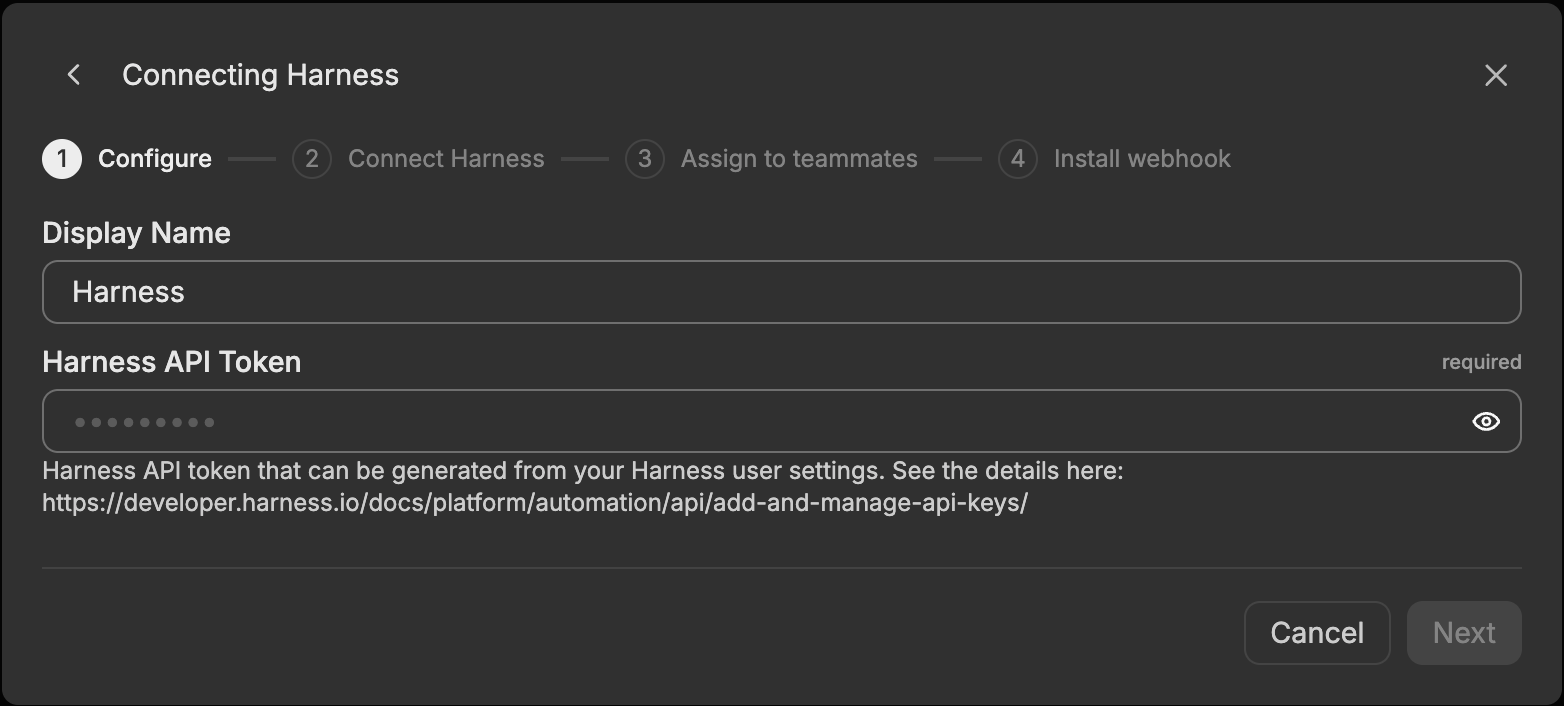
- Configure the options (see below)
- Click Next to initiate the connector onboarding flow
The connector is now available for use by AI Team members who have been assigned this connector.
General Options
Display Name
Name to identify this Harness connector instance. Choose a descriptive name like “Harness Production” to differentiate it from other connectors.
Harness API Token
Personal access token (PAT) for authenticating with Harness. To create a personal access token, log into Harness, navigate to My Profile > API Keys > + New API Key, and create a new API key. Afterwards, create a token below it. The user that creates the token must have read and/or write access to relevant resources that you want to use with this connector. You can also set an expiration date for your token. See Add and Manage API Keys for detailed instructions.
Tools
harness_list
Lists Harness resources with filtering and pagination. Accepts a Harness URL to auto-extract scope context.
harness_get
Gets a Harness resource by ID. Accepts a Harness URL to auto-extract identifiers. Useful for failure analysis and inspecting resource details.
harness_create
Creates a Harness resource. For pipelines and input sets, pass the body as a YAML string directly.
harness_update
Updates an existing Harness resource. For pipelines and input sets, pass the body as a YAML string directly.
harness_delete
Deletes a Harness resource. Accepts a Harness URL to auto-extract identifiers. This is a destructive operation.
harness_execute
Executes an action on a Harness resource: run, retry, or interrupt pipelines, or kill and restore feature flags.
harness_diagnose
Diagnoses a Harness resource by analyzing failures, testing connectivity, checking health, or troubleshooting issues.
harness_search
Searches across multiple Harness resource types. Returns results ranked by relevance. Accepts a Harness URL for scoped searches.
harness_describe
Describes available Harness resource types, their supported operations, and fields. Does not make an API call.
harness_status
Gets a live project health overview including recent failed executions, currently running executions, and recent activity.
harness_schema
Fetches Harness YAML schema or examples for a resource type. Pipeline and template schemas are bundled for fast access.
Resources
execution-summary
Recent pipeline execution summaries (last 10).
Schema Resources
The following resources provide Harness JSON Schema definitions (bundled). Valid schema names: pipeline, template, trigger, pipeline_v1, template_v1, trigger_v1, inputSet_v1, overlayInputSet_v1, service_v1, infra_v1.
- pipeline schema
- template schema
- trigger schema
- pipeline_v1 schema
- template_v1 schema
- trigger_v1 schema
- inputSet_v1 schema
- overlayInputSet_v1 schema
- service_v1 schema
- infra_v1 schema
- agent-pipeline schema
How to Use the Harness Connector
The Harness connector integrates with AI Team, enabling AI teammates to monitor and analyze CI/CD pipelines based on natural language queries. Once configured, AI teammates can investigate build failures, track test results, and correlate deployments with system behavior.
Use Case: Build Failure Investigation
When builds fail, AI teammates retrieve failure logs, identify the failing job or test, and analyze error patterns. For dependency installation failures, teammates correlate Harness build logs with outbound network error logs and historical performance data to determine whether failures stem from transient external issues (such as package registry outages), environmental problems, or configuration regressions. Based on this analysis, teammates recommend either re-running the build (for transient issues) or implementing durable remediation (for persistent problems).
Use Case: Test Reliability Analysis
AI teammates aggregate test results across pipelines over time to identify tests that fail sporadically but consistently pass on reruns. When you notice intermittent test failures, AI teammates analyze historical test data to quantify flakiness and recommend prioritized actions: temporarily quarantining flaky tests to unblock pipelines, moving problematic tests to scheduled jobs for isolation, or flagging tests that require immediate attention based on their impact on CI/CD velocity.
Use Case: Pre-Merge CI Triage
When pull requests trigger CI pipelines, Code Analyzer pulls structured job metadata and test results from Harness (including JSON summaries and JUnit artifacts) and enriches them with GitHub context such as pull request diffs, recent commits, and code ownership. By querying historical CI telemetry, the teammate determines whether failures represent new regressions introduced by the current changes or recurring flakiness unrelated to the PR. Recommendations appear directly within the pull request, with supporting evidence including historical failure rates and affected code paths.
Use Case: Canary Analysis
AI teammates continuously compare canary deployments against known baselines by examining error rates, p95 latency, and service logs. When you deploy a canary, teammates analyze whether the changes meet your rollout criteria and recommend either promoting to the next deployment stage or rolling back. This analysis runs automatically as canary metrics accumulate, providing early warning if a deployment degrades service quality.
Use Case: Deployment Correlation and Rollback Orchestration
AI teammates correlate Harness deployment events with Edge Delta telemetry data to identify whether a deployment introduced production issues. When error rates spike after a deployment, teammates analyze the timeline and code changes to determine causation. For confirmed deployment-related incidents, teammates reconstruct failure sequences by correlating deployment timelines with live service metrics. They then generate rollback proposals that include the specific pipeline to trigger and the expected impact. Rollback actions require explicit stakeholder approval before execution, ensuring human oversight for production changes.
Troubleshooting
Connection errors: Verify your API token is valid and has not expired. Check that firewall rules allow outbound HTTPS traffic to the Harness API.
No pipelines found: Verify your API token has access to the expected projects. Check that projects have recent pipeline activity.
Webhook issues: If configured, verify webhook URLs and secrets match between Harness and the connector configuration.
Next Steps
- Learn about creating custom teammates that can use this connector
- Explore other connectors to integrate additional tools
For additional help, visit AI Team Support.