Issue Details and Actions
4 minute read
Overview
The issue details page gives you the full context of a single issue: what the problem is, where it is happening, how it has evolved, and what the AI Team recommends doing about it. To open it, click an issue card in the Active Issues panel of the AI Overview dashboard.


Issue information
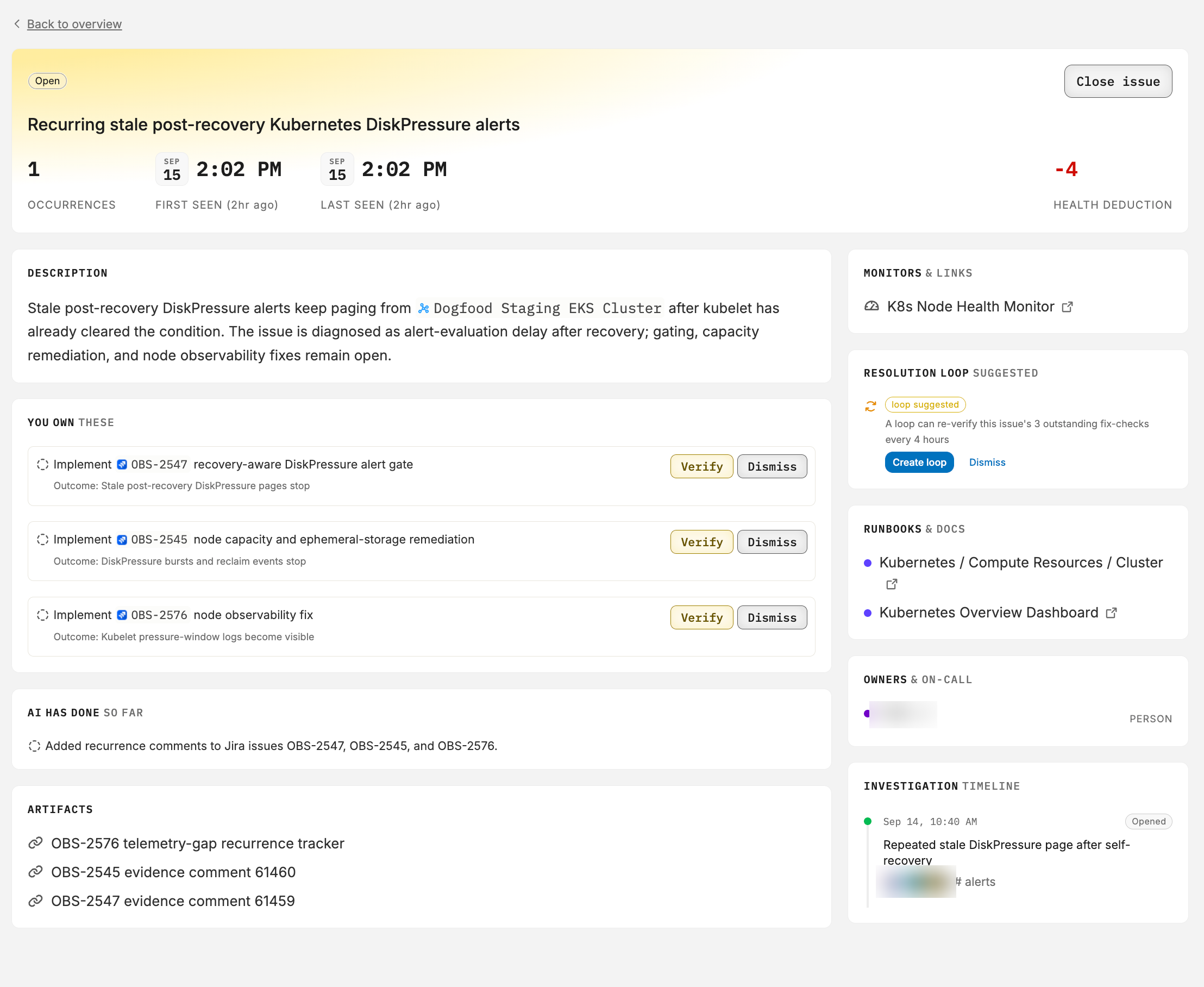
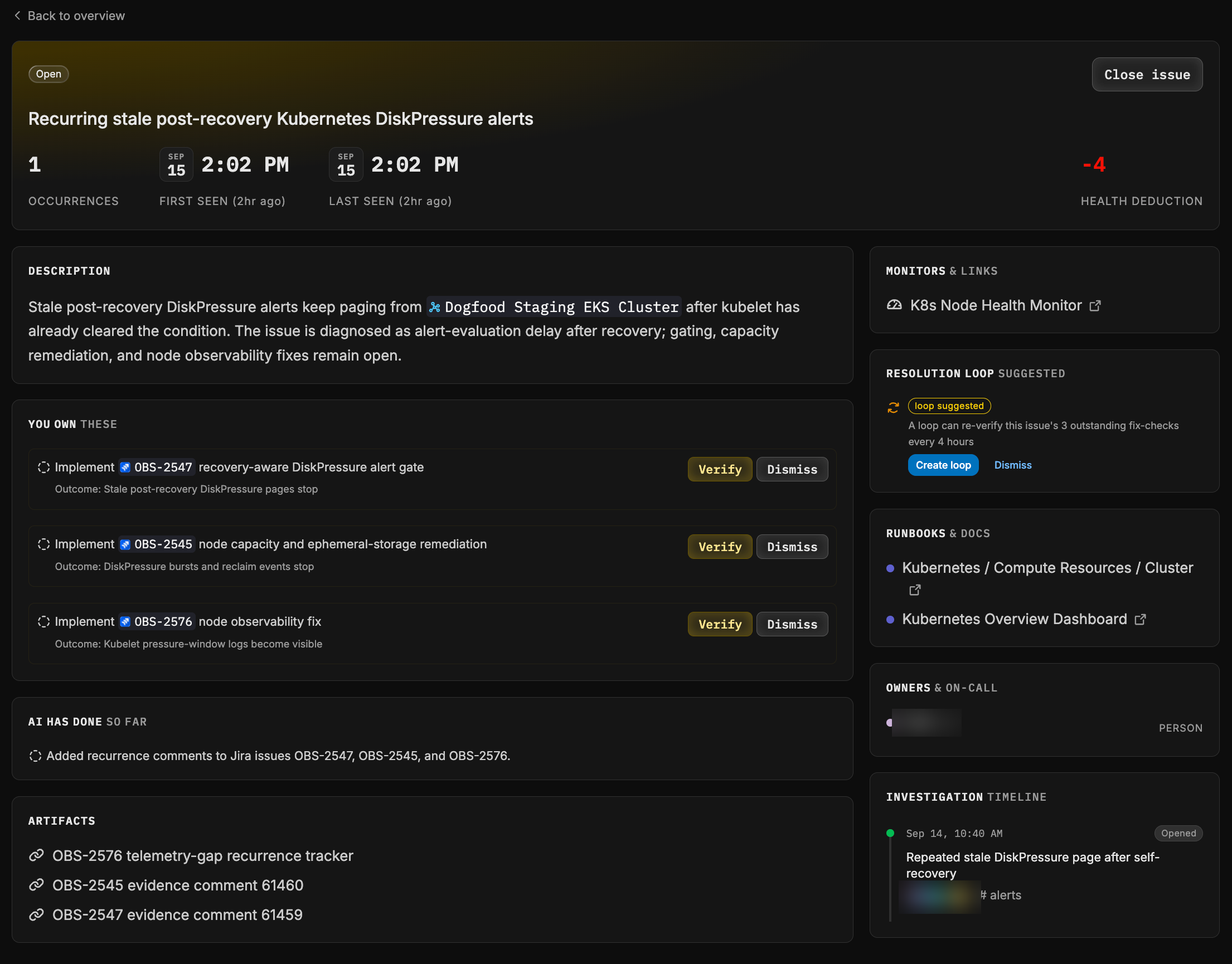
The top of the page summarizes the issue:
- State: An Open or Resolved badge above the AI-written issue title.
- Occurrences: How many times the problem has recurred, with first seen and last seen timestamps.
- Affected components: How many services, clusters, or other components the problem has been observed on.
- Health deduction: How many points this issue removes from the environment health score while it is open.
The page also links the evidence and outputs gathered during investigations:
- Artifacts: Related items the AI Team referenced or created, such as pull requests, dashboards, or tickets in connected systems like PagerDuty and Jira.
- Threads: The investigation threads that contributed to this issue. Open a thread to read the full investigation.
Investigation timeline
The investigation timeline lists every investigation that has contributed to the issue, in chronological order. Each entry shows when the investigation ran, what it found, the teammates involved, and the channel where it took place, with badges marking when the issue was opened and its most recent occurrence. Use the timeline to understand whether a problem is getting worse, flapping, or settling down.
Related issues
If the same failure was tracked and closed before, the Related Issues section shows the chain of previous issues. This history helps you recognize problems that keep coming back and judge whether earlier fixes actually held. See Issues for how recurrence and reopening work.
Recommended actions
For each issue, the AI Team recommends up to three resolve actions that address the problem and up to three diagnose actions that gather more information. Diagnose actions appear while the root cause is still being narrowed down; resolve actions appear once the root cause is sufficiently understood.
Each action runs in one of two modes:
- Agent executable: The AI Team can carry out the action itself using a connected integration, once you approve it.
- Manual: The action requires a human to carry it out, for example when it involves a system the AI Team cannot act on.
Every recommendation includes a verification condition that defines when the action counts as complete, such as confirming that a pull request is merged or that a configuration change is applied.

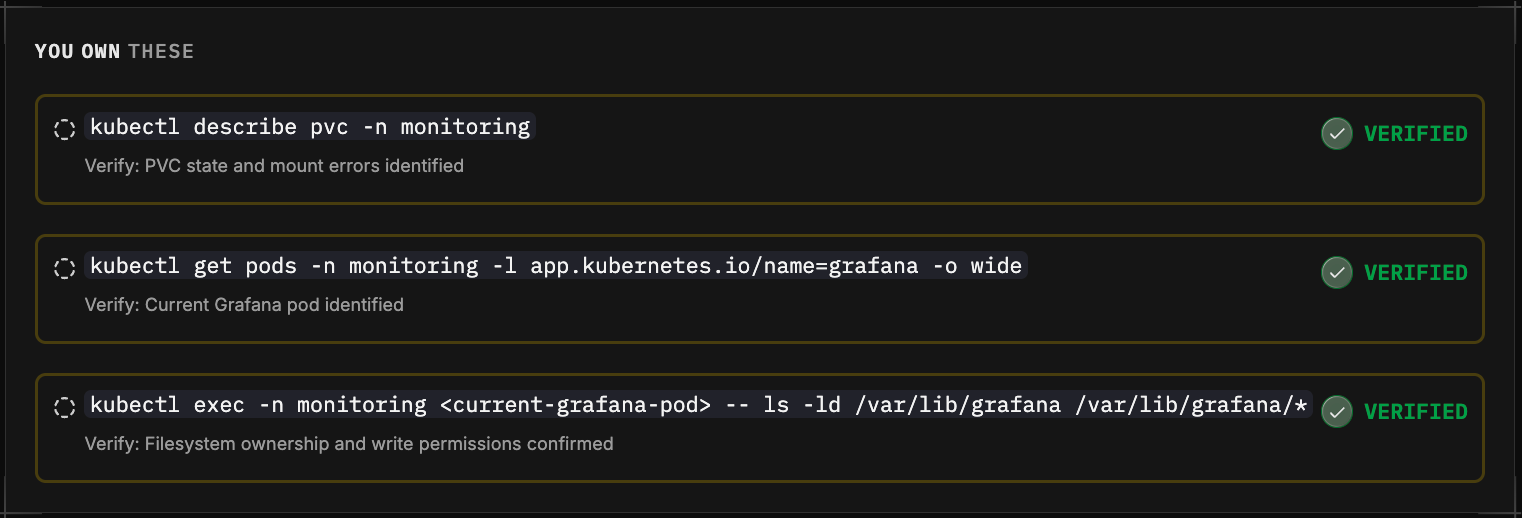
Act on a recommendation
You stay in control of every change: the AI Team never executes a recommended action without approval.
For actions in the AI actions - needs approval column, click Approve to let the AI Team carry out the work. It starts a new thread to execute the action, and you can follow its progress there. Click Deny if you do not want the AI Team to run it.
For actions in the You own these column, carry out the step yourself, then click Verify so the AI Team can confirm the verification condition is met. Confirmed actions show a Verified chip. Click Dismiss to remove a recommendation you do not plan to act on.
Each action displays a status chip as it moves through its lifecycle, so you can see at a glance what is approved, in progress, completed, failed, or verified.
Resolution loop
The Resolution loop panel shows whether a loop is watching this issue. Each issue has at most one resolution loop for its whole life.
- When no loop exists, the panel suggests one and explains what it would do, for example re-checking the issue as soon as it recurs or re-verifying its outstanding fix checks on a cadence set by severity. Click Create loop to create it, or Dismiss.
- When a loop exists, the panel shows Monitored by with a link to the loop.
A resolution loop uses the issue’s open recommended actions as its success criteria, re-read before every run. Approving an action on the issue starts a re-verification run, and closing the issue completes the loop. If the issue recurs, the same loop resumes. See Start a loop from an issue.
Next steps
- AI Overview Dashboard for the environment-wide view of health and active issues.
- Issues for severity, lifecycle, and how issues are created.
- Workflows to route issue activity to Slack, PagerDuty, Jira, and other tools.
- Loops for how a resolution loop keeps verifying an issue until it stays fixed.