Turn a Log Search Query into a Pipeline Filter
4 minute read
Overview
When you identify noisy or unwanted logs in the Logs page, you can reduce data volume by adding a Filter Processor to your pipeline. The Filter Processor drops (or keeps) logs before they reach your destinations, which lowers ingestion costs and improves signal quality.
The Logs page uses Common Query Language (CQL) while the Filter Processor uses OpenTelemetry Transformation Language (OTTL) conditions. This guide shows how to translate a CQL search string into an equivalent OTTL condition.
CQL to OTTL reference
The following table maps common CQL patterns to their OTTL equivalents:
| What you search for | CQL example | OTTL condition |
|---|---|---|
| Full-text body match | error | IsMatch(body, "(?i)error") |
| Exact phrase in body | "connection refused" | IsMatch(body, "connection refused") |
| Key-value (field) match | level:error | attributes["level"] == "error" |
| Attribute match | @region:"us-west-2" | attributes["region"] == "us-west-2" |
| Numeric comparison | @latency > 300 | attributes["latency"] > 300 |
| AND | error env:prod | IsMatch(body, "(?i)error") and attributes["env"] == "prod" |
| OR | level:(error OR warn) | attributes["level"] == "error" or attributes["level"] == "warn" |
| NOT / exclusion | -debug | not IsMatch(body, "(?i)debug") |
| Wildcard suffix | ed.tag:"def*" | IsMatch(attributes["ed.tag"], "^def") |
| Wildcard contains | ed.tag:"*def*" | IsMatch(attributes["ed.tag"], "def") |
Note: CQL full-text search is case-insensitive by default. Use the
(?i)regex flag in OTTL to match this behavior. CQL key-value searches are exact matches, so no flag is needed.
Walkthrough
This example starts with a CQL query that isolates noisy health-check logs, then creates a Filter Processor to drop them.
1. Build and refine a CQL query
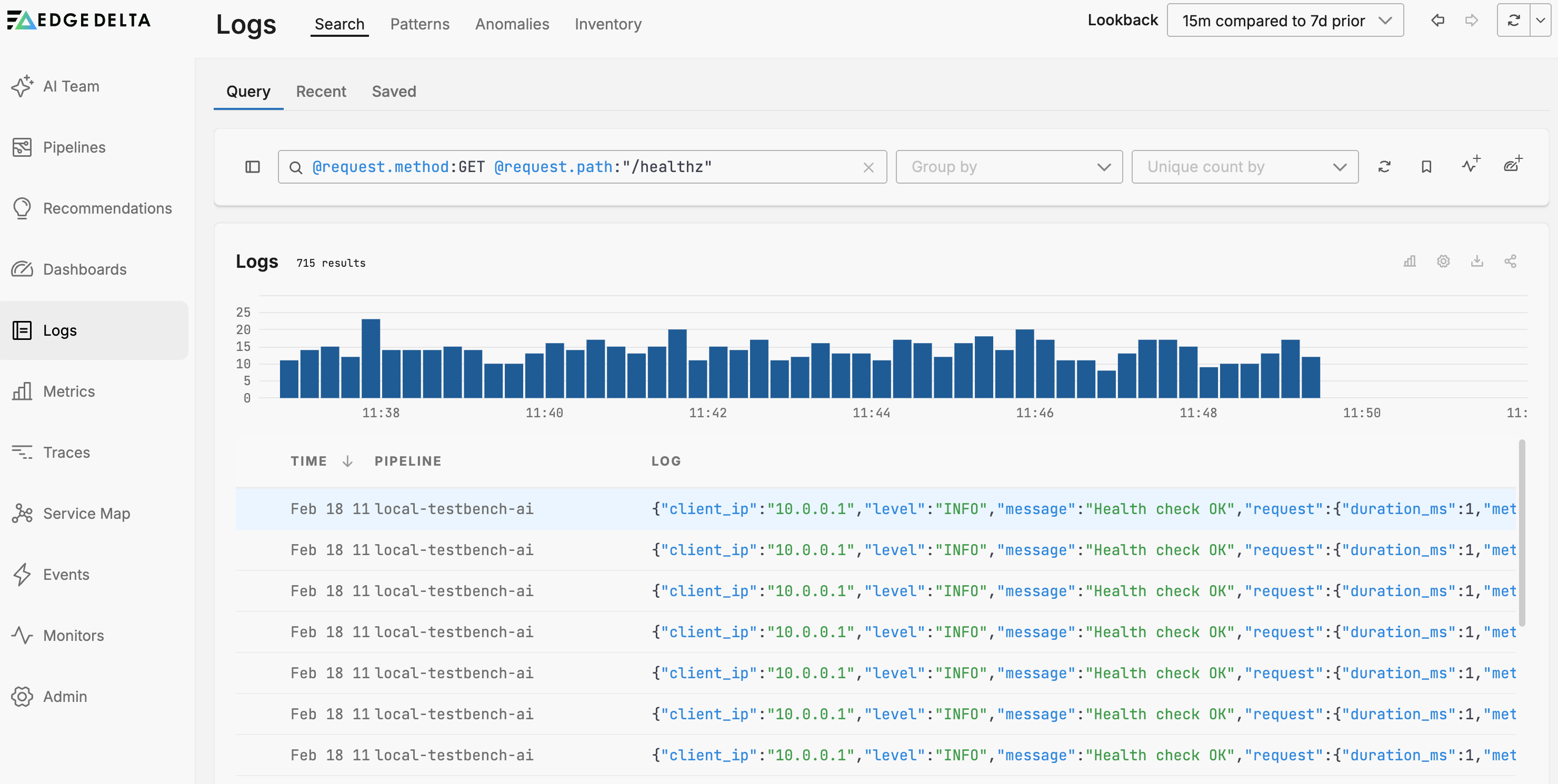
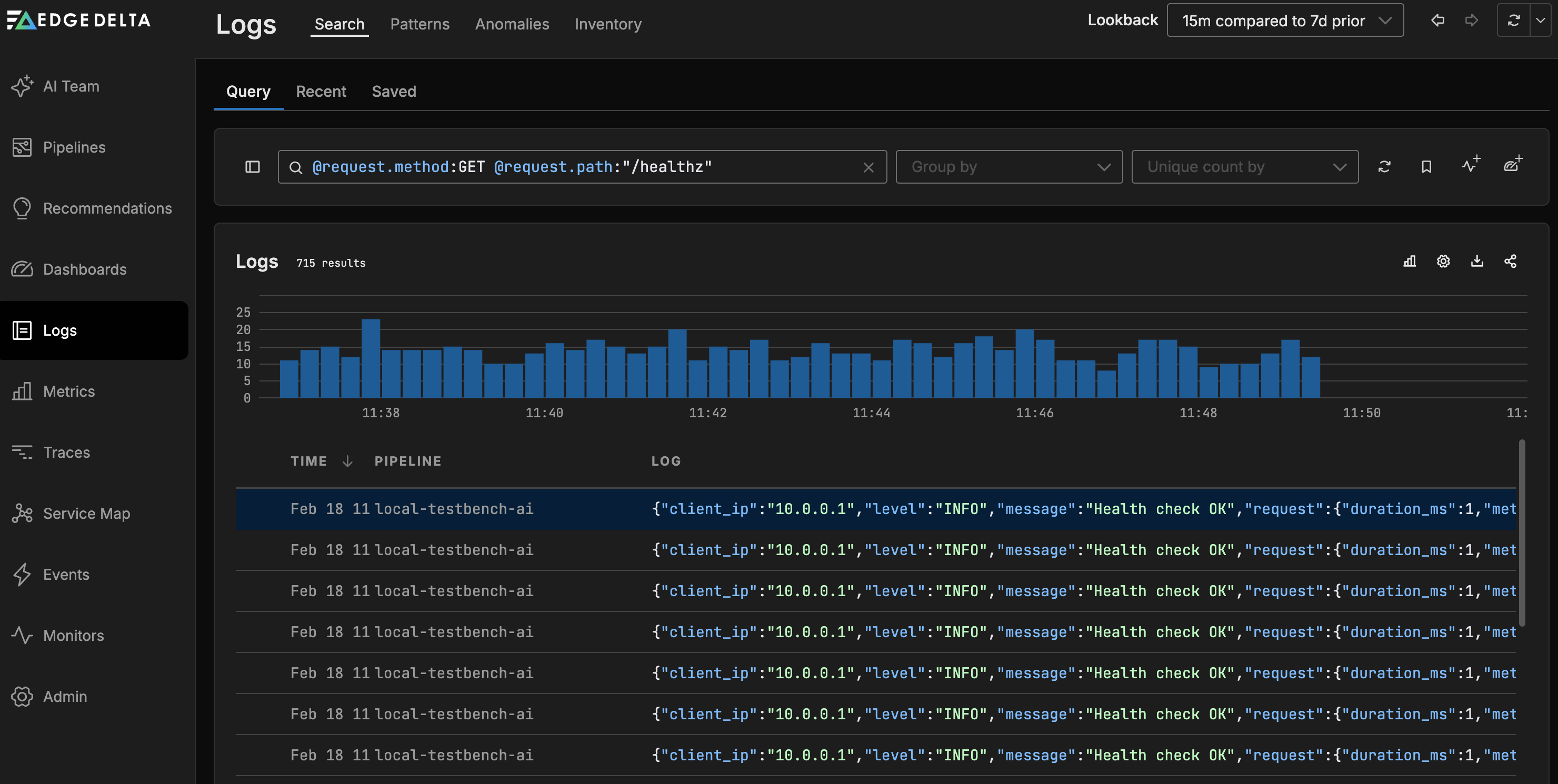
In the Logs page, enter a query to find the logs you want to filter. For example, to find health-check GET requests:
@request.method:GET @request.path:"/healthz"
Refine the query until the search results show only the logs you want to act on.
2. Translate the CQL query to an OTTL condition
Break each part of the CQL query into its OTTL equivalent:
| CQL term | OTTL equivalent |
|---|---|
@request.method:GET | attributes["request"]["method"] == "GET" |
@request.path:"/healthz" | attributes["request"]["path"] == "/healthz" |
| Implicit AND between terms | and |
The combined OTTL condition is:
condition: attributes["request"]["method"] == "GET" and attributes["request"]["path"] == "/healthz"
3. Add a Filter Processor to your pipeline
- Open the pipeline in the Pipeline Editor.
- Double-click the processor attached to the source node.
- Click Add a processor and select Filter.
- Set the action to Exclude to drop matching logs, or Include to keep only matching logs.
- Add conditions that match your OTTL translation. Select Path and choose the attribute, then select the operator and enter the value.
- Click Save.
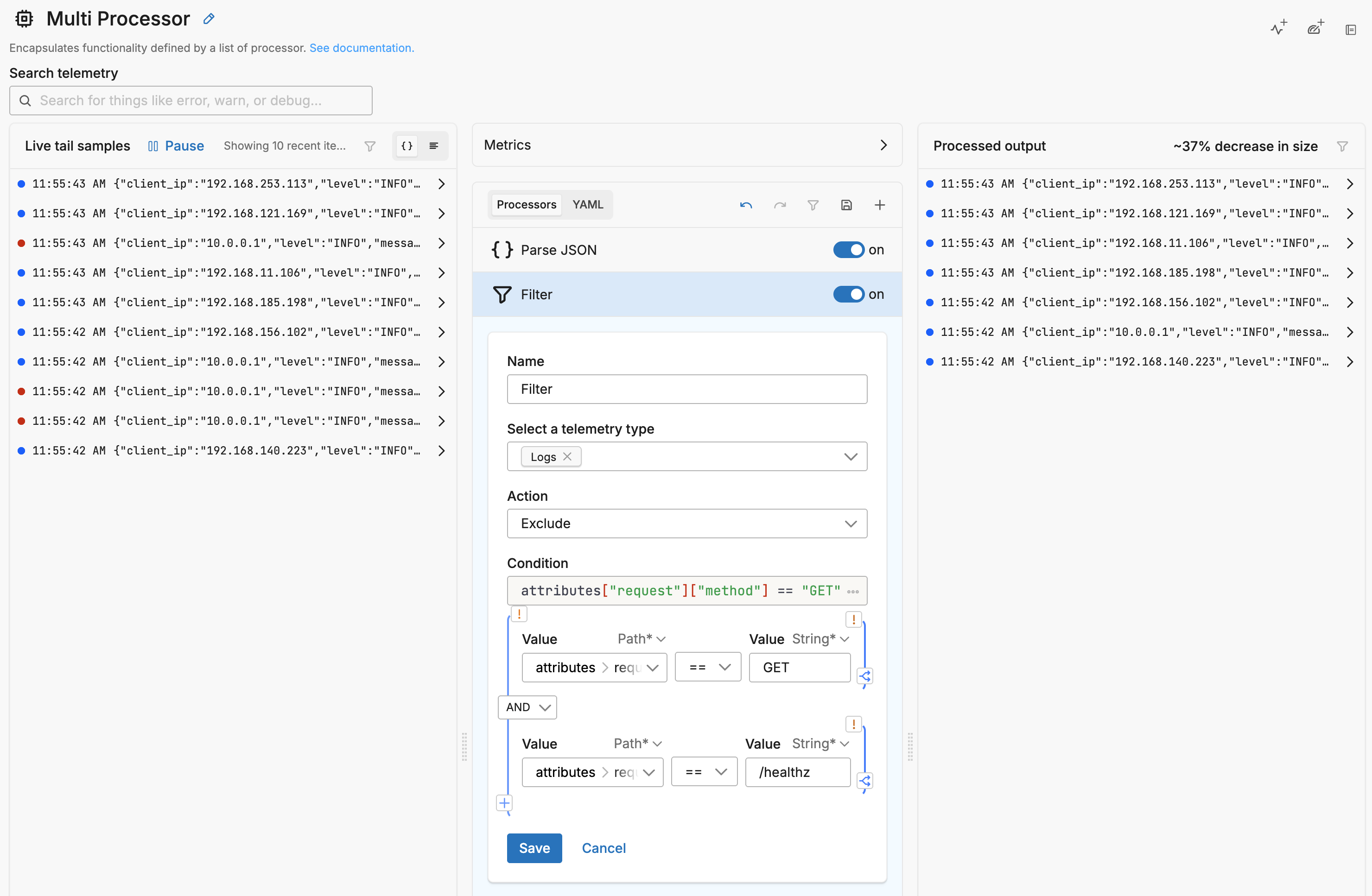
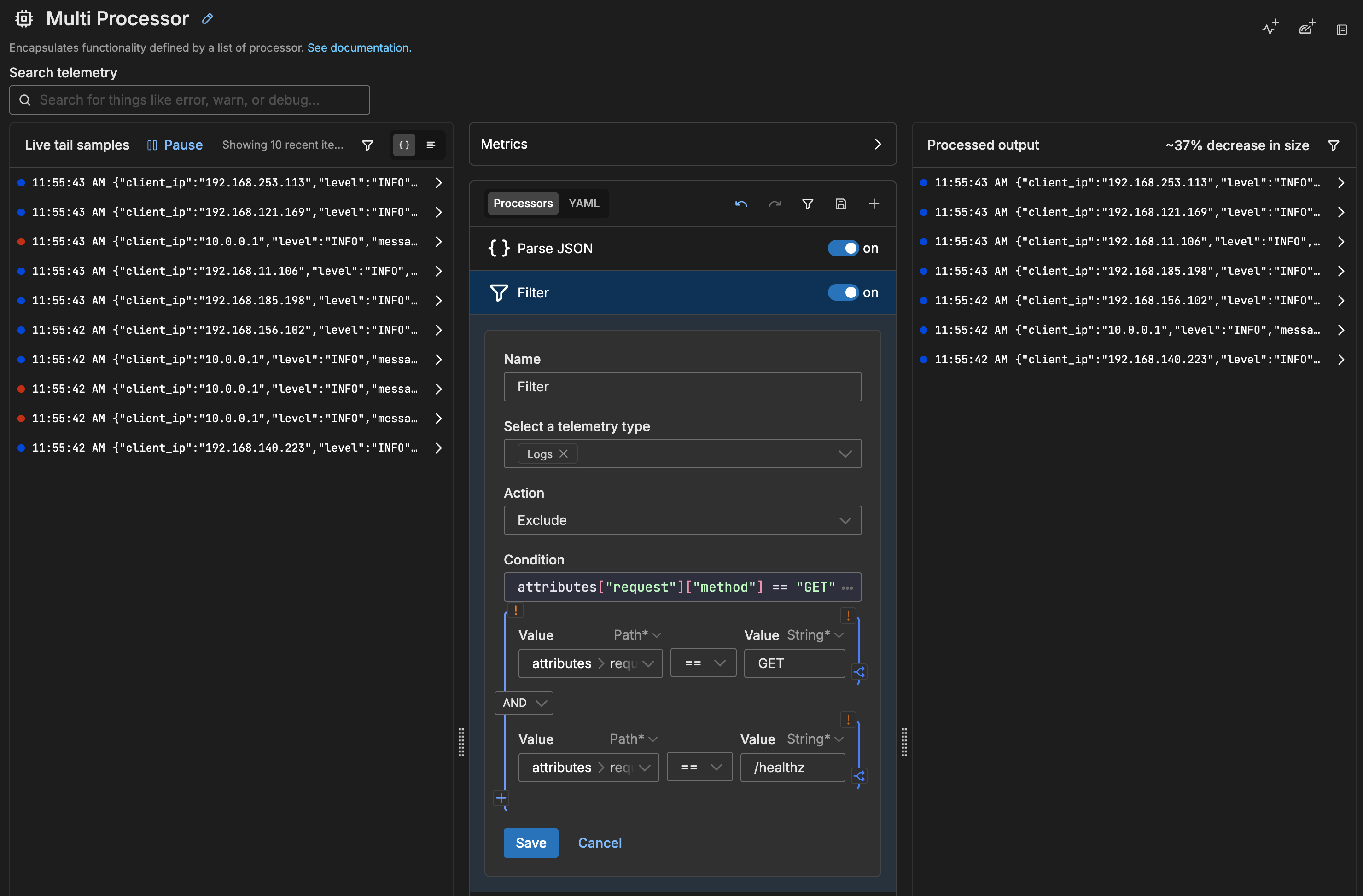
See Pipeline Quickstart: Filter Data Items for a step-by-step walkthrough of the Filter Processor interface.
4. Verify the filter
After saving, the processor preview pane shows the effect of the filter. Matching logs appear highlighted and the predicted volume change is displayed. Deploy the pipeline to apply the filter.
Body vs. attribute matching
CQL and OTTL handle body and attribute searches differently. Choose the right approach based on what your CQL query targets:
Full-text search (body): CQL full-text search like error or "connection refused" searches the log body. In OTTL, use IsMatch(body, "pattern") or body == "exact value".
# CQL: error
condition: IsMatch(body, "(?i)error")

# CQL: "connection refused"
condition: IsMatch(body, "connection refused")
Key-value and attribute search: CQL key-value pairs like level:error or @region:"us-west-2" target specific fields. In OTTL, use attributes["key"] == "value".
# CQL: level:error
condition: attributes["level"] == "error"

# CQL: @region:"us-west-2"
condition: attributes["region"] == "us-west-2"
Nested attributes: CQL uses dot notation (@request.method:GET). In OTTL, use bracket notation for each level of nesting.
# CQL: @request.method:GET
condition: attributes["request"]["method"] == "GET"
Include vs. Exclude
The Filter Processor has two actions:
- Exclude drops matching logs. Use this when your CQL query identifies noise you want to remove. This is the most common use case.
- Include keeps only matching logs and drops everything else. Use this when your CQL query identifies the specific logs you want to retain.
For example, if your CQL query level:(debug OR info OR trace) identifies low-severity logs to remove, set the action to Exclude. If your CQL query level:(error OR fatal) identifies critical logs you want to keep, set the action to Include.