Regex Match Mode
3 minute read
When to Use Regex Match
Use regex match mode when you need flexible pattern matching that other modes can’t provide. The lookup table contains regular expression patterns, and the processor tests each pattern against your data. This works well for:
- Log level detection (
.*ERROR.*,.*WARN.*) - Structured patterns (
\d{4}-\d{2}-\d{2}for dates) - Complex string patterns with optional parts
- Multiple variations of the same concept
Regex matching is more computationally expensive than other modes. Use simpler modes (exact, prefix, suffix, contain) when possible.
Example: Classifying Logs by Level
Logs from different applications may format levels differently. Regex patterns can match variations like ERROR, [ERROR], level=error, etc.
Lookup Table
Upload this CSV to the Knowledge Library as log_patterns.csv:
pattern,severity,category,alert_priority
.*\bERROR\b.*,critical,error,P1
.*\bWARN(ING)?\b.*,warning,warning,P2
.*\bINFO\b.*,info,informational,P4
.*\bDEBUG\b.*,debug,debug,P5
.*Exception.*,critical,exception,P1
.*timeout.*,high,timeout,P2
The following screenshot shows the lookup table in the Knowledge Library.
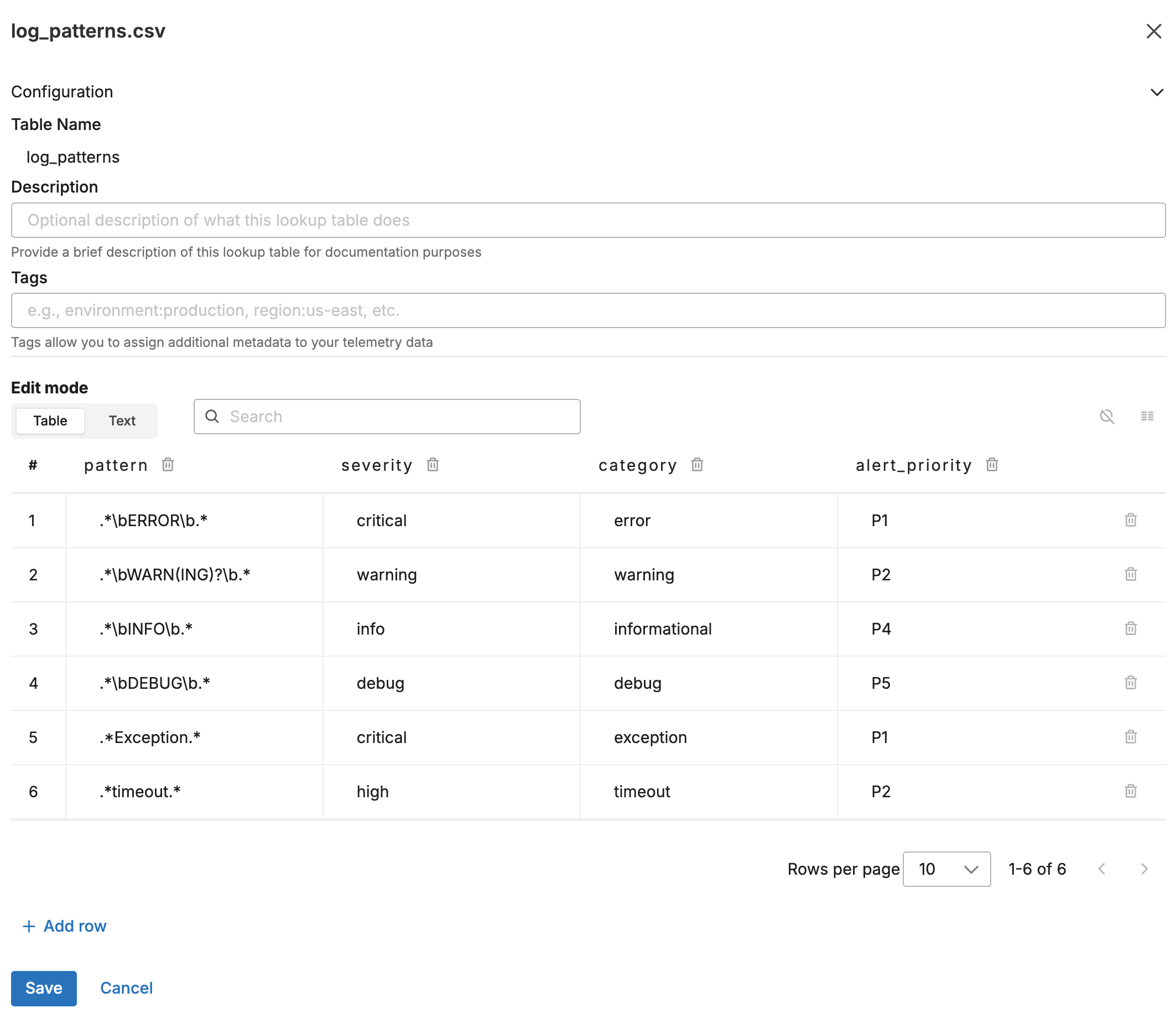
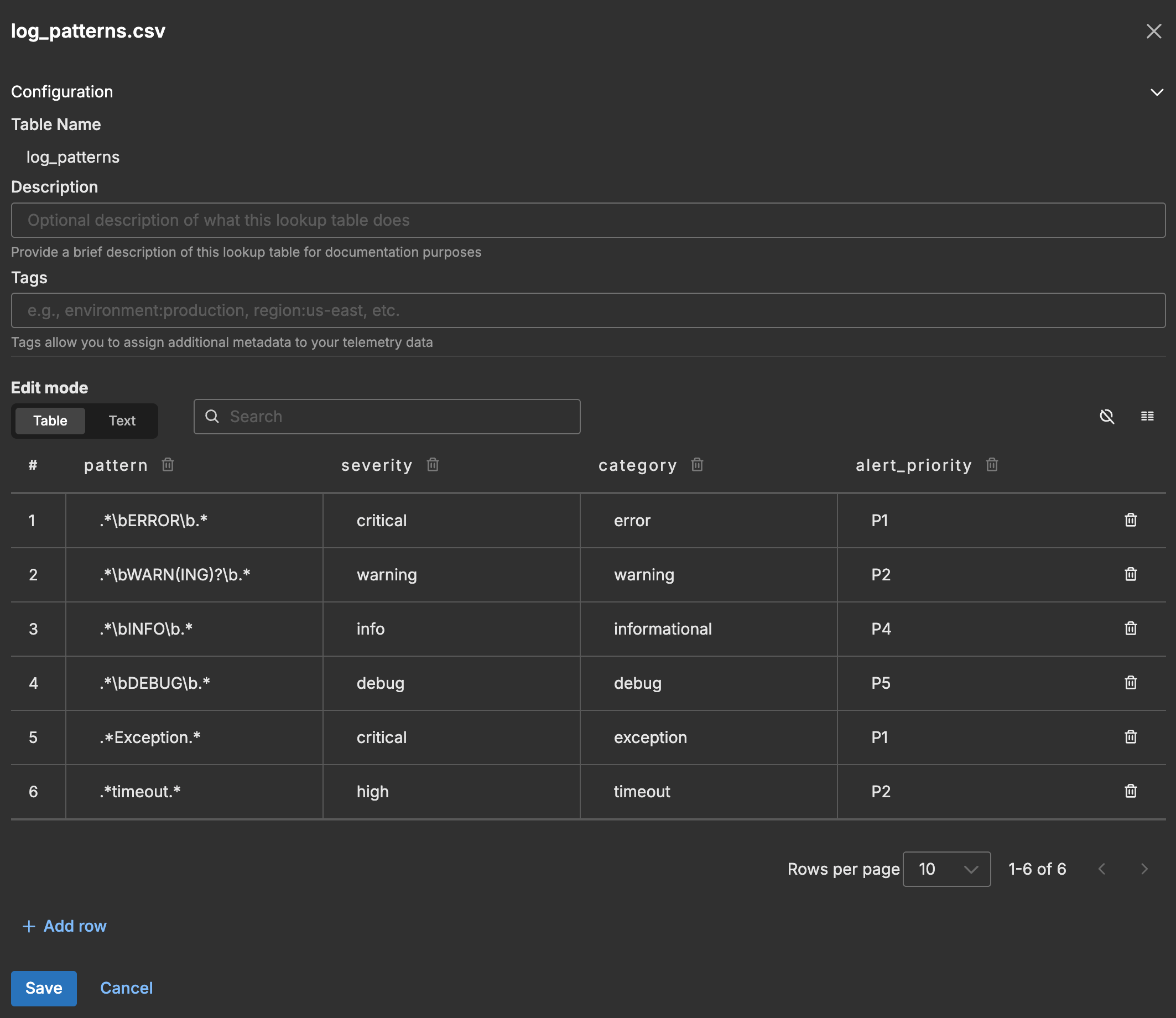
The \b ensures word boundaries, so ERROR matches but ERRORS in MYERRORS doesn’t.
Input Data
A log arrives with a message containing error information:
{
  "body": "2026-01-27T10:30:45.000Z ERROR Connection to database failed: timeout after 30s",
  "attributes": {}
}
Configuration
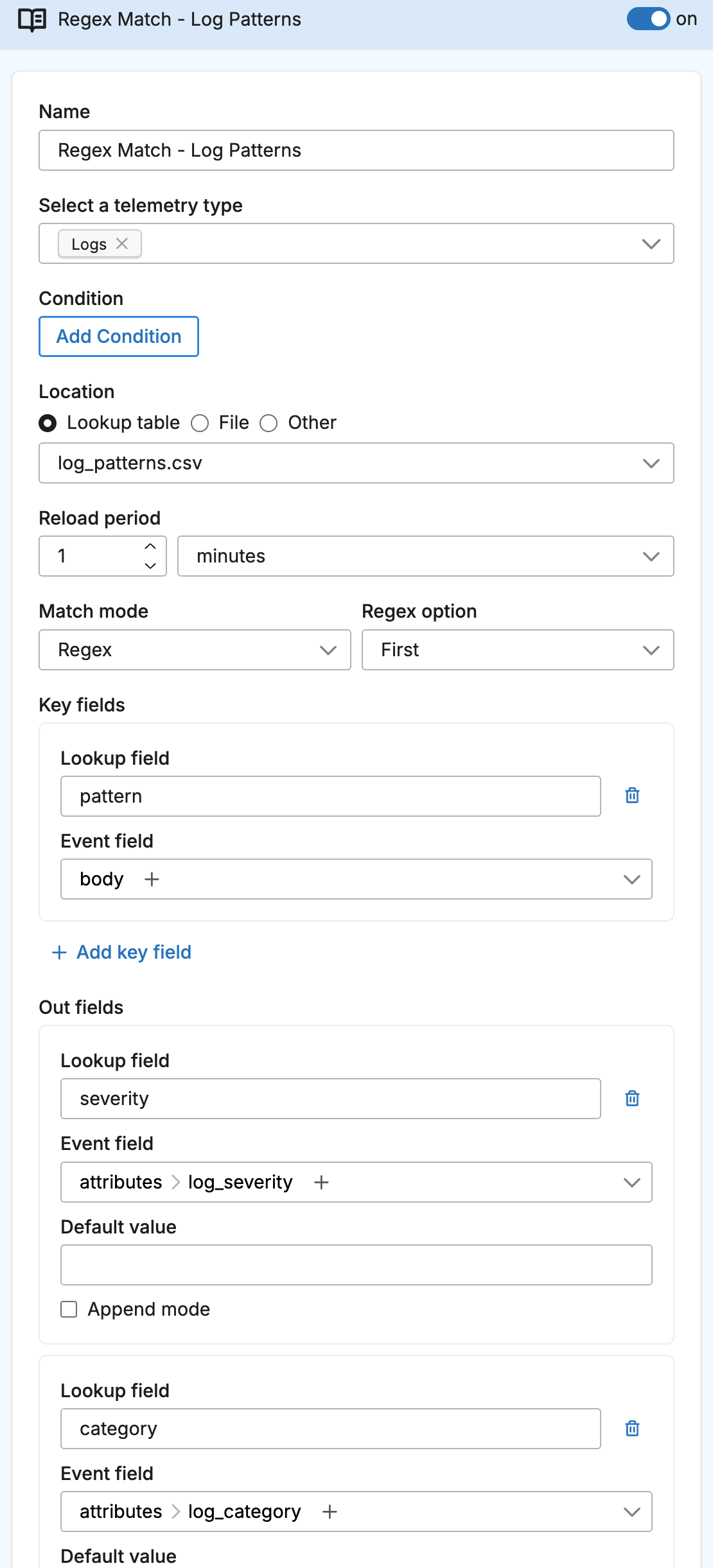
- name: regex_match_lookup
  type: sequence
  user_description: Log Pattern Classification
  processors:
  - type: lookup
    metadata: '{"id":"regex-match-lookup","type":"lookup","name":"Regex Match - Log Patterns"}'
    data_types:
    - log
    location_path: ed://log_patterns.csv
    reload_period: 1m0s
    match_mode: regex
    key_fields:
    - event_field: body
      lookup_field: pattern
    out_fields:
    - event_field: attributes["log_severity"]
      lookup_field: severity
    - event_field: attributes["log_category"]
      lookup_field: category
    - event_field: attributes["alert_priority"]
      lookup_field: alert_priority
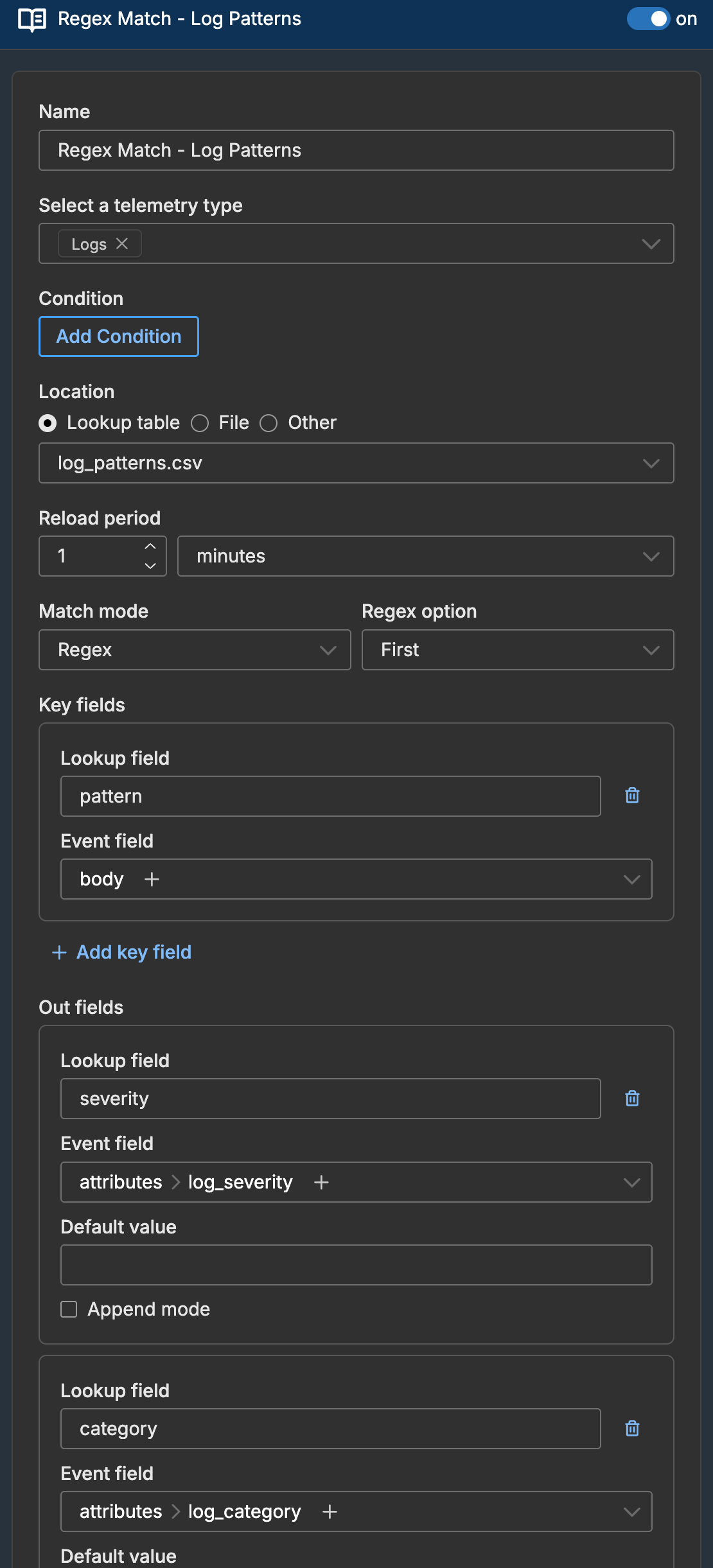
The following screenshot shows the lookup processor configured in a pipeline.
Output Data
The log matches the .*\bERROR\b.* pattern:
{
  "body": "2026-01-27T10:30:45.000Z ERROR Connection to database failed: timeout after 30s",
  "attributes": {
    "log_severity": "critical",
    "log_category": "error",
    "alert_priority": "P1"
  }
}
How Regex Matching Works
Unlike other match modes where the event field is compared to lookup values, regex mode treats the lookup field as a pattern that is tested against the event field:
| Event Field Value | Lookup Pattern | Match? |
|---|---|---|
ERROR: Connection failed | .*ERROR.* | Yes |
2024-01-15 WARN disk full | .*\bWARN(ING)?\b.* | Yes |
2024-01-15 WARNING disk full | .*\bWARN(ING)?\b.* | Yes |
INFO request completed | .*ERROR.* | No |
NullPointerException at line 42 | .*Exception.* | Yes |
Matching Multiple Patterns
By default, regex_option: first stops after the first matching pattern. To find all matching patterns, use regex_option: all with append_mode: true:
- type: lookup
  name: Multi-Pattern Classification
  match_mode: regex
  regex_option: all
  key_fields:
  - event_field: body
    lookup_field: pattern
  out_fields:
  - event_field: attributes["categories"]
    lookup_field: category
    append_mode: true
The log "ERROR Connection timeout" would match both .*ERROR.* and .*timeout.*, resulting in categories: "error,timeout".
Performance Considerations
Regex matching evaluates each pattern in the lookup table until a match is found (or all patterns for regex_option: all). For best performance:
- Order patterns with most common matches first
- Use specific patterns rather than overly broad ones
- Keep the lookup table small (hundreds of patterns, not thousands)
- Consider using simpler match modes if patterns are predictable