Understanding Lookup Tables
5 minute read
Background
Suppose you want to add an attribute to a data item (log, metric, or trace) based on certain field values. For a single condition, you can use a conditional clause on a processor—straightforward if-then logic.
But what happens when you have dozens or hundreds of conditions, each requiring different enrichments? Writing conditional statements for every case becomes unwieldy:
- Error code
E001should addseverity: highandcategory: timeout - Error code
E002should addseverity: criticalandcategory: auth - Error code
E003should addseverity: lowandcategory: validation - …and so on for hundreds of codes
Managing these conditions inline creates brittle, hard-to-maintain configurations. Adding a new code means editing the pipeline. Updating a description means finding the right condition among many.
Lookup tables solve this problem. Instead of embedding every condition in your pipeline, you store the mappings in an external CSV file. The Lookup processor reads this table and automatically enriches matching data items—no pipeline changes required when mappings change.
The rest of this page explains how lookup tables work: how keys identify matching rows, and how enrichments are applied from matched rows.
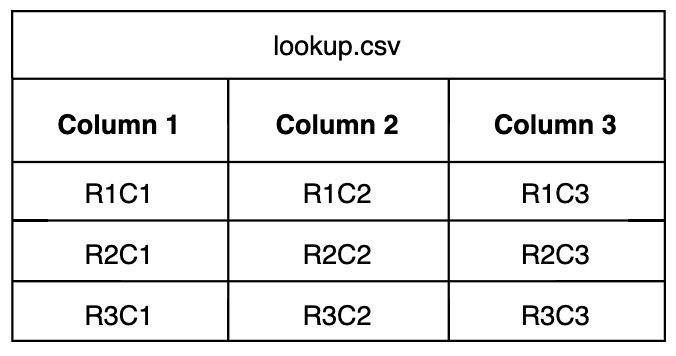
Lookup Table
Each Lookup processor references one lookup table. For example:
The Key
For a data item to match and be processed by the processor, a value in the data item must match the value in a specified column in the lookup table.
{“host”: “R1C1”, “user-identifier”: “55c51e9b”, “time_local”: “2024-06-20T11:59:26.265285Z”, “action”: “create”}
In this instance, the host value matches the value in row 1, column 1 R1C1. This matching value is the key for the enrichment operations. It performs two functions:
- Provide the value to match (if the data item contains this value…)
- It provides the row reference for the enrichment operations to follow (then enrich using values from other columns in the matching row)
You specify the key with a CEL macro for body fields or a normal field path, such as item["resource"]["host.name"] if the value is already parsed.
It captures a value from each data item and evaluates the value against values in a specified column in the lookup table.
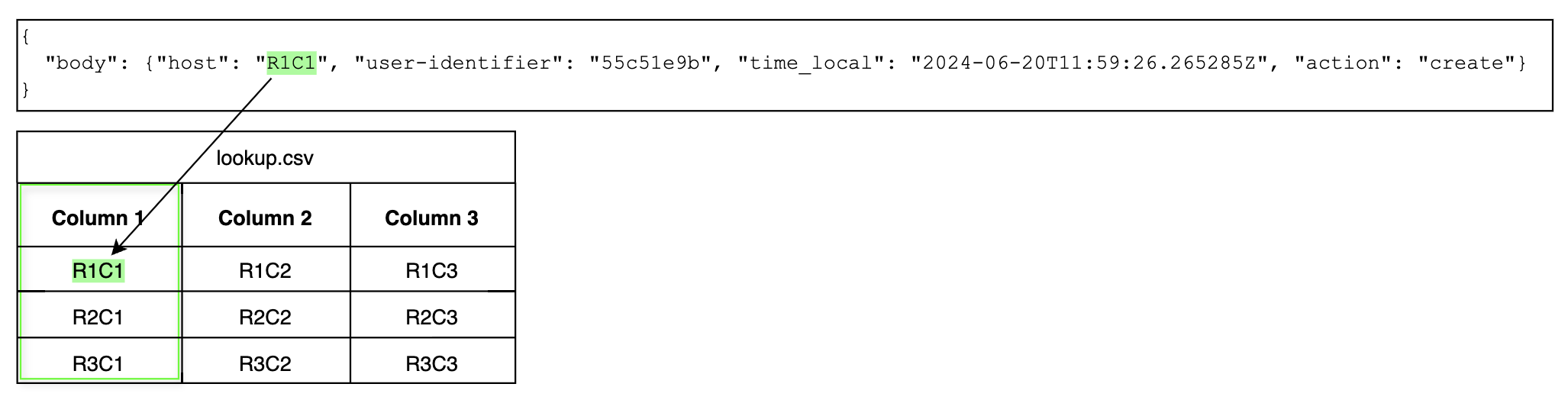
The key fields therefore require two binding values: a reference to the key in the log, and the table column in which to look for matches.
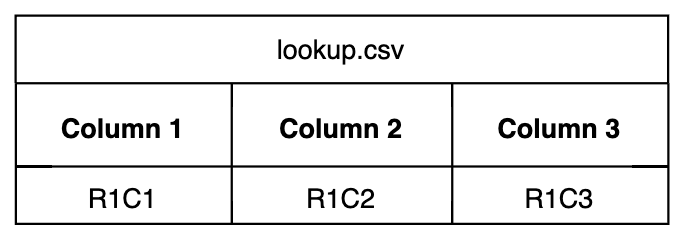
When a match is found, the entire row becomes available to the processor for enrichment:
Enrichments
Next the Lookup processor enriches the data item using values found in the matched row. For example R1C2 and R1C3 could become attributes.
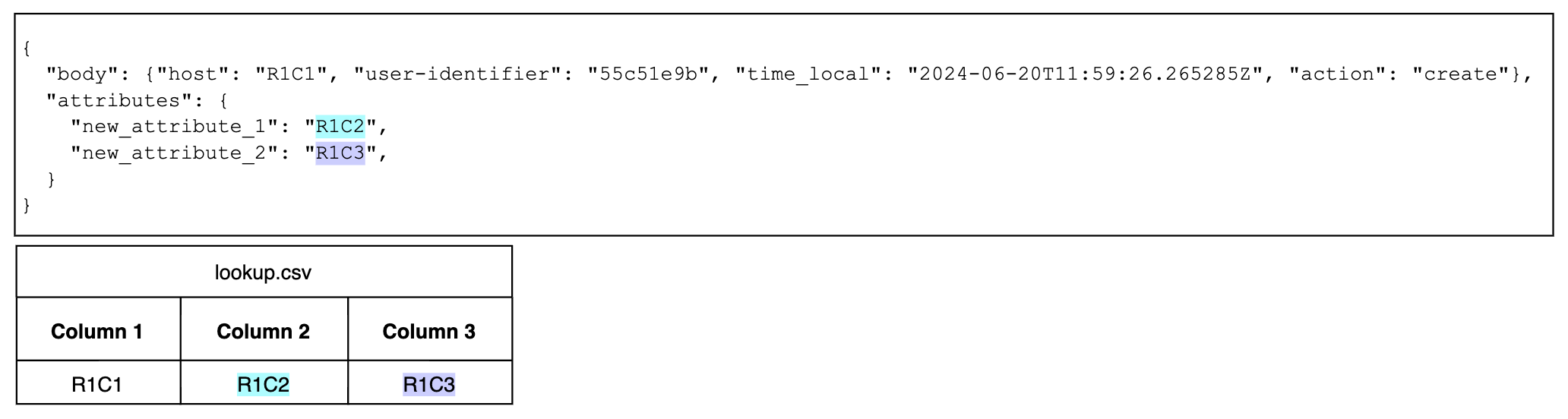
As with the key fields, the enrichment fields also require two binding values: a reference to the field in the data item that needs to be enriched, and the table column for the value to use to enrich the data item.
Note: You can match on multiple rows, in which case the enrichment value is a comma separated list.
Example Configuration
This example illustrates the processor configuration for the log example:
- name: sequence_f27c
  type: sequence
  user_description: Lookup CRs
  processors:
  - type: lookup
    metadata: '{"id":"LUozxi43Hkgr3YWJhOGJq","type":"lookup","name":"FTD Code"}'
    data_types:
    - log
    - metric
    - trace
    location_path: ed://lookup.csv
    reload_period: 5m0s
    match_mode: regex
    key_fields:
    - event_field: body
      lookup_field: Column 1
    out_fields:
    - event_field: attributes["new_attribute_1"]
      lookup_field: Column 2
    - event_field: attributes["new_attribute_2"]
      lookup_field: Column 3
Note the binding pairs:
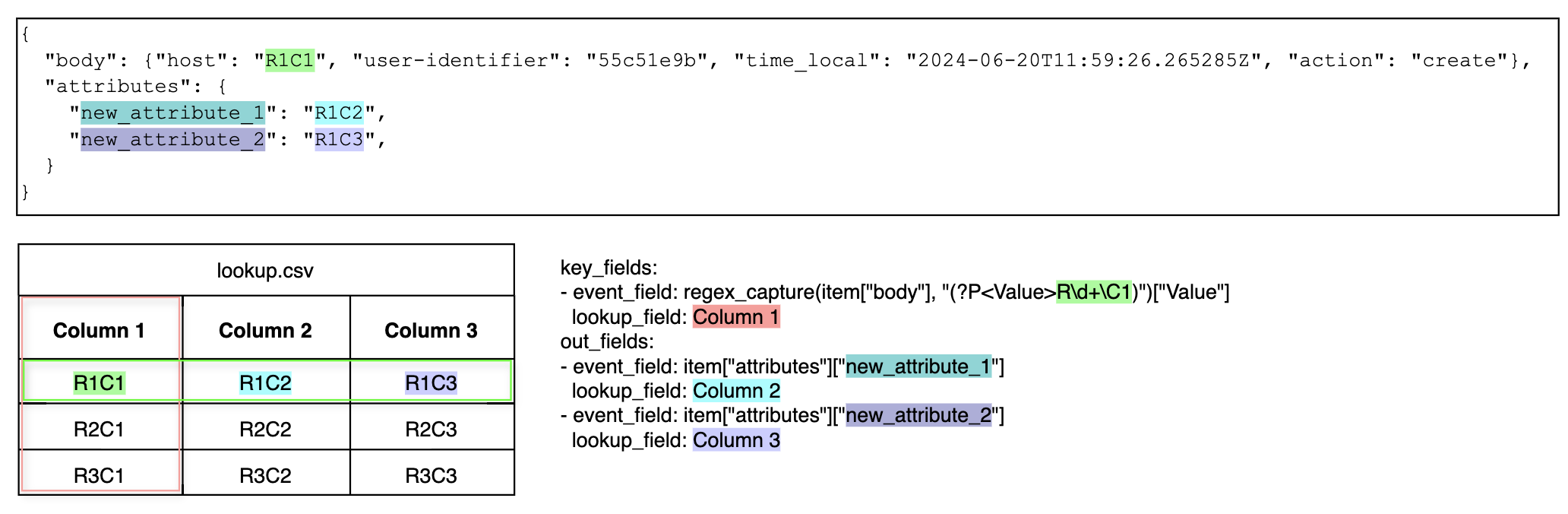
For key_fields, the event_field specifies the key value in the data item and binds it to the lookup_field. For each data item, the processor extracts the value using the event field’s pattern and compares it to each value in Column 1 for a match.
For out_fields, there are two binding pairs: For each, a new attribute will be created based on the event_field, and its value will be extracted from the lookup_field - for all rows matched by the key_field parameter.
Table Location
The table is formatted as a CSV. You make the table available to the processor (on the edge) in one of three ways:
- Upload it in Edge Delta on the Knowledge tab of the Pipelines page.
- Save it on the host
- Make it available on HTTP or HTTPS
You specify the location of the CSV file you uploaded using a different format depending on where you uploaded it.
Tables uploaded to Edge Delta:
For tables in the knowledge library, select Lookup table, then select it in the list in the GUI. In YAML, specify ed:// followed by the filename you used when you uploaded it.
ed://lookuptablefilename.csv
Tables uploaded to a Windows OS:
For Windows local files, select File, specify file:// followed by the location and filename.
file://c:\location\lookuptablefilename.csv
Tables uploaded to a Linux OS or macOS:
For Unix type local files, select File, specify file:// followed by the location and filename.
file:///app/lookuptablefilename.csv
Tables uploaded to a website:
For files available online, select Other specify the URL. It can be HTTP or HTTPS.
https://docs.edgedelta.com/lookuptablefilename.csv
Reload Period
You can configure how often the processor should check the lookup table location for update to it. For tables that do not change often this duration can be longer. For testing or tables that change regularly this should be a shorter duration. The default value is 5 minutes.
Match Mode
You can specify one of the following match modes to indicate the type of key matching:
exact- Searches the key column for an exact match against the value extracted from the data itemregex- Searches for a matching pattern (the lookup column consists of regex patterns)contain- Matches when the data item value contains the lookup key as a substringprefix- Matches when the data item value starts with the lookup keysuffix- Matches when the data item value ends with the lookup key
Ignore Case
If you set the Match Mode to exact, contain, prefix, or suffix, you can specify whether or not the match should be case-sensitive.
Regex Option
If you set the Match Mode to regex you can specify how many regex matches to match against. You specify first to stop searching after the first match, or all to find all matching rows.
If more than one matching row is found, the enrichments will be multiple comma separated values.