Loop Actions and Approvals
7 minute read
Overview
A loop run never calls a write tool directly. When a run concludes that something should change, such as rolling back a deployment, closing an issue, retuning a monitor, or opening a pull request, it files a proposed action. The platform resolves the action against the effective trust level for its domain, as configured in Guardrails, and either reports it, drafts it, queues it for your decision, or executes it.
This page explains what an action contains, how the trust gate treats it, where decisions surface, and what each outcome means.
What a proposed action contains
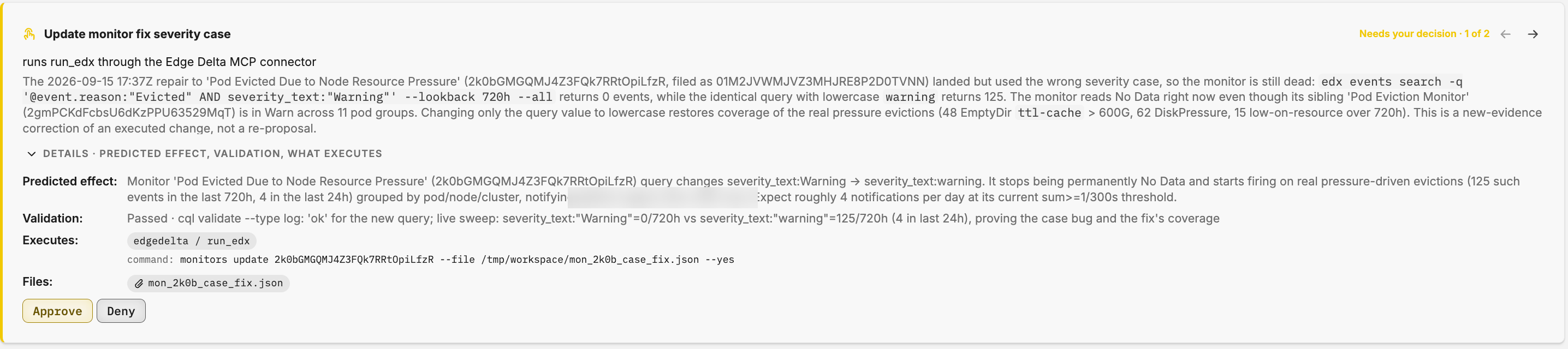
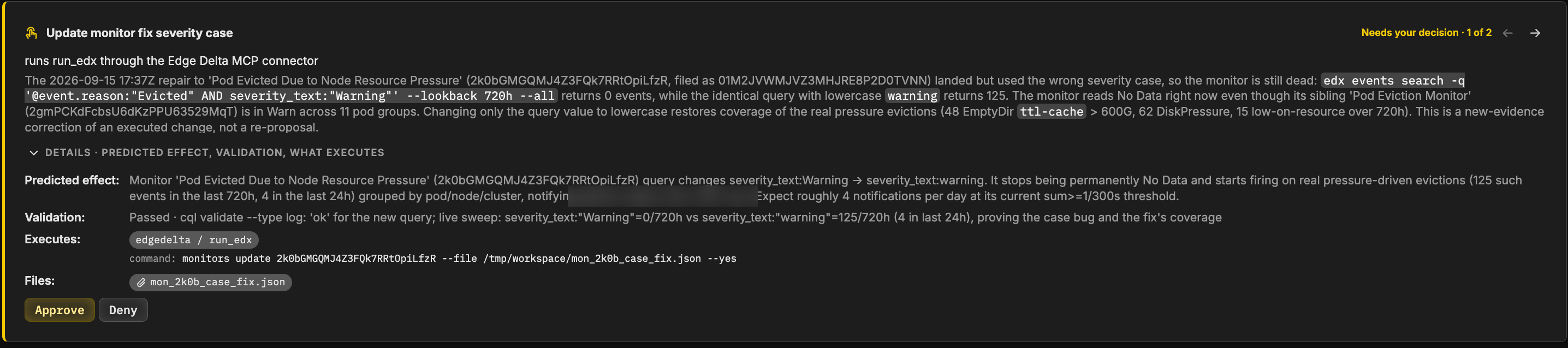
Every action carries the same fields, and an approver sees all of them before deciding:
| Field | What it tells you |
|---|---|
| Kind | The type of change, for example rollback_deployment, close_issue, or create_monitor. |
| Domain | The Guardrails domain the change belongs to, such as Deployments and Infrastructure or Monitors and Incidents. The domain decides which trust level applies. |
| On approve | In plain language, what happens when you approve: which tool runs through which connector, or which capability runs in a sandboxed loop run. |
| Why | The run’s reasoning, naming the affected resource by its human-readable name alongside its ID. |
| Predicted effect | What the run expects to happen after the change. |
| Validation | Evidence the run gathered before proposing: a test run, a dry run, or an offline validation, with a pass or fail result. |
| Executes | The exact executable: the connector tool call with its arguments, or the exact edx command with the prepared file. |
| Files | Any files prepared in the sandbox that the action needs, verified by hash before execution. |
Runs are required to attach a verified executable. When no executable can be attached, for example because the connector lacks a write scope, the action says so, and approving it only records your decision as guidance for the next run.
The trust gate
The trust gate resolves each action against the effective trust level for its domain. The effective level comes from your account level, any domain override, and whether autonomy is frozen. Freezing forces every domain to L0.
| Effective level | Disposition | What happens |
|---|---|---|
L0 Observe or L1 Recommend | Reported | The action appears in the run report as a recommendation. Nothing is queued or executed. |
L2 Propose | Drafted | The artifact is prepared but not applied. A Drafted milestone is posted to the loop’s surfaces. |
L3 Act with approval | Awaiting approval | The action waits for a person. An Approval needed milestone is posted, and the action appears everywhere decisions surface. |
L4 Autonomous | Executed | The action runs without waiting, and you are notified with an Action executed milestone. |
Two safeguards apply at L4. An action whose validation failed is queued for approval instead of executing. And if unattended execution fails, the action drops to Awaiting approval so a person can look at it.
The gate records its decision on the run timeline as a Trust gate step, and stamps the effective trust level on the action so you can see later which level applied when it was filed.
Where decisions appear
An action awaiting approval surfaces in several places at once:
- The Loops page. Loops with pending decisions are pinned at the top of the list under Needs your decision, and the Needs you column shows how many decisions each loop carries. The stat strip counts decisions across all loops.
- The loop’s Overview. Decision cards, one per action, with Approve, Deny, and Why and evidence. When a loop has several, step through them one at a time.
- The run page. Decisions from that run appear first, above the result and report.
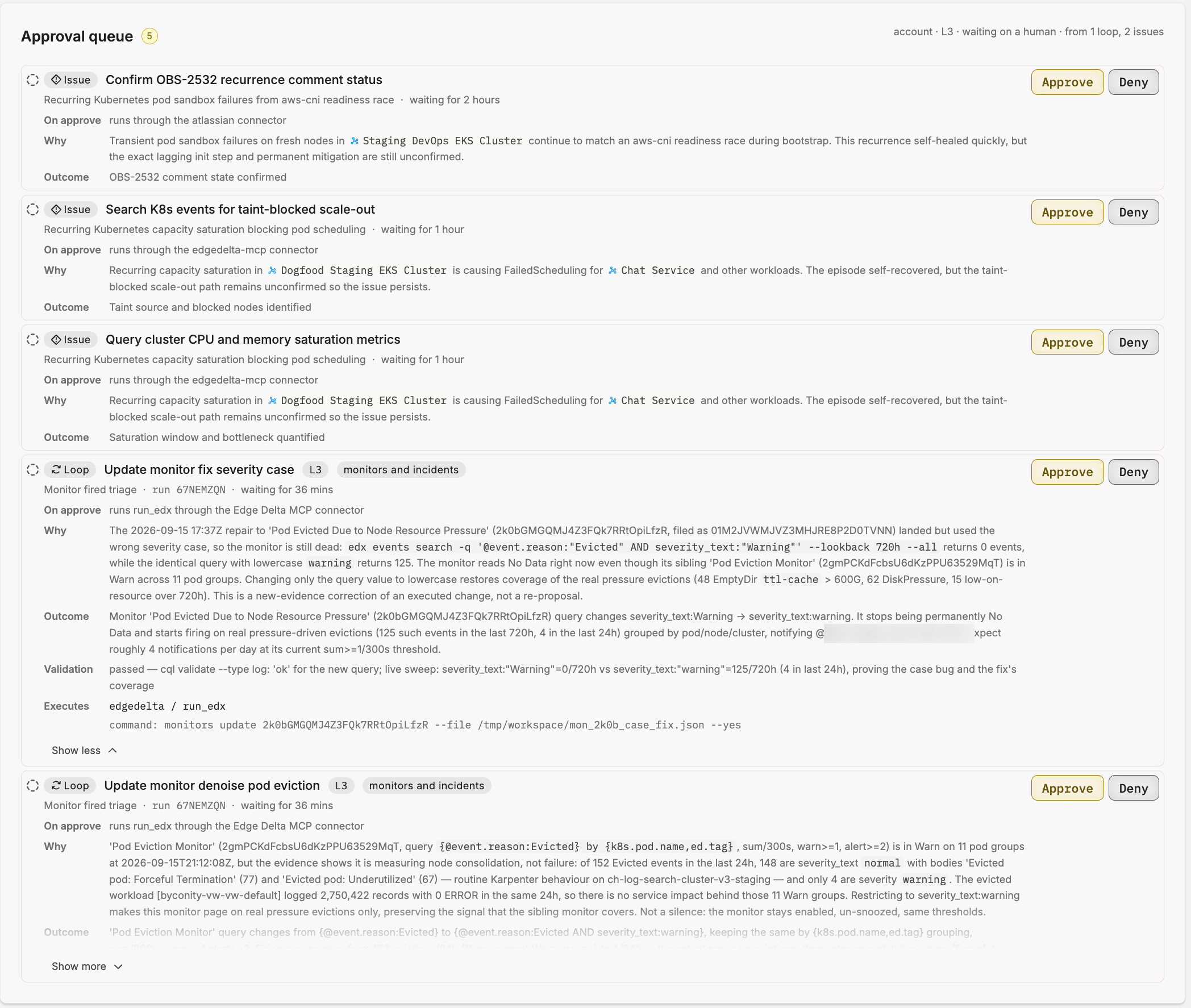
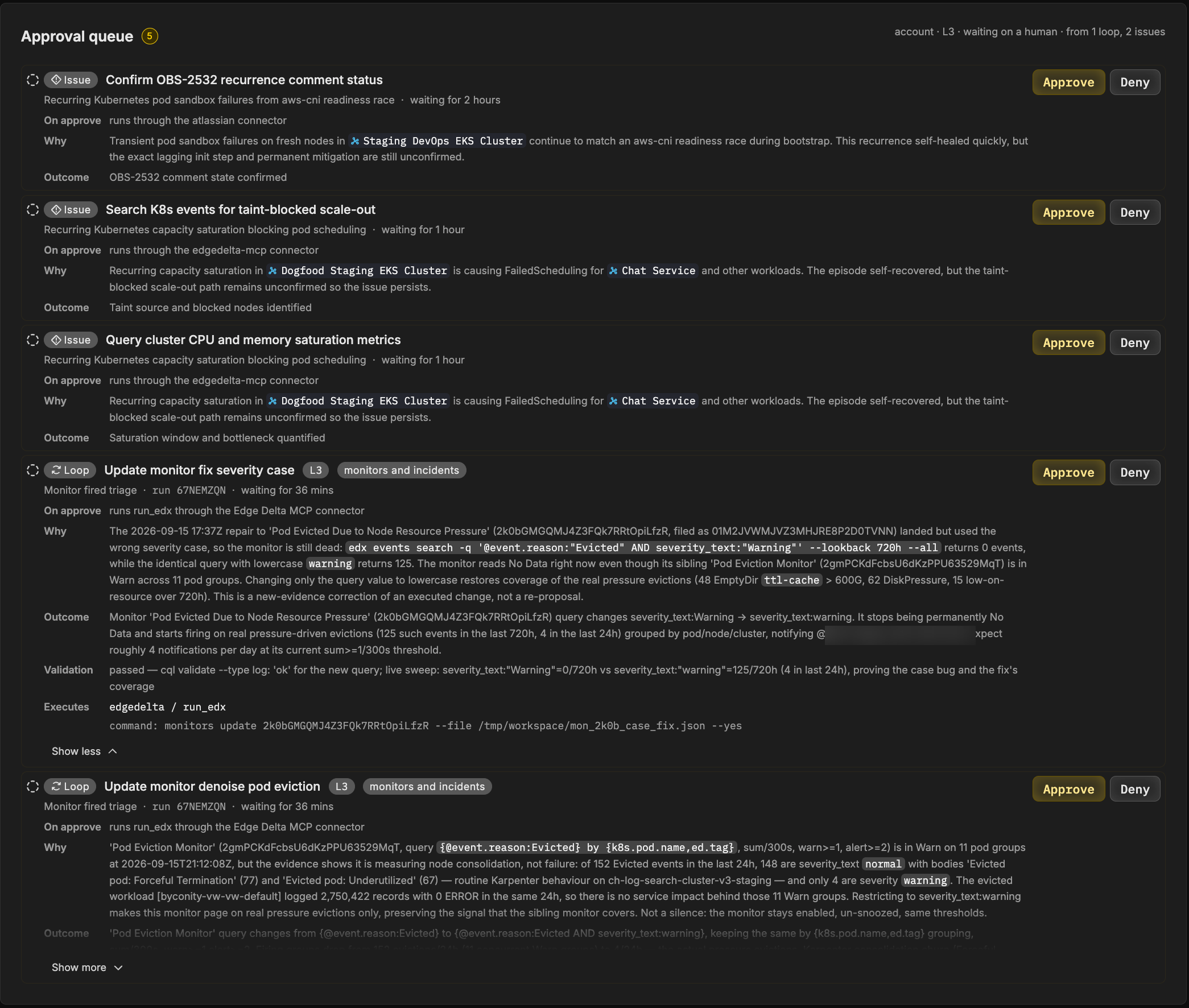
- Guardrails approval queue. The unified queue collects every tool call and loop action waiting on a person, with a Loop badge marking loop actions. See The approval queue.
- AI Overview. The decision bar summarizes how many actions need approval and where they come from, with a link to the queue.
- Surfaces. The loop’s thread shows that the run produced an update, and an Approval needed milestone is posted to the loop’s configured surfaces, so you learn a decision is waiting even when you are not on the Loops page. Make the decision on the Loops page or in the Guardrails approval queue.
Deciding
Open a decision and review the fields above. Then:
- Click Approve to let the platform execute the attached executable. Execution happens once, and the outcome is recorded on the action.
- Click Deny to reject it. A Rejected milestone is posted and the run’s action ledger tells the next run not to re-propose the same change without new evidence.
What Approve does depends on the action:
| Action | On approve |
|---|---|
| Connector tool call | Runs the named tool through the named connector, for example dispatching a rollback workflow through GitHub. |
| Capability | Runs the capability in a sandboxed loop run, for example committing sandbox edits and opening a pull request. |
close_issue | Closes the bound production issue and immediately starts a verification run. |
update_loop | Updates this loop’s own definition. This is how a loop self-tunes, within its limits. |
create_loop | Creates a new loop from the proposed definition. |
| No executable | Records your decision on the run. The next run picks it up as confirmed guidance. |
Decisions on loop actions are per action. There is no “always allow” for a loop action; to let a class of actions proceed without approval, raise the trust level for its domain in Guardrails.
The decision window
A queued action stays decidable for 72 hours. After that the evidence behind it is considered stale, the action is marked Expired, and it can no longer be approved. If the change still matters, the next run re-proposes it with fresh evidence.
Two related rules keep the queue honest:
- Supersession. When a newer run proposes an action for the same target, the older queued twin is marked Superseded. Only the latest proposal for a given target is decidable.
- Finished loops. When a loop finishes as Goal reached or Max runs reached, its remaining queued actions leave the queue and cannot be decided.
Action outcomes
Each action shows one of these outcomes on the run page and in the loop’s history:
| Outcome | Meaning |
|---|---|
| Reported only | Filed at L0 or L1. Appears in the report as a recommendation. |
| Drafted | Filed at L2. Prepared but not applied. |
| Awaiting approval | Queued at L3, within its decision window. |
| You approved | Approved and executed successfully. Shown as “You approved, executing” while execution is in progress. |
| Executed by the loop | Executed unattended at L4. |
| You rejected | Denied by a person. |
| Expired | The 72 hour decision window closed without a decision. |
| Superseded | A newer proposal for the same target replaced it. |
| Blocked | Approved, but execution failed. The action is final and is not retried. |
When execution fails
Execution runs exactly once. If it fails, the action is marked Blocked with the failure detail, and an Approved, but execution failed milestone is posted. It is not retried automatically, because a partial first attempt followed by a second could apply the change twice. Review the detail, fix the cause, and let the next run re-propose if the change is still needed.
Before executing, the platform restores any files the action references and verifies them by hash. A mismatch refuses execution rather than running a changed artifact.
Verification after an action
Remediation is not complete when an action executes. Loops verify in the data:
- Executing
close_issueimmediately starts a fresh run to confirm the closure holds. - Approving an action on a bound issue starts a run that re-verifies the environment against all of the issue’s open actions.
- Every subsequent run receives the action ledger, so an executed action is checked for its effect rather than assumed done.
Reversing a change
Executed actions do not have a one-click undo. The controls you have are:
- Deny an action before it executes.
- Pause the loop to stop further runs while you review.
- Lower the trust level for the domain in Guardrails, or freeze autonomy, so later actions queue instead of executing.
- Let the loop propose a corrective action, such as a rollback, which passes through the same gate.
What loops can and cannot execute
- Edge Delta changes to pipelines, monitors, dashboards, and other platform resources are executed through the
edxCLI in the sandbox. Runs validate the change offline first and attach the result. - Repository changes such as branches, commits, and pull requests run through capability tools that carry the run’s sandbox edits.
- Connector changes run through the connector’s own tools, under that connector’s scope.
- Loops cannot act through a connector that is not connected, and cannot use a connector’s write tools when the trust level for that domain does not allow it.
Next steps
- Guardrails to set the trust ladder and domain overrides that govern loop actions.
- Loop runs for how a run arrives at a proposal and how it is graded.
- Issue details for the Approve and Deny flow on issue recommended actions.