Anatomy of a Loop
8 minute read
Overview
A loop is defined by a small set of parts: what it checks, when it runs, how it runs, and where it reports. This page describes each part as it appears on the loop’s Configuration view and in the loop editor, followed by the states a loop moves through and how long its history is kept.
You rarely fill these in by hand. When you create a loop from a goal, Edge Delta drafts every part for your review, and you can change any of them later in plain words.
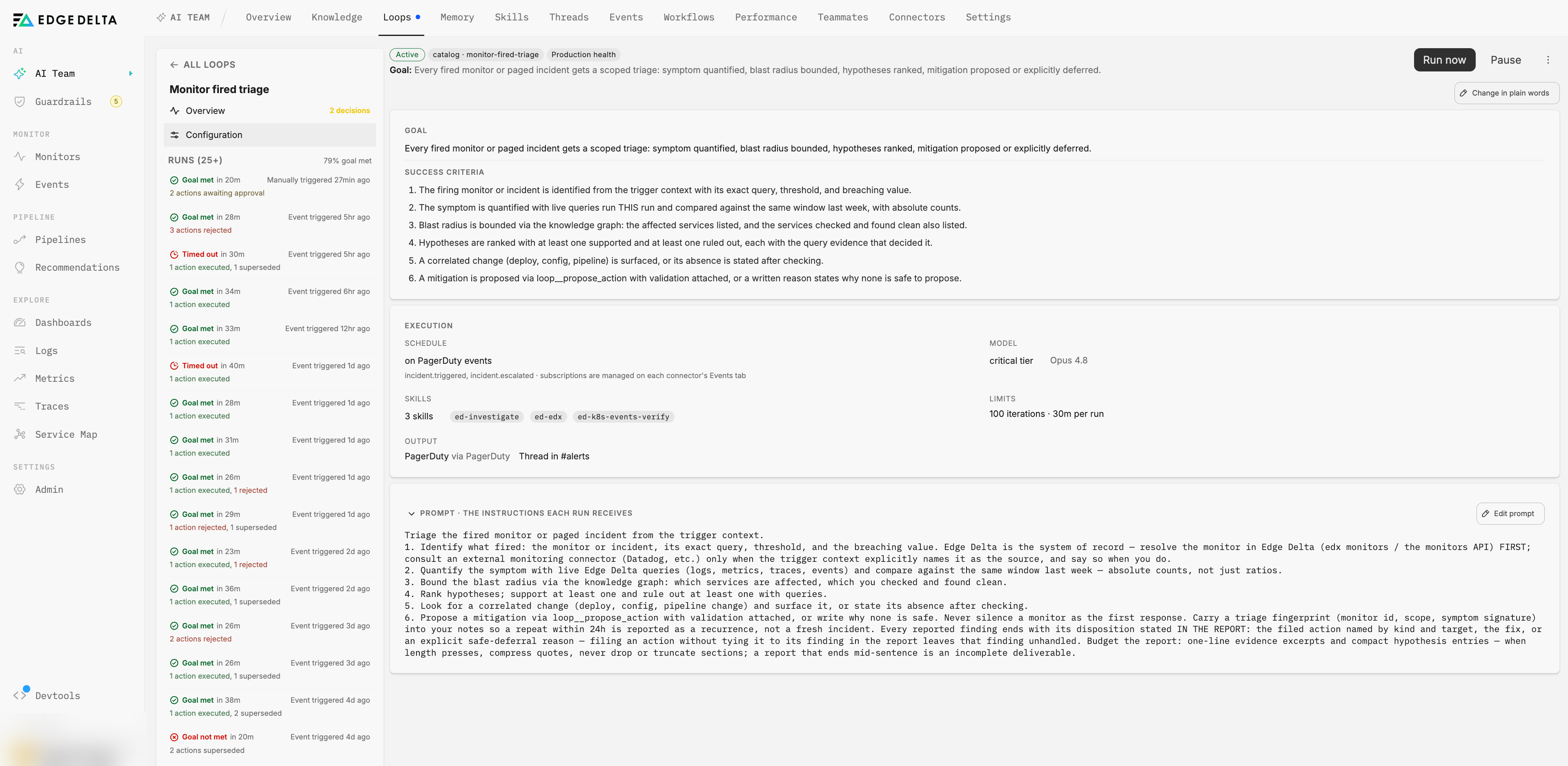
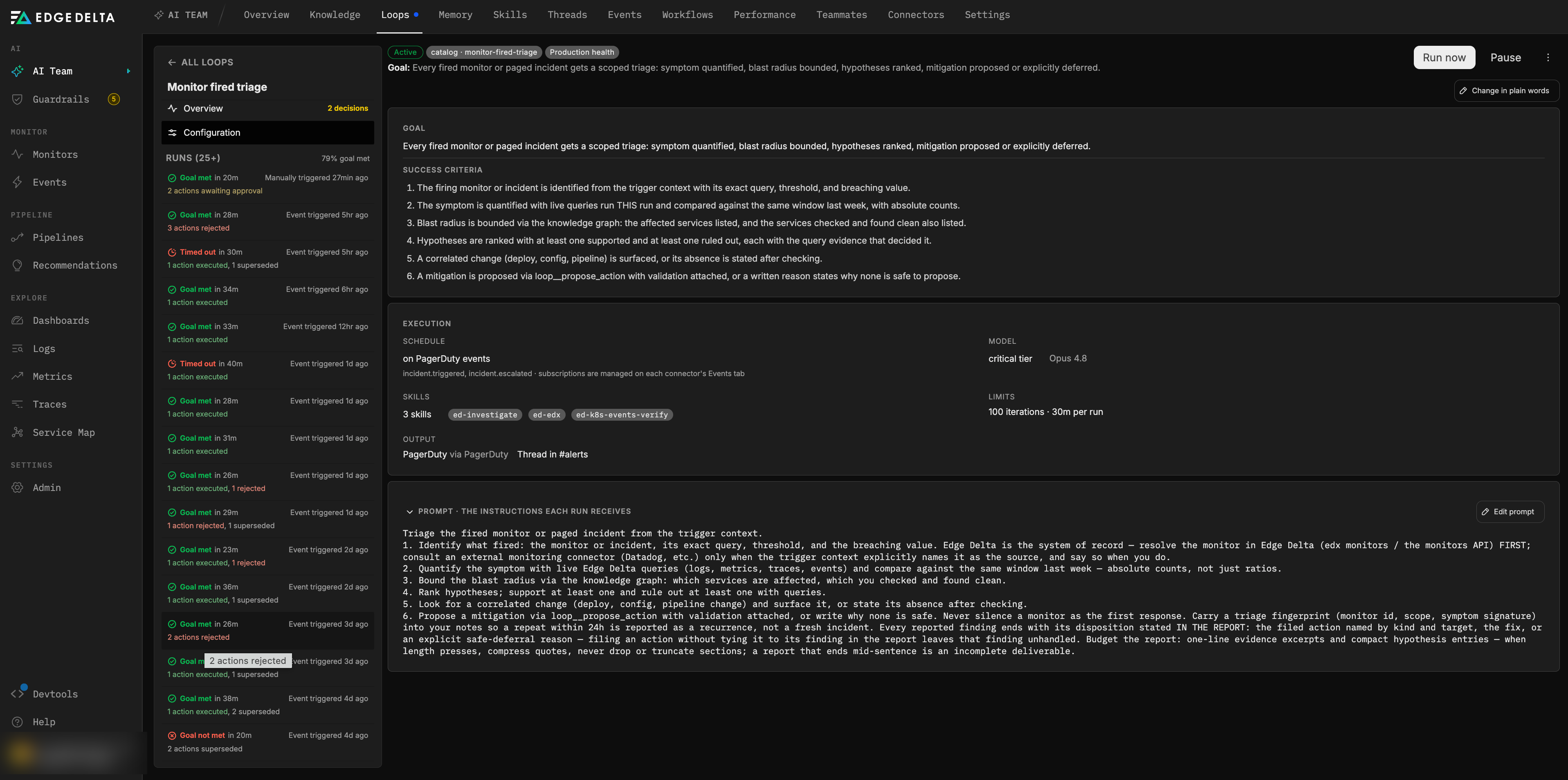
Goal and success criteria
The goal is a one-line statement of the outcome the loop verifies, such as “Every deployment of checkout-service is verified healthy within 15 minutes.” The goal is included in every run’s instructions and is what the loop’s name and list entry summarize.
The success criteria are the numbered conditions a run is graded against. They should be concrete and checkable, for example:
1. p99 latency stays below 400ms for 15 minutes after rollout.
2. No new error signatures appear compared to the pre-deploy baseline.
3. HPA settles within 3 scale events.
When you create a loop from a goal and do not state criteria, Edge Delta adds a default pair: the goal is checked with real queries and cited evidence, and the result is reported with concrete numbers rather than impressions.
Criteria have one of two sources:
- Static. The criteria you wrote, used as-is on every run.
- From issue actions. For loops bound to an issue, the criteria are re-read from the issue’s current open actions before every run. The stored criteria are only the snapshot from when the loop was created, so the loop keeps up as the issue’s recommended actions change.
Completion
A loop is either standing or bounded:
- A standing loop keeps running on its trigger indefinitely. This is the default.
- A bounded loop has an attempt budget, the maximum number of runs. It finishes as Goal reached when a run is graded Goal met, or as Max runs reached when the budget is spent. The default budget in the editor is 12 attempts.
Trigger
The trigger decides when a run starts. A loop has exactly one trigger kind, but runs can also be started by a bound issue or by hand.
| Trigger | When a run starts | Notes |
|---|---|---|
| Schedule | On a cron expression in a timezone you choose. | Shown in words on the loop, such as “On the hour, every 2 hours” with the next run time. A schedule can also be set to wait for the next knowledge graph extraction, so weekly estate sweeps run on fresh data. A newly created schedule loop runs once immediately to establish baselines. |
| Event | When a connected event connector emits one of the selected event types. | For example GitHub deployment_status.created or PagerDuty incident.triggered. The event payload is handed to the run as its trigger context. Optional payload filters gate which events start a run, so a CI loop can fire only on failing conclusions. Event subscriptions are managed on each connector’s Events tab. |
| Manual | Only when you click Run now, or when a bound issue triggers it. | Useful for loops you want to run on demand. |
Two more paths start runs regardless of the trigger kind:
- Monitors. A monitor whose notification is routed to the loop starts a run when it fires, with the monitor event as context. See Send a monitor to a loop.
- Issue actions. Approving an action on an issue the loop is bound to starts an immediate re-verification run.
Prompt
The prompt is the set of instructions each run receives, shown under Prompt, the instructions each run receives on the Configuration view. Edge Delta drafts it from your goal. You can edit it directly, though for most changes it is easier to describe the change in plain words and review the resulting diff. Runs also receive a fixed run discipline that governs evidence, proposals, and reporting. See Loop runs.
Class
Every loop is either Production health (reacts to incidents, deploys, and recurring issues) or Observability upkeep (keeps pipelines, monitors, and dashboards in shape). The class groups loops on the Loops page and informs model routing. See Two classes of loops.
Tier and model
The tier routes which model runs the loop. There are three tiers:
| Tier | Intended for |
|---|---|
routine | Frequent, well-defined checks and estate sweeps. Most out-of-the-box loops run on this tier. |
standard | The default for loops you create. |
critical | High-stakes loops such as incident triage. The critical tier also tightens goal evaluation. |
Edge Delta manages the model behind each tier and updates it as better options become available, so a loop gets the most capable fit for its tier without you tracking model releases. The model a run actually uses is resolved in this order:
- A per-loop model override, set under Advanced in the loop editor.
- Your organization’s tier-to-model configuration in AI Team Settings.
- The platform default for the tier.
A loop that repeatedly misses its goal is escalated one tier for its next run, and the run’s timeline notes the escalation. The loop list and each run show the model that actually ran.
Skills
Skills are reusable procedures the run can load on demand, such as how to verify a deployment against pre- and post-rollout windows or how to validate an Edge Delta pipeline change offline before proposing it. A loop lists the skills it may use. Each run sees the names and descriptions and loads the full procedure only when it needs it. See Skills.
Connector scope
By default a run can use every connector in your organization, within your trust level. You can restrict a loop to an explicit list of connectors when it should only touch a subset of systems.
Runs propose changes through the connector that owns the resource. When your organization has several connectors of the same type, for example two GitHub integrations, a proposal must name which one, and the run verifies containers such as repositories, projects, and channels exist before proposing against them.
Reports to
Surfaces are where a loop posts its run reports and milestones. Every loop has at least one thread surface in an AI Team channel, and can add others:
| Surface | What is posted | Modes |
|---|---|---|
| Thread | The full run report and milestones in an AI Team channel. | New thread each run (default), One thread, reused across runs, or Routed by topic. |
| Slack | Run summary and milestones in a channel or thread. | Pinned target, or Chosen by the run when the run identifies the conversation its subject is already being discussed in. |
| GitHub | Comments on a pull request or issue. | Pinned target, or Chosen by the run, which lets a deployment loop comment on the exact PR it verified. |
| The run report to a list of recipients. | ||
| Webhook | The run report to a URL. | |
| Connector | Progress notes through a connector’s own note tool, for example PagerDuty incident notes. | Pinned to a record, or chosen by the run. A connector with no note tool is refused at save time. |
Runs never deliver their own reports. The platform projects the report and milestones after the run finishes, and milestones such as “Approval needed” are posted as soon as an action is filed.
Limits
Each run has a budget of iterations and wall-clock time:
| Limit | Default | Maximum |
|---|---|---|
| Iterations per run | 100 | 100 |
| Run duration | 30 minutes | 2 hours |
| Tokens per run | Not set | Optional |
Limits are shown on the Configuration view as, for example, “100 iterations, 30m per run.” The editor does not expose them. Out-of-the-box loops that sweep a large estate run with longer duration budgets, and a loop’s own self-tuning proposals can adjust limits only within the maximums. A run that exceeds its duration budget is finalized as Timed out.
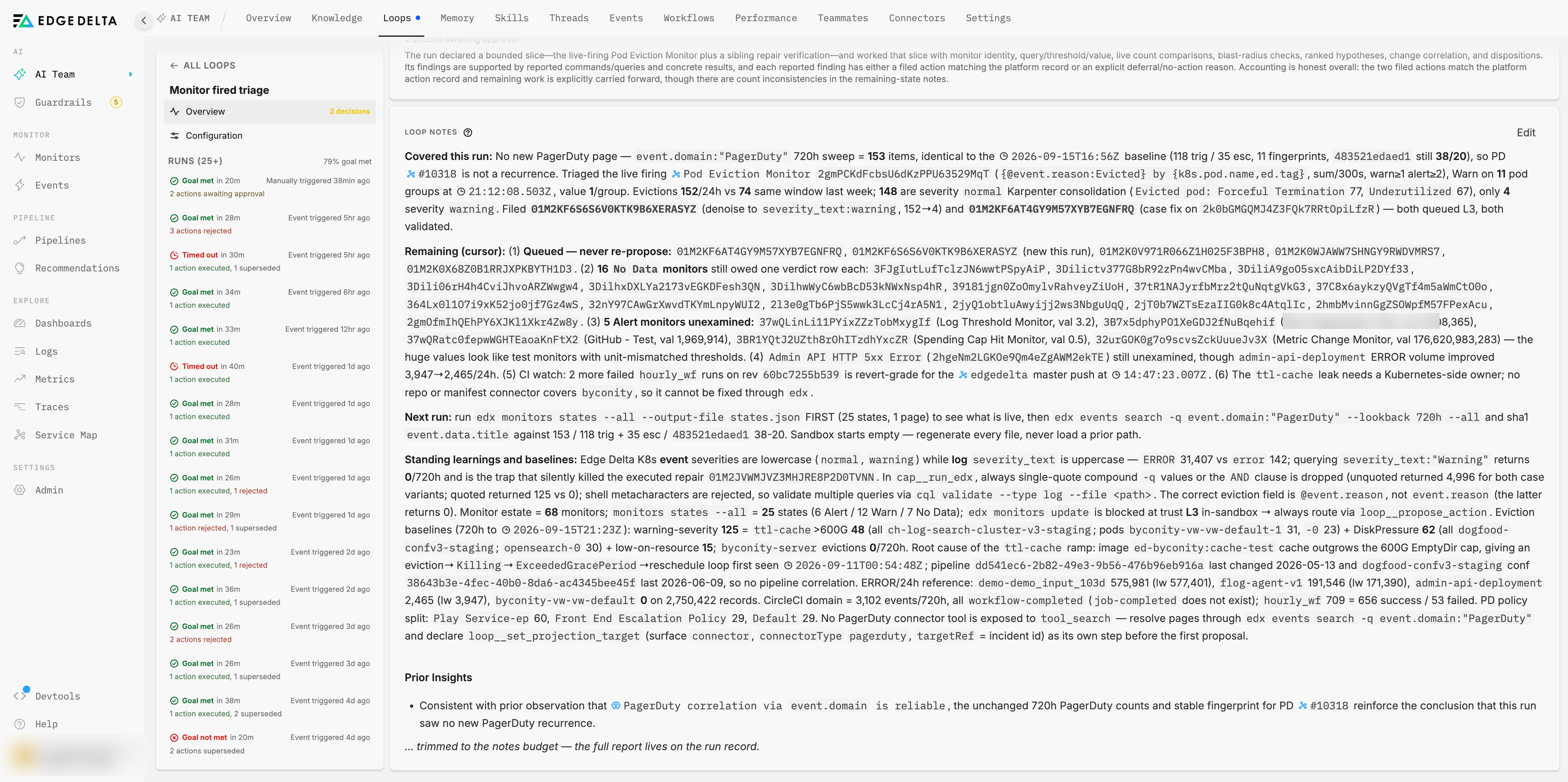
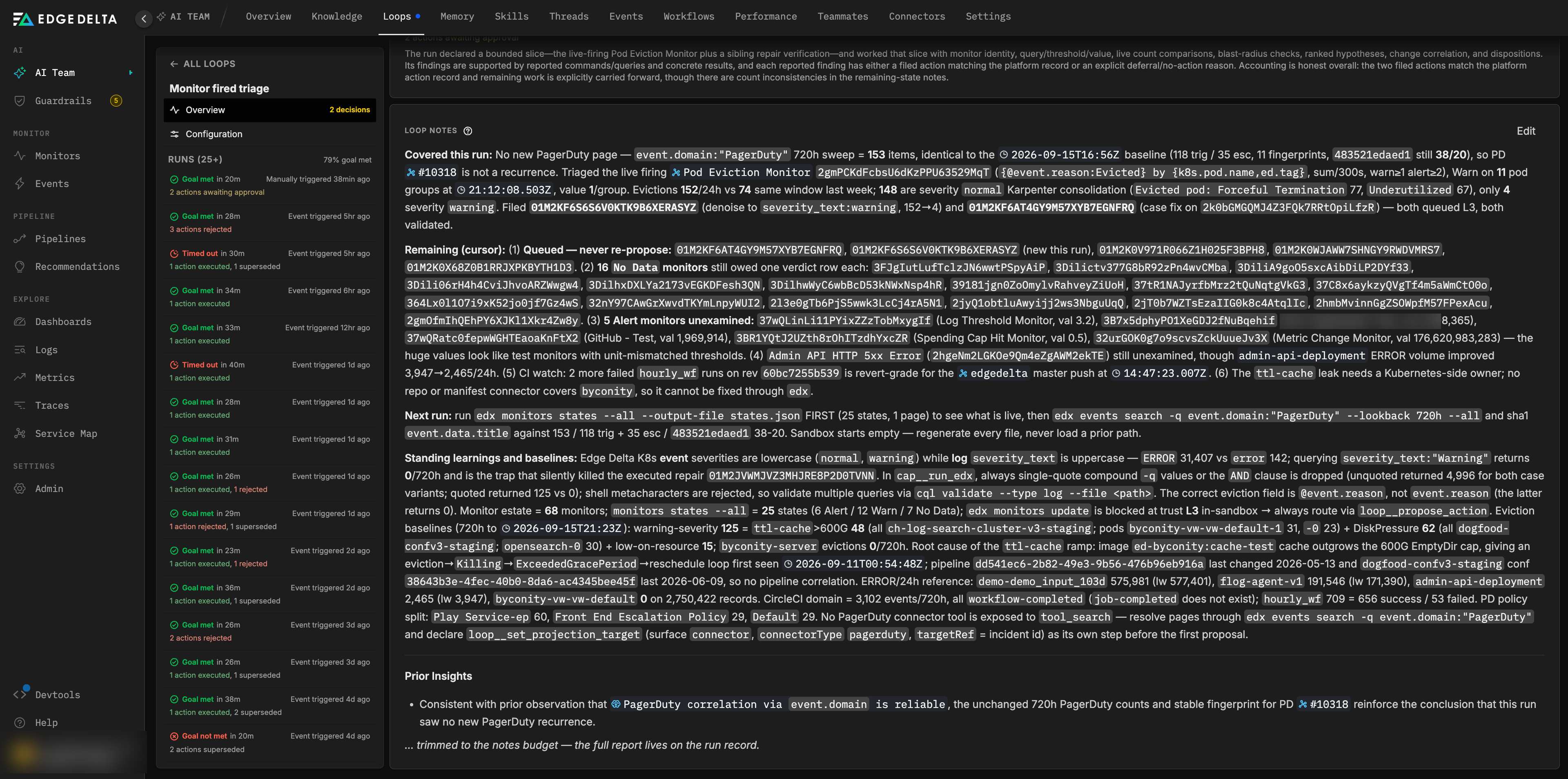
Loop notes
Loop notes are the loop’s working memory. Every run reads the notes first and ends by replacing them with an Updated notes section that opens with three lines:
- Covered this run: what the run worked through.
- Remaining (cursor): what is left when an estate is swept in slices, or “none” when it is fully covered.
- Next run: the concrete starting instruction for the next run.
The rest of the notes carry standing learnings: baselines, owner mappings, known-benign signals, and tracked counters. Notes are limited to a fixed character budget, and a run is instructed to keep counters, cursors, and baselines before narrative when it has to cut. You can read and edit the notes by hand on the loop’s Overview view, for example to record a baseline or a team’s confirmation that a run should treat as fact.
States
| State | Label | Meaning |
|---|---|---|
| Active | Active | Runs on its trigger. |
| Paused | Paused | Does not run. Shows why in a badge: paused when you paused it, waiting for data when an out-of-the-box loop’s data readiness conditions are not yet met, or paused because a connector it depends on was removed. |
| Completed | Goal reached | A bounded loop met its goal, or its bound issue was closed. Listed under Archived. |
| Failed | Max runs reached | A bounded loop spent its attempt budget without meeting the goal. Listed under Archived. |
Pause reasons matter because they clear differently. A loop you paused resumes when you click Resume. A loop waiting for data activates itself once the data arrives. A loop paused because its connector was removed stays paused even if the connector returns, so you can confirm it should run again before it does.
Retention
Live loops are never removed automatically. Once a loop finishes as Goal reached or Max runs reached, it and its runs are retained for 30 days, and then removed. Run records for live loops are also retained for 30 days on a rolling basis.
Deleting a loop removes the loop and its complete run history permanently. Summaries already posted to threads or external surfaces keep their posts.
Next steps
- Loop runs for what happens inside a run and how it is graded.
- Creating and managing loops to create, edit, pause, and delete loops.
- Guardrails for the trust ladder that governs what a run’s actions may do.