Skills
6 minute read
Overview
A skill is a versioned, written procedure that a loop run can load and follow. Where the loop’s goal says what to verify, a skill says how: which windows to compare when judging a deployment, how to validate an Edge Delta pipeline change offline before proposing it, how to resolve the Kubernetes event schema before writing a query. Skills keep procedural knowledge out of prompts and in a form you can read, version, share, and remove.
Skills are data, not code baked into a teammate. A run’s briefing lists the names and descriptions of the loop’s skills. When the run needs one, it loads the full procedure and any supporting files on demand and follows it, including its validation steps.
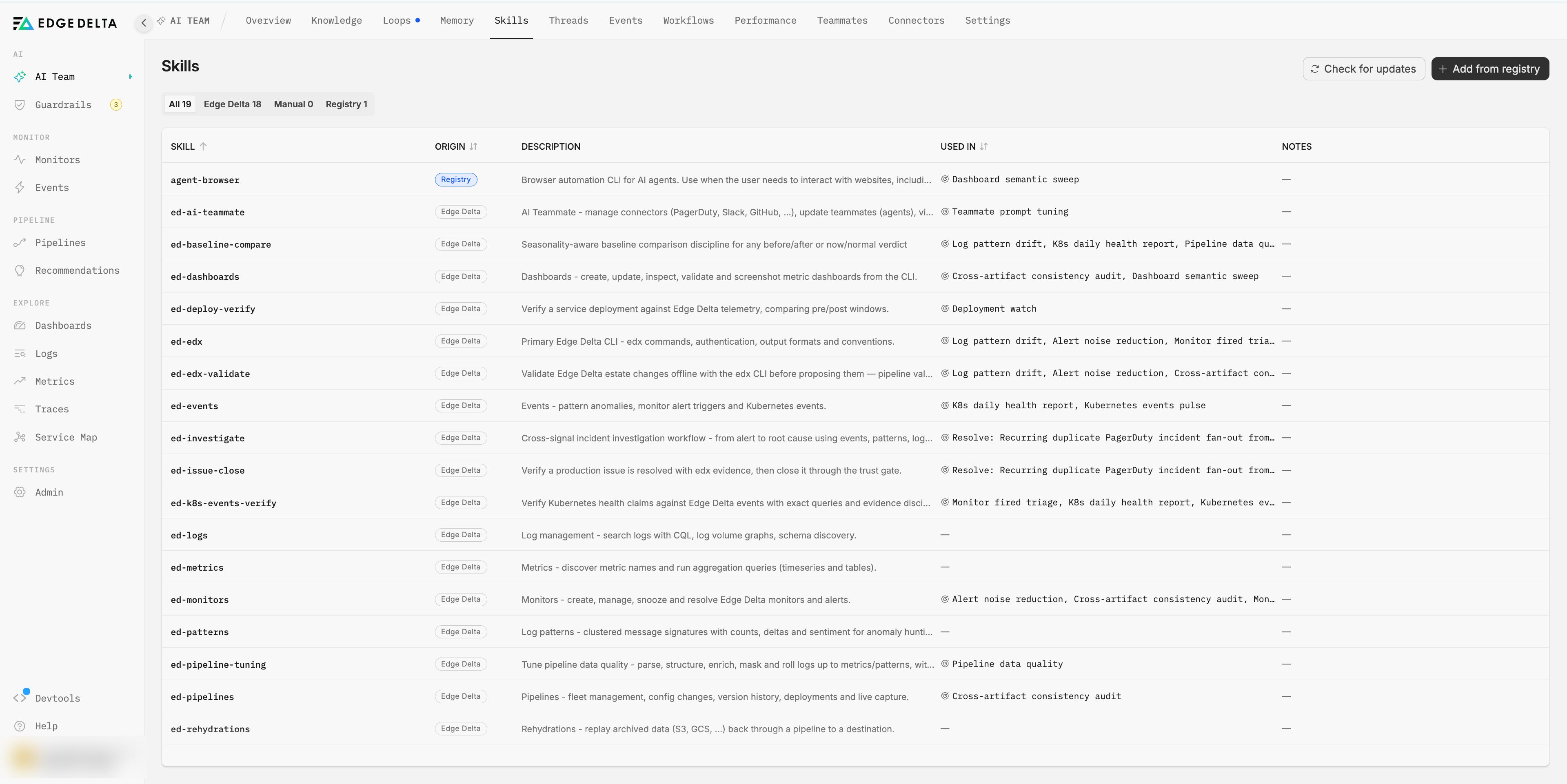
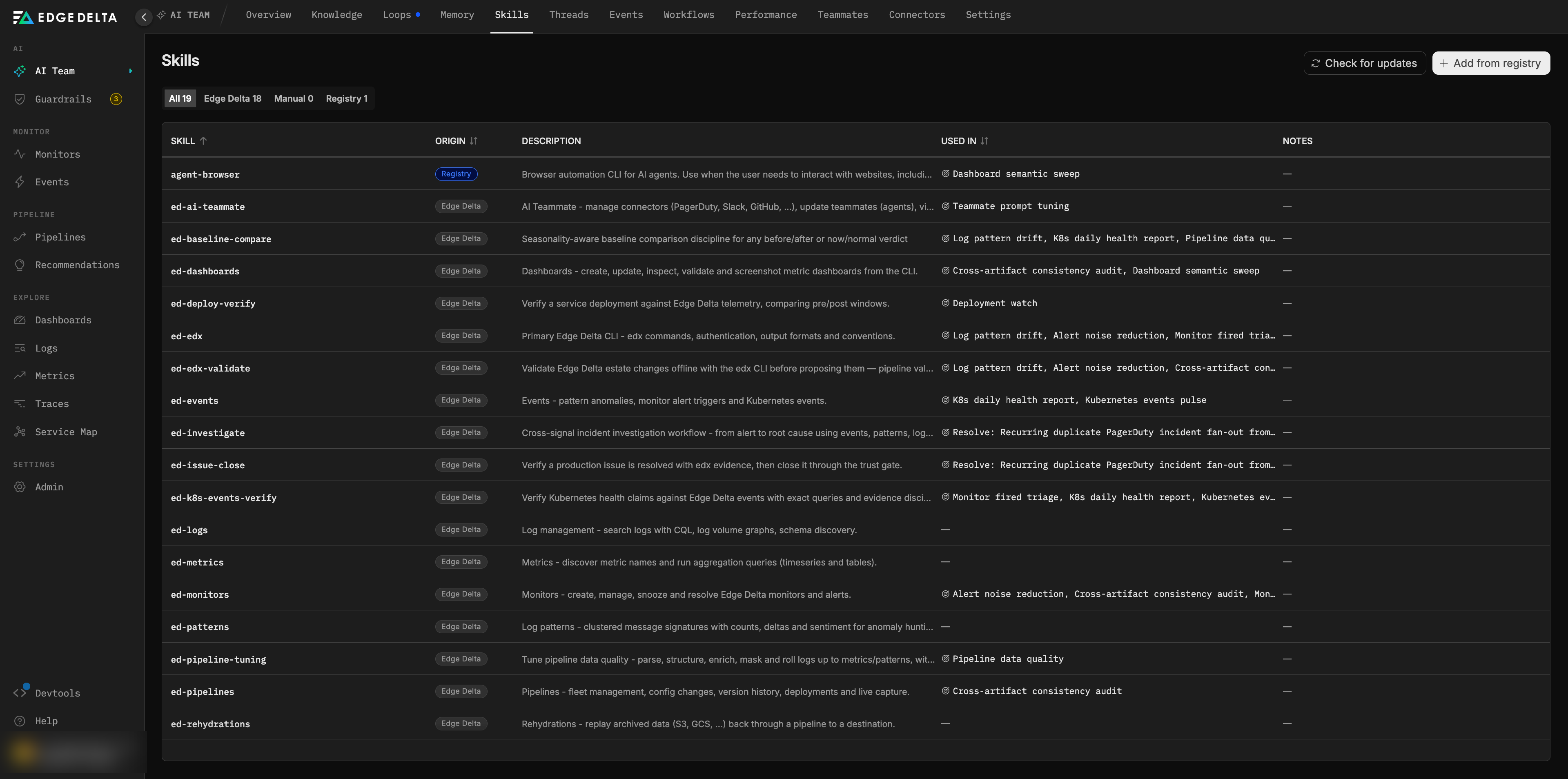
The Skills tab under AI Team lists every skill available to your organization. Filter chips count skills by origin (Edge Delta, Manual, Registry), and the table shows each skill’s origin, description, the loops it is used in, and notes. Add from registry and Check for updates sit in the header.
Where skills come from
| Source | Label | Description |
|---|---|---|
| Edge Delta | Edge Delta | Platform skills shipped and maintained by Edge Delta. Available to every organization and not editable. |
| Your organization | Manual | Skills authored in your organization, including skills minted from resolved threads. Editable. An organization skill with the same name as a platform skill takes precedence for your loops. |
| Public registry | Registry | Skills installed from the public skills registry after risk review. Tracked against their upstream for updates. |
Skills Edge Delta ships
Edge Delta bundles skills for working with the platform and for the checks its out-of-the-box loops perform. The set grows over time, so the Skills tab is the authoritative list. The bundled skills fall into a few groups:
- Working with the platform. How to use the
edxCLI (commands, authentication, output formats) and how to validate estate changes offline before proposing them: pipeline validation, processor dry runs, monitor evaluation, and query and dashboard validation. - Investigating. Cross-signal incident investigation from alert to root cause, seasonality-aware baseline comparison for any before and after verdict, and how to verify Kubernetes health claims against events with exact queries.
- Verifying outcomes. Verifying a deployment by comparing the windows before and after rollout, and verifying that an issue is resolved with evidence gathered in the run before closing it through the trust gate.
- Querying telemetry. Searching logs with CQL, discovering metric names and running aggregations, working with log patterns, traces, and events, and replaying archived data through a pipeline.
- Managing the estate. Creating, tuning, snoozing, and resolving monitors, building and validating dashboards, managing pipelines and their data quality, and managing connectors and teammates.
Bundled skill names carry an ed- prefix, for example ed-deploy-verify and ed-edx-validate. Each skill’s description on the Skills tab states what it covers, and the Used in column shows which loops rely on it.
How a loop uses skills
A loop names the skills it may use. When a run starts:
- The briefing lists each skill’s name and description.
- When the run reaches work a skill covers, it loads the full procedure.
- If the skill ships supporting files, such as query templates or command references, the run reads them at the point the procedure sends it there.
- The run follows the procedure exactly, including its validation steps, and cites the evidence the procedure produces.
Skills are resolved by name at run time. Removing a skill does not fail the loops that reference it. They run without the procedure on their next run and may behave differently, which the removal dialog spells out.
Install a skill from the registry
Only organization admins can install skills. Installing is a three-step flow: Search, Review, and Confirm.
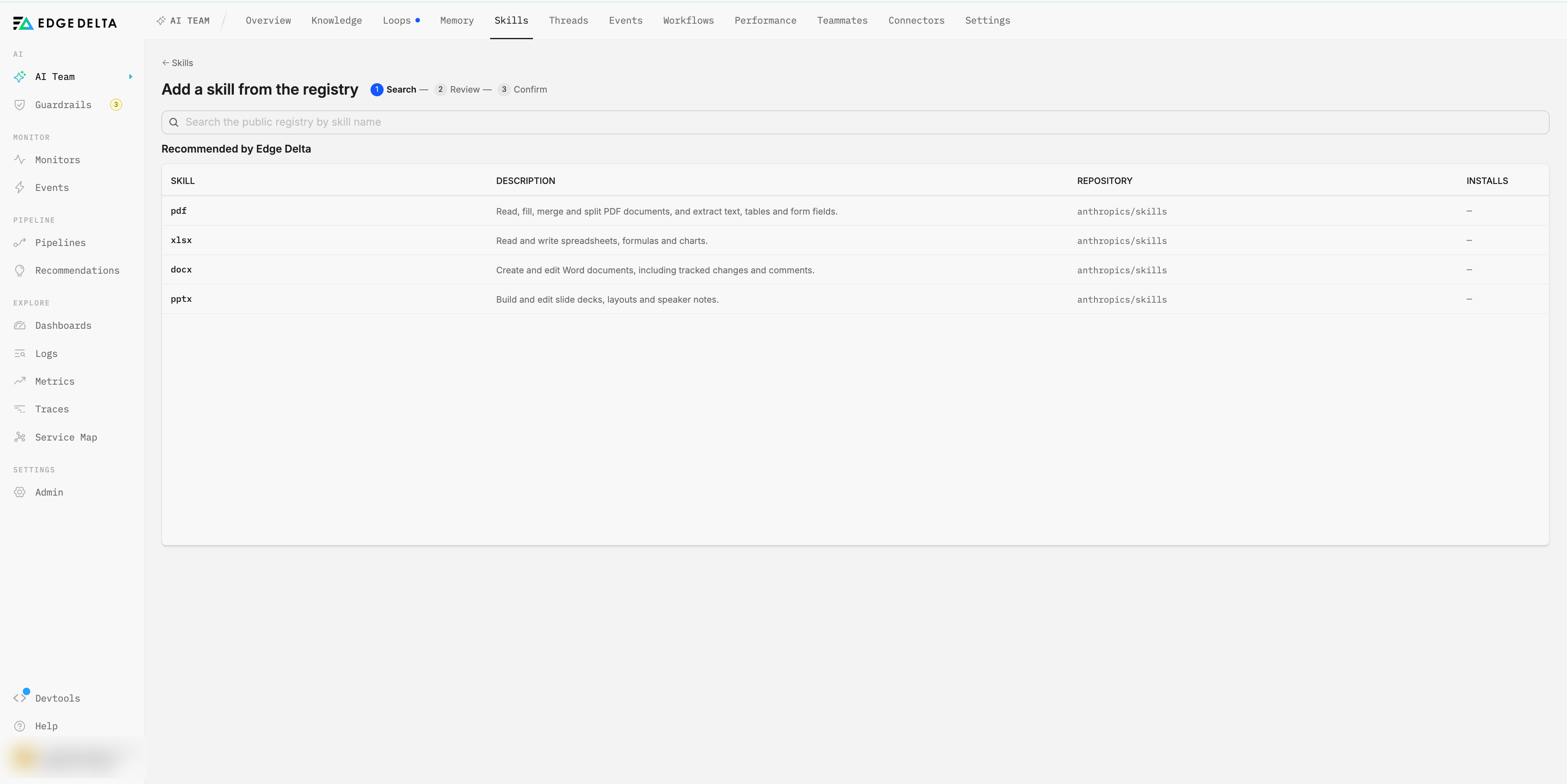
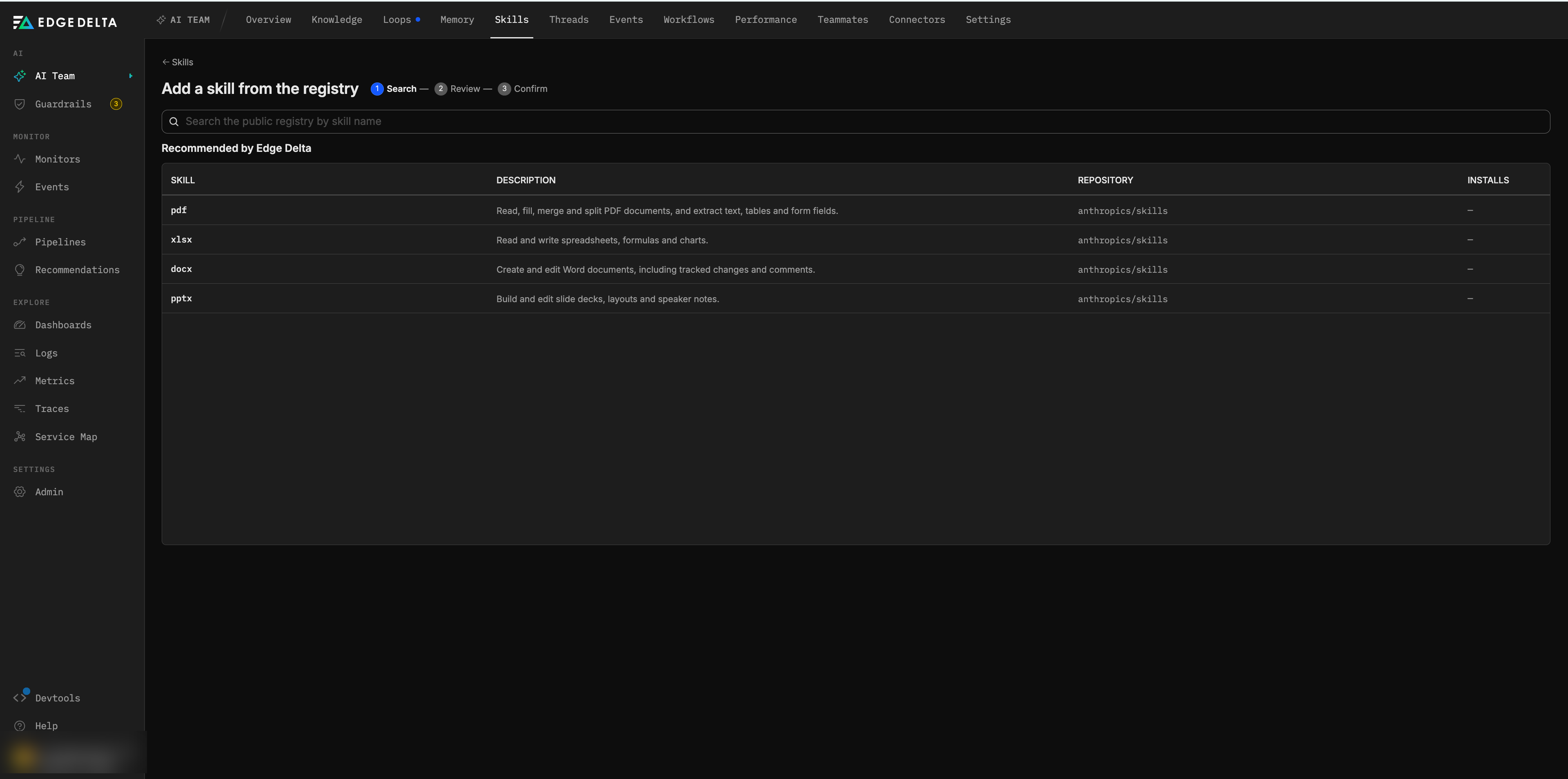
- On the Skills tab, click Add from registry. The search step opens with a list of skills Recommended by Edge Delta, each with its description, source repository, and install count. Search the public registry by skill name to find others.
- Select a skill to open Review before adding. The preview shows the skill’s description, upstream version, the full procedure, and every bundled file.
- Read the risk verdict. Independent scanners rate each skill, and the worst verdict is shown alongside each scanner’s own rating.
- For a
criticalorhighverdict, installation is blocked until you read the procedure and bundled files and acknowledge the risk. Your acknowledgment is recorded against you. For a skill no scanner has assessed, you acknowledge installing an unassessed skill. - Confirm and click Install skill, or Update when a newer upstream version exists.
Risk verdicts and what they usually mean:
| Verdict | Meaning |
|---|---|
critical | Blocks installation until someone accepts the risk. Usually reflects capability: the skill runs scripts, reaches the network, or writes to systems. |
high | Blocks installation until someone accepts the risk. Usually reflects capability rather than evidence of malicious intent. |
medium | Reads external data or runs bundled scripts in a limited scope. Review the files before relying on it. |
low | Prose only or narrowly scoped scripts. No network access detected. |
safe | Prose only. No scripts, no network, no writes. |
| not assessed | No scanner has looked at this skill. This is not the same as safe. |
A run follows a skill unattended against your environment, so treat the review as you would a code review for an automation script.
Keep registry skills current
Installed registry skills record their upstream source, the version and content hash at install time, who installed them, and the risk verdict that justified the install. Click Check for updates to compare each installed registry skill with its upstream. Each is marked as current, update available, or unavailable when the registry cannot be reached. A skill whose scanners have re-rated it since installation is flagged so you can review the new verdict.
Skills minted from threads
When a resolved investigation thread becomes a loop, Edge Delta distills the thread’s procedure into an organization skill and attaches it to the new loop. The skill is named after the thread and described as the procedure distilled from it. You can edit it like any organization skill, and attach it to other loops.
Remove a skill
Open the skill and choose to remove it. The dialog lists every loop that uses the skill and asks you to confirm that those loops will continue without it on their next run. Removing a skill no loop uses has no effect on running automations.
Next steps
- Anatomy of a loop for how skills attach to a loop.
- Out-of-the-box loops for the loops that rely on the bundled skills.
- Security best practices for the broader model of what teammates and loops may do.