Creating and Managing Loops
7 minute read
Overview
The Loops page under AI Team is where you create loops, review the actions waiting on your decision, and manage every loop your organization runs. This page walks through each way a loop comes into being and how to manage it afterwards.
The Loops page
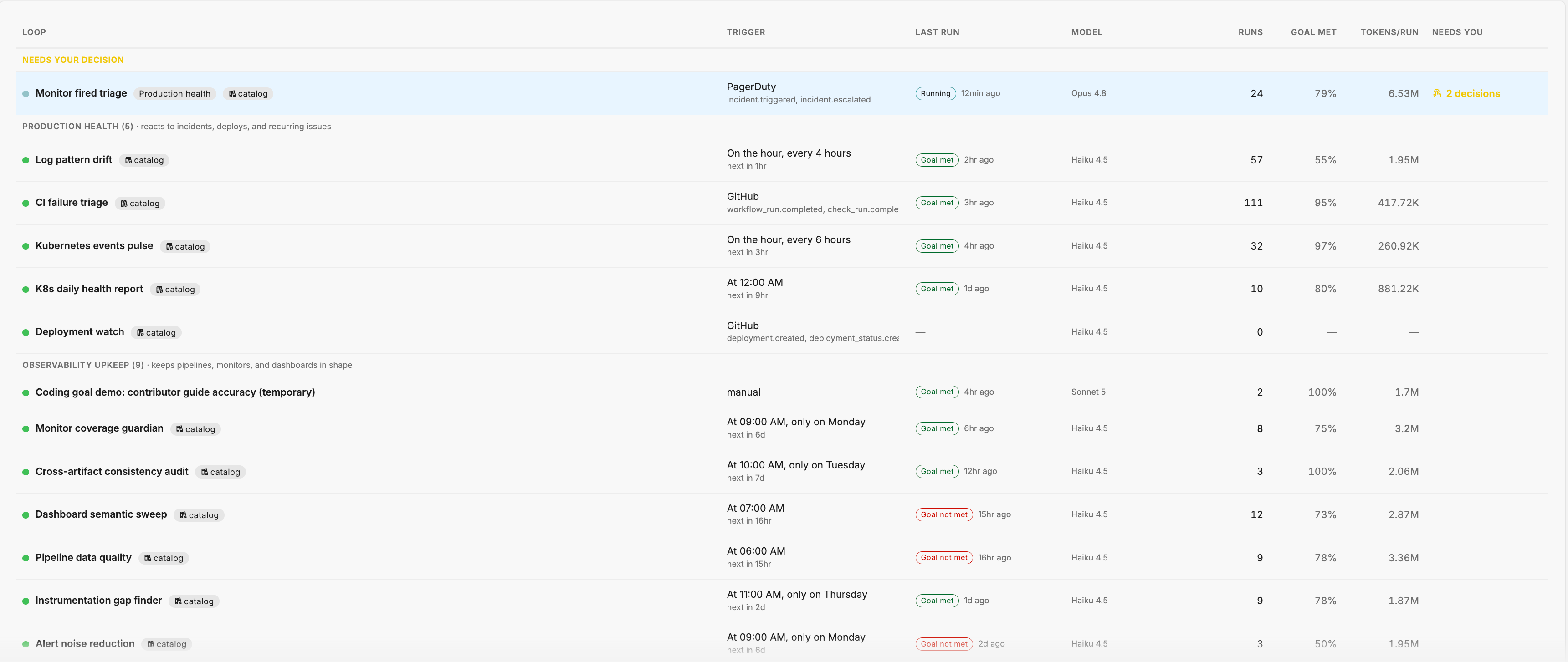
The page opens on the list of active loops. Across the top, a stat strip summarizes the estate: how many loops are Active, how many are Running right now, how many decisions are Awaiting across how many loops, how many Failed last run, and how many are Archived. When Edge Delta has new suggestions, a row above the table says how many and offers Review all.
The table groups loops in three sections:
- Needs your decision: loops with actions awaiting approval, pinned to the top.
- Production health: loops that react to incidents, deploys, and recurring issues.
- Observability upkeep: loops that keep pipelines, monitors, and dashboards in shape.
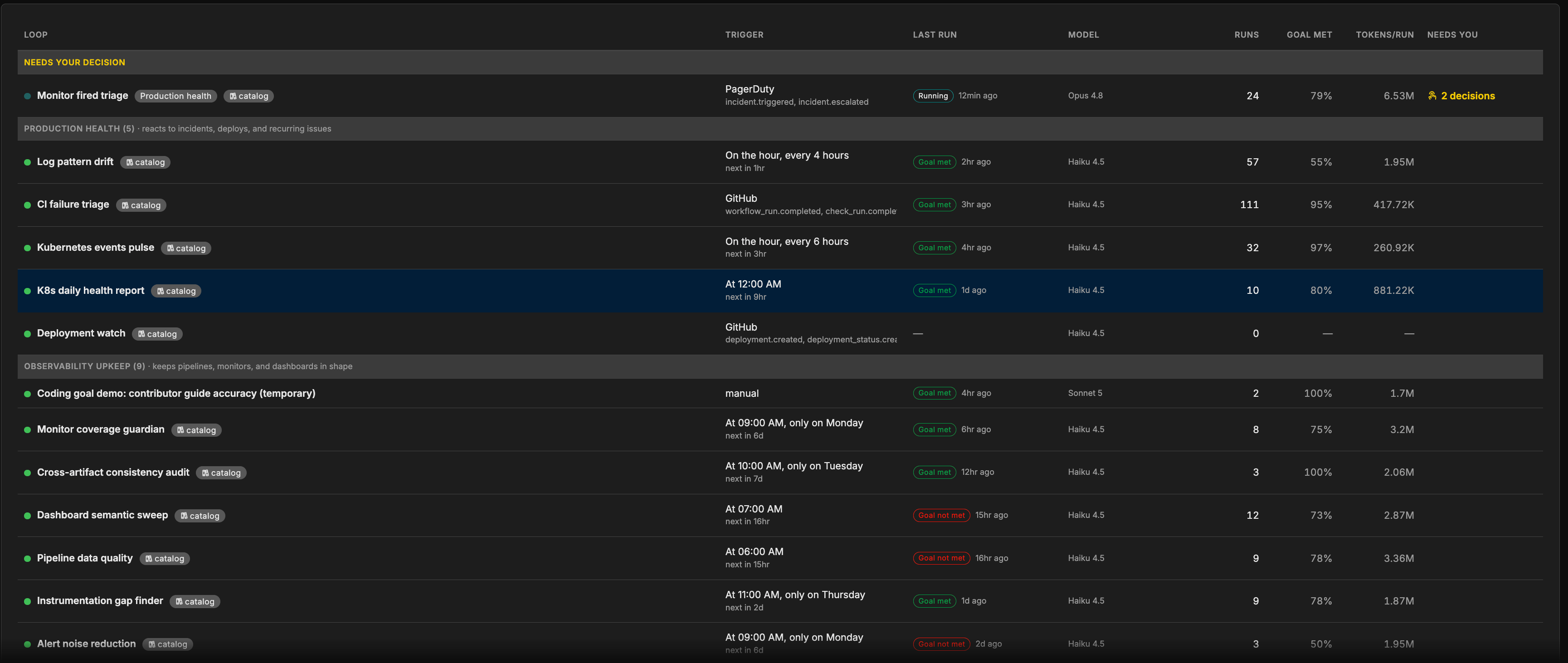
Each row shows the loop’s name with its badges, the Trigger in words with the next run time, the Last run outcome and when it ran, the Model, the Runs count (as N/M for bounded loops), the Goal met rate, the average Tokens/run over the loop’s last 100 runs, and Needs you with the number of pending decisions. Use Search loops to filter, and switch between Active and Archived to see loops that have finished.
Create a loop from a goal
You do not configure a loop field by field. You describe the outcome you have in mind, in a sentence or two, and Edge Delta turns it into a complete loop definition for you to review. The trigger, model tier, skills, connector scope, success criteria, and the prompt each run receives are all drafted from your words.
- Click New loop.
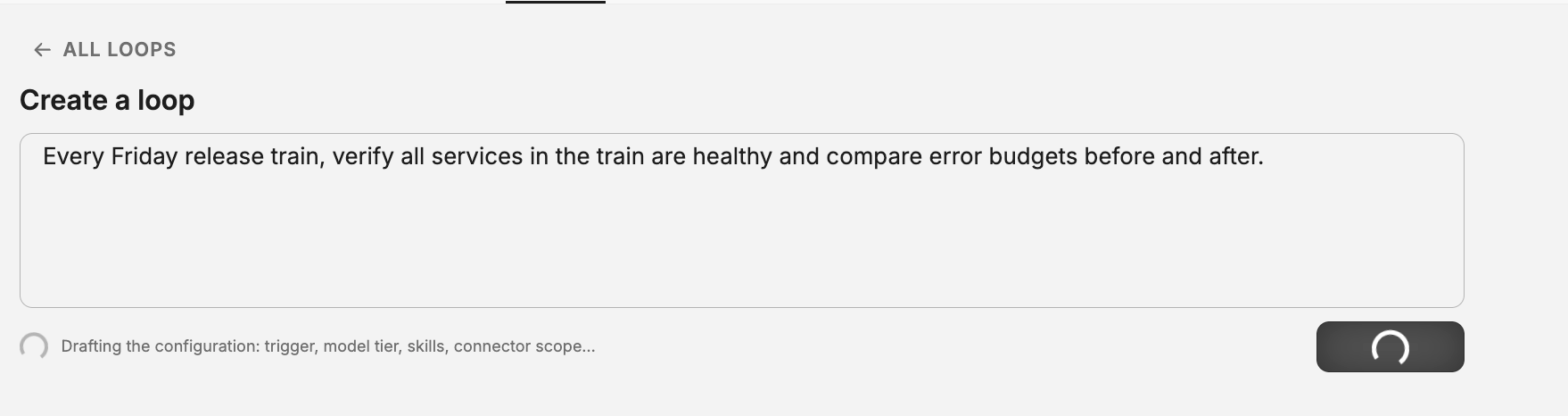
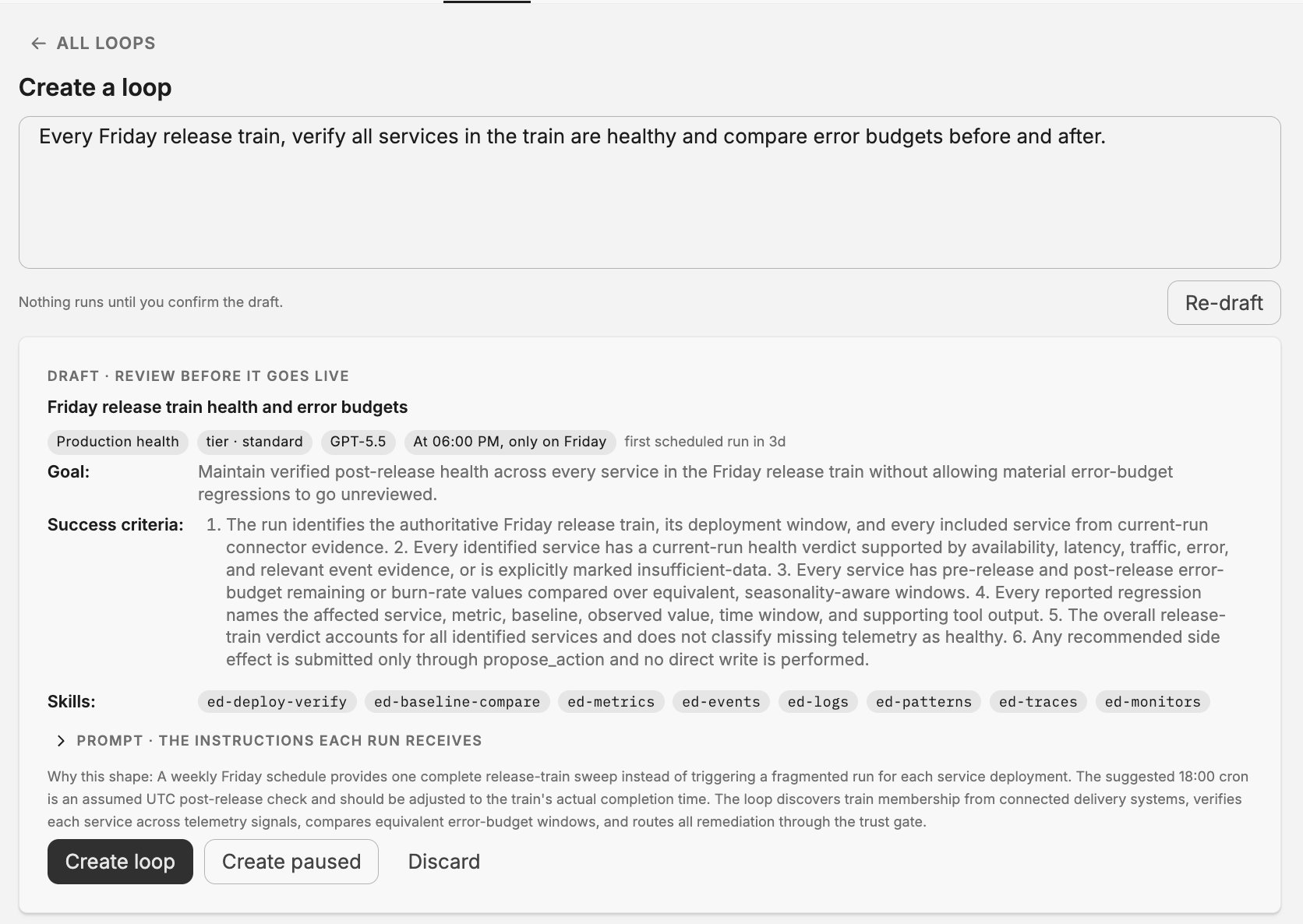
- In the Create a loop box, describe the outcome you want and when it should be checked, in your own words. For example: “Every Friday release train, verify all services in the train are healthy and compare error budgets before and after.” Three examples under Start from an example can be used as starting points.
- Click Draft loop. While Edge Delta works, the status line reads “Drafting the configuration: trigger, model tier, skills, connector scope.”
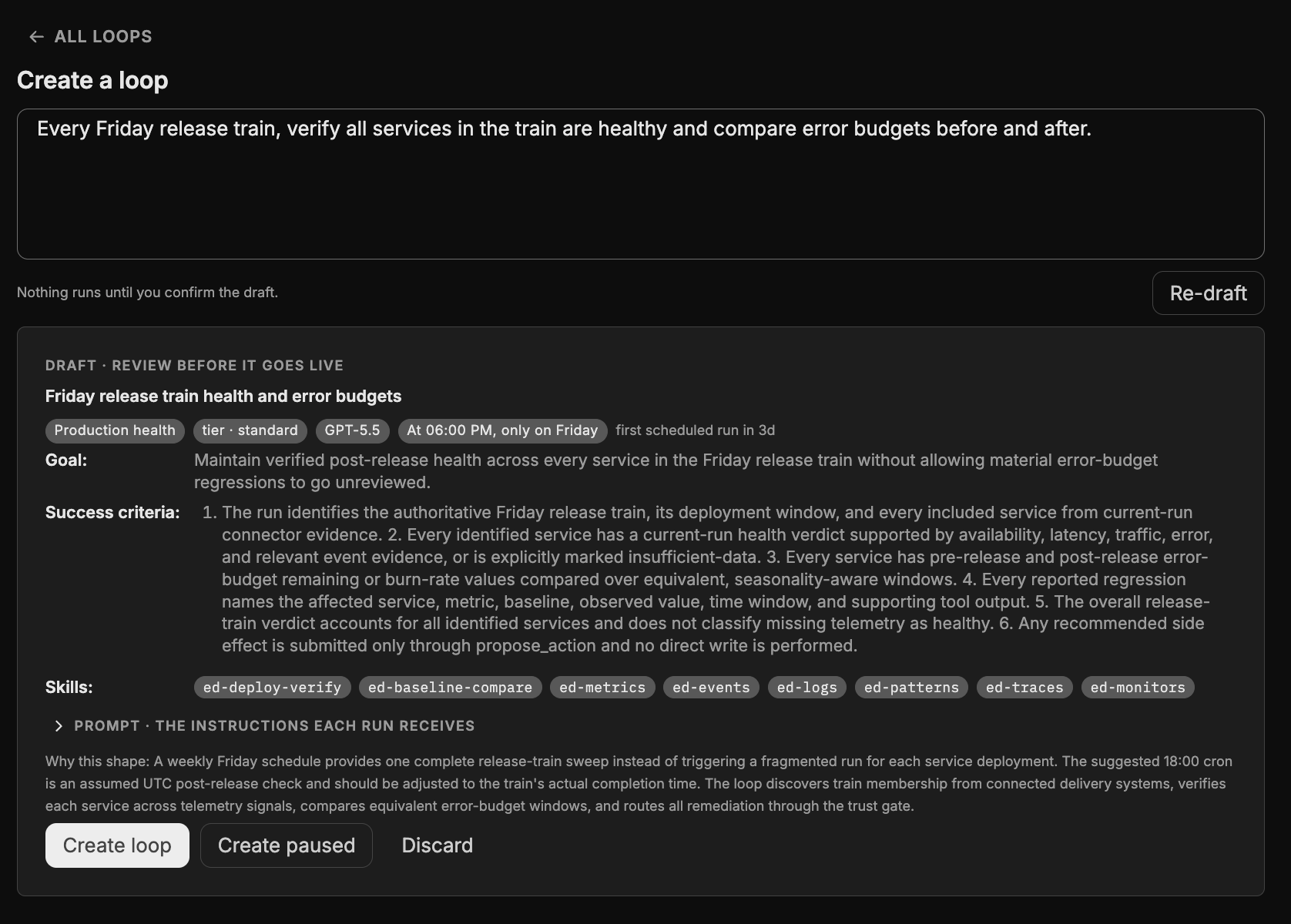
- Review the draft. The card is labeled Draft, review before it goes live and shows the name, class, tier, schedule or event trigger, goal, numbered success criteria, and skills, with a line explaining why Edge Delta chose that shape, for example that a recurring window calls for a weekly schedule rather than an event trigger. Expand Prompt, the instructions each run receives to read the exact instructions. If you edit the goal after drafting, the card notes the draft is stale and the button becomes Update draft.
- Click Create loop to activate it, Create paused to save it without running, or Discard.
Nothing runs until you confirm the draft. A new schedule loop runs once immediately to establish baselines and verify the current state, then follows its schedule. Event and manual loops wait for their trigger. Every part of the draft can be changed later in plain words as well, as described under Edit a loop.
Accept a suggested loop
Edge Delta proposes a loop when an issue keeps coming back, when an investigation ends with nothing watching the fix, or when a run asks for one. Suggestions appear in the Suggested loops pane, reachable from the recommendation row on the Loops page or from New loop.
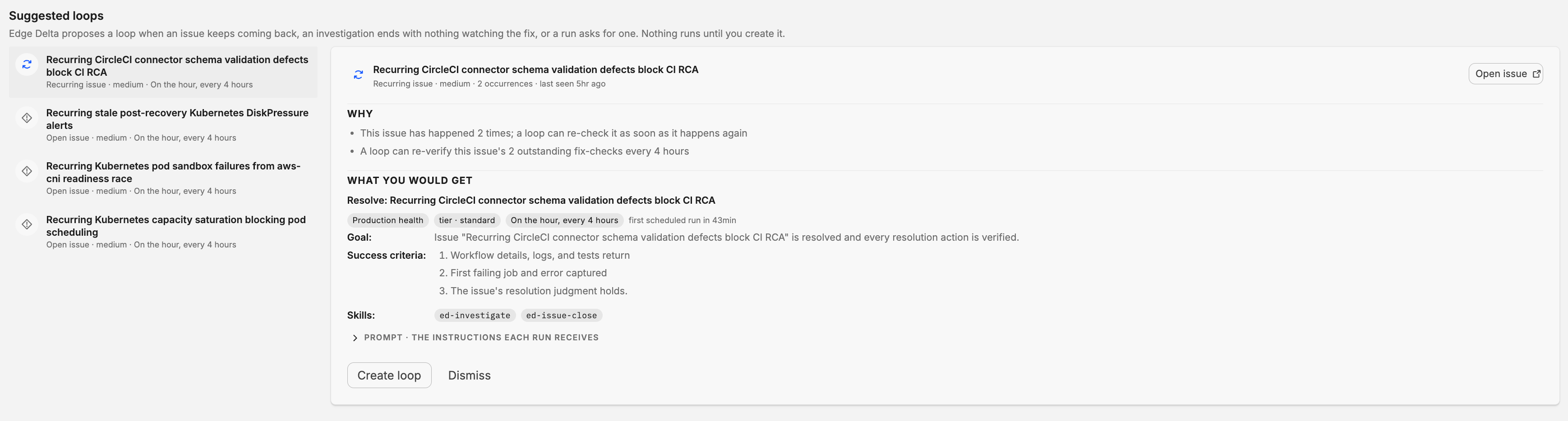
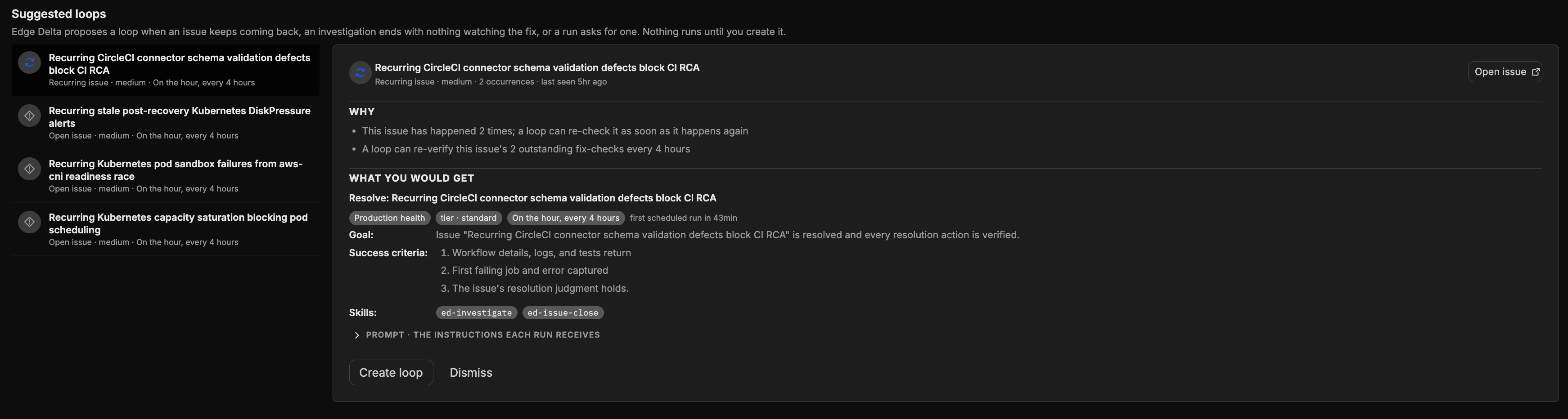
The pane lists suggestions on the left, each with its origin (a recurring issue, an open issue, a resolved investigation, or a loop that proposed it), severity, and the cadence the loop would run on. Selecting one shows two sections on the right:
- Why: what makes a loop worthwhile here, for example “This issue has happened 2 times; a loop can re-check it as soon as it happens again,” or “A loop can re-verify this issue’s 2 outstanding fix-checks every 4 hours.”
- What you would get: the loop as it would be created, with its class, tier, schedule, goal, success criteria, skills, and the prompt each run receives.
Open the source with Open issue, Open thread, or Open run to check the context, then click Create loop or Dismiss. A dismissed suggestion stays dismissed for 30 days.
Start a loop from an issue
Every issue carries at most one resolution loop for its whole life. On the issue details page, the Resolution loop panel shows either the loop watching the issue or a suggestion to create one. Click Create loop to create it.
A resolution loop is bound to the issue:
- Its success criteria are the issue’s open recommended actions, re-read before every run, so the loop keeps up as the actions change.
- Its cadence follows the issue’s severity: every 30 minutes for critical, every 2 hours for high, every 4 hours for medium, and once a day otherwise. Severity escalation tightens the cadence. Recurrences and approved actions also trigger immediate runs.
- Approving an action on the issue starts a re-verification run.
- Closing the issue completes the loop. If the issue recurs later, the same loop resumes instead of a new one being created.
Start a loop from a thread
When an investigation in a channel reaches a resolution, its thread can become a loop that re-runs the same checks. Edge Delta suggests this for resolved investigations in the Suggested loops pane. Creating the loop also saves the thread’s procedure as a reusable skill in your organization, so other loops can follow it.
Send a monitor to a loop
A monitor can start a run each time it fires. In the monitor’s notification settings, choose Send to AI Loop and select the loop. This adds a loop mention to the monitor’s notification template, and the monitor event becomes the run’s trigger context. A monitor already routed to a loop is marked Already routed. Monitors bound to a loop are listed on the loop’s Configuration view. See Monitor notifications.
Subscribe a loop to connector events
Event connectors such as GitHub, PagerDuty, and Kubernetes emit event types you can route. On a connector’s Events tab, the Loop column lets you pick the loop that should run for each event type, alongside the workflow destination. The loop’s Configuration view lists the event types it is subscribed to and notes that subscriptions are managed on the connector.
Edit a loop
Open a loop and switch to Configuration. There are two ways to change it:
- Describe the change. Click Change in plain words, type the change, for example “check every 30 minutes instead” or “add the rollback playbook skill,” and click Draft change. Edge Delta shows Review the diff with each field that would change, such as Checks, Success means, Runs, Tier, Class, and Skills, old value struck through and new value below. Click Apply N changes or Discard.
- Edit a field directly. Each card on the Configuration view has a pencil for in-place edits: the goal, the success criteria, the schedule, the model tier, the skills, where the loop reports, and the prompt.
Changes apply to the next run. A run already in progress finishes on the definition it started with.


Run, pause, resume, and delete
From the loop’s header:
- Run now starts a run immediately, or coalesces into a run already in progress.
- Pause stops the trigger from starting runs. The loop keeps its definition, notes, and history. Resume clears the pause.
- The overflow menu holds Delete loop. Deleting removes the loop and its complete run history permanently. Summaries already posted to threads or external surfaces keep their posts.
Loops that have finished as Goal reached or Max runs reached move to the Archived view. They keep their history for 30 days.
Who can manage loops
Every member can view loops, runs, and decisions. Approving or denying an action is governed by the Guardrails trust configuration, which only organization admins can change. Installing skills from the registry is limited to organization admins.
Next steps
- Out-of-the-box loops for the loops that activate themselves when you connect a matching connector.
- Loop actions and approvals to decide on what loops propose.
- Anatomy of a loop for the meaning of every field you can edit.