Turn a Log Pattern into a Pipeline Processor
4 minute read
Overview
When the Patterns page identifies noisy or low-value log patterns, you can act on them directly by creating a Filter Processor or Sample Processor in your pipeline. This avoids manual OTTL translation because Edge Delta generates the processor configuration for you.
There are three ways to go from a pattern to a pipeline processor:
| Method | What it does |
|---|---|
| Recommendations | Edge Delta suggests filter or sample processors for specific patterns. You review the suggestion and create the processor in one click. |
| Filter Out action | You select a pattern from the table and open the pipeline editor to add a filter manually. |
| Search in Archive | You open the pattern’s logs in Log Search, then follow the Log Search to Filter guide. |
Use a recommendation
Edge Delta analyzes your log patterns and suggests processors to reduce volume or noise. Recommendations appear in two places:
- A recommendation icon on individual pattern rows in the Logs > Patterns table.
- The Recommendations page in the main navigation, which lists all available suggestions across your organization.
From a pattern row
Some patterns display a recommendation icon in the Logs > Patterns table. This is the fastest way to act on a specific pattern.
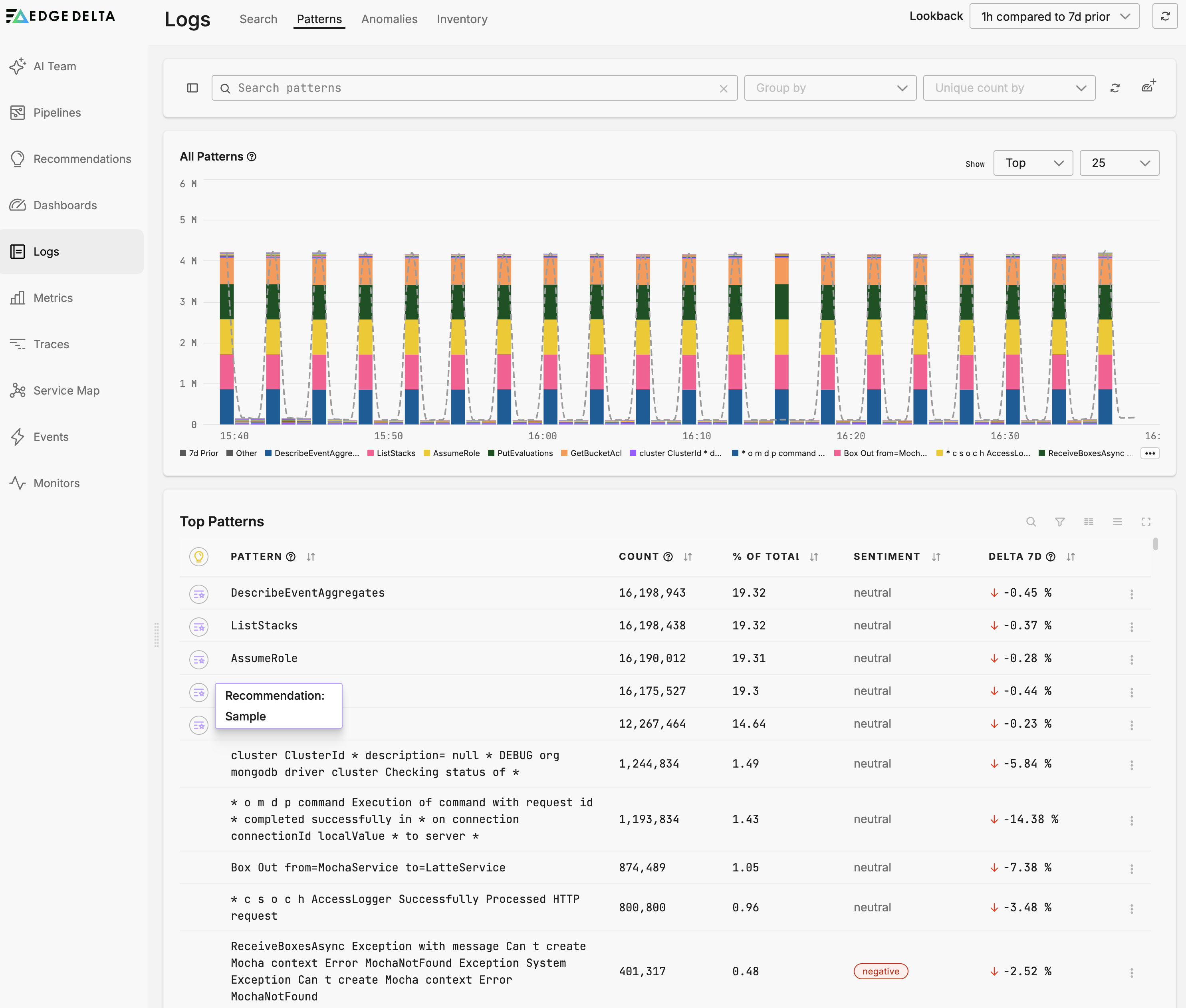
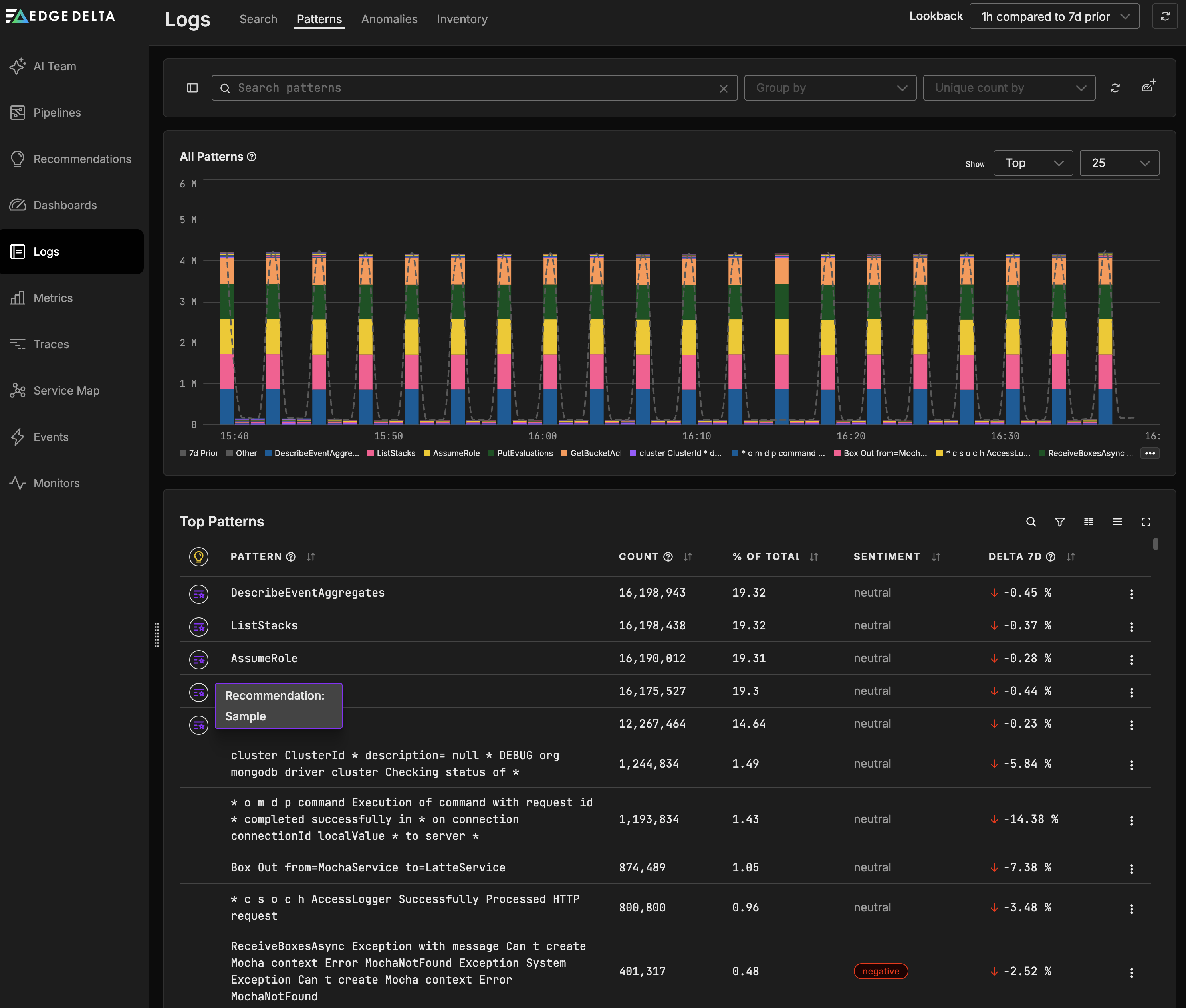
- Open Logs, then select the Patterns tab.
- Click the recommendation icon on the pattern row. In this example, the PutEvaluations pattern has a Sample recommendation.
- Review the suggested processor. Recommendations can suggest either a Filter Processor or a Sample Processor depending on the pattern.
- Click the recommendation. The pipeline editor opens with the processor pre-populated. In this example, the Sample Put Evaluations processor is configured with the condition
IsMatch(body, "PutEvaluations")and a 50% sampling percentage.
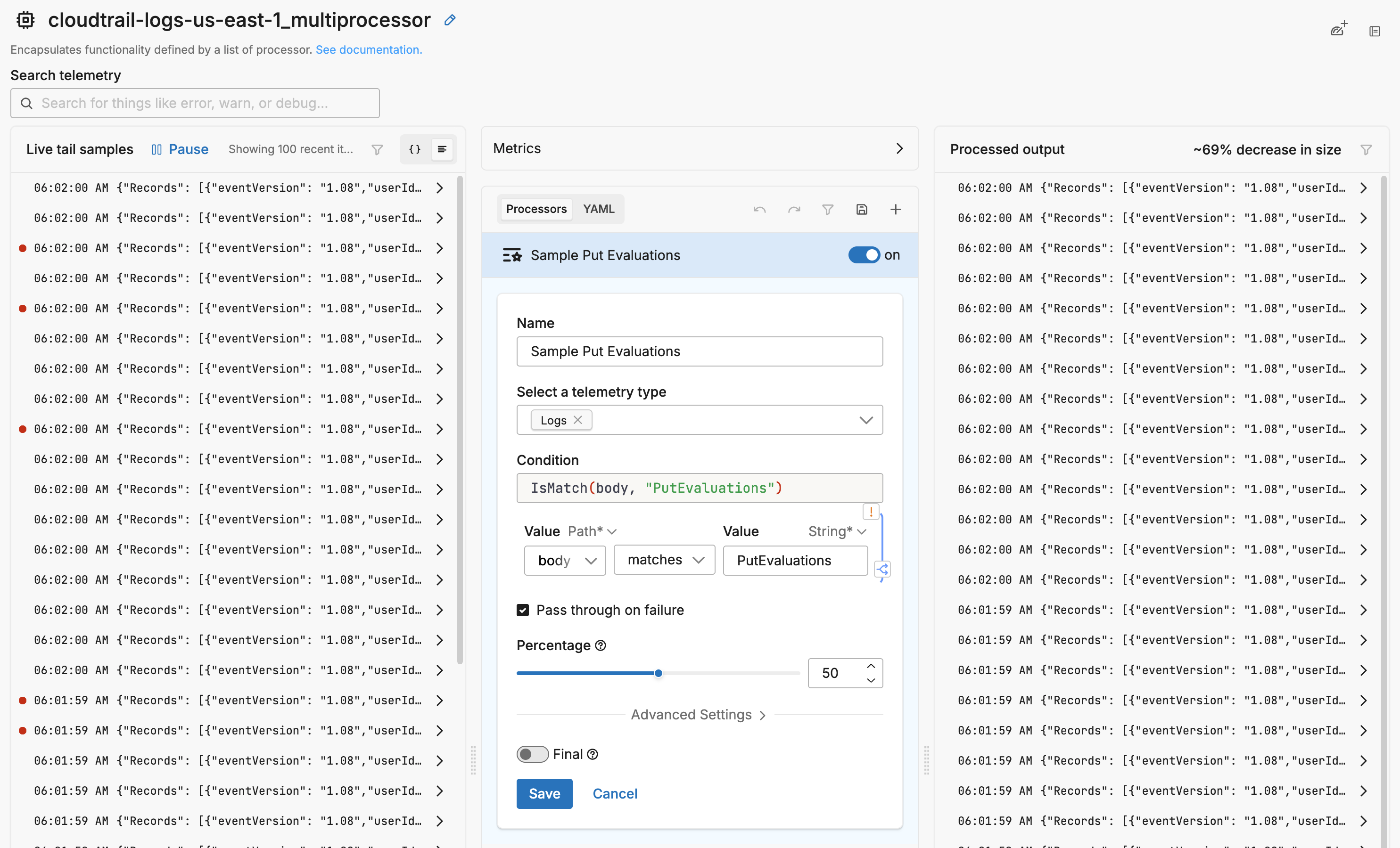
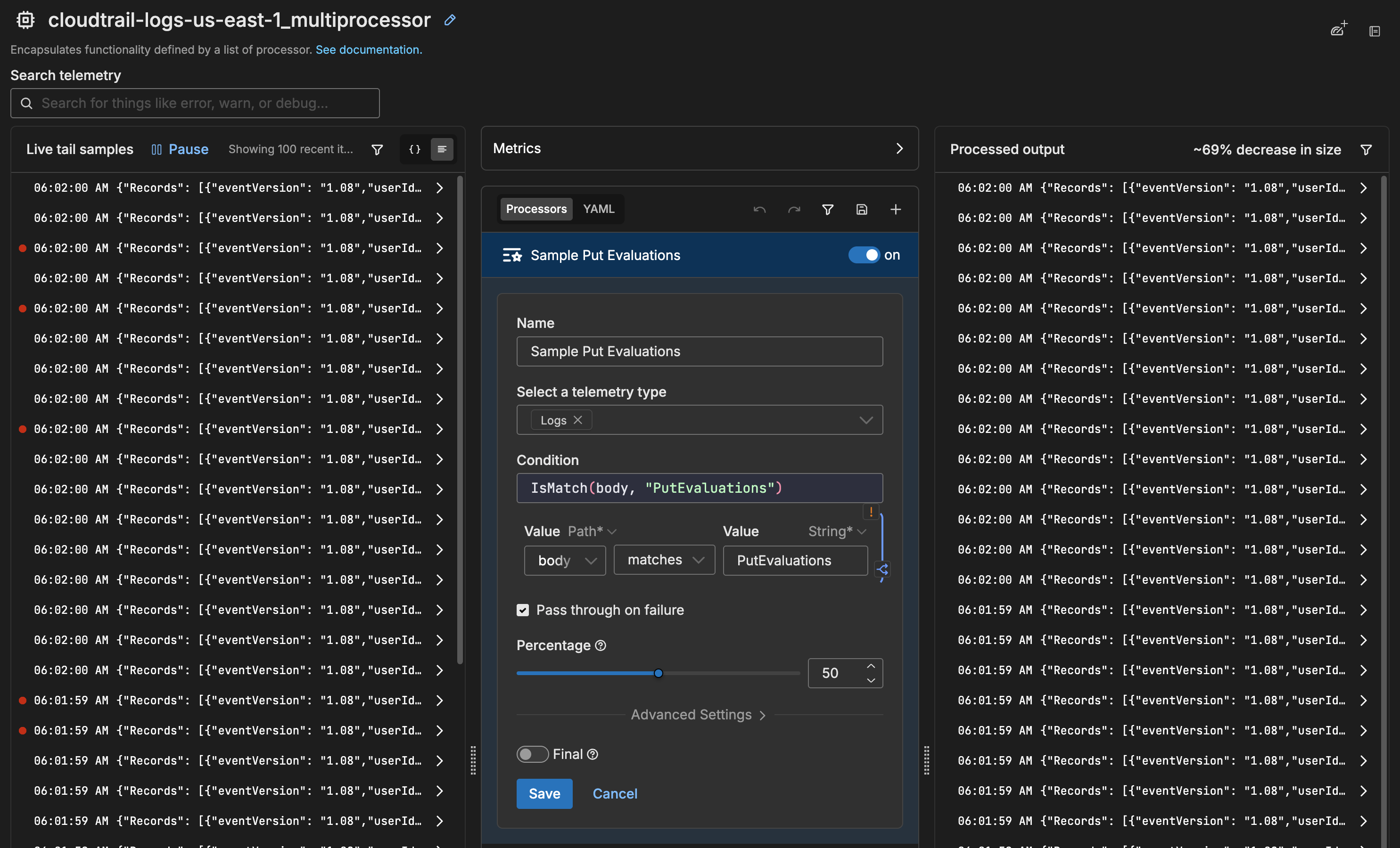
- Review the processor configuration. For a Sample Processor, verify the sampling percentage and the match condition.
- Click Save, then deploy the pipeline.
From the Recommendations page
The Recommendations page in the main navigation lists all available suggestions. Use this view to review recommendations across all patterns and pipelines.
- Click Recommendations in the main navigation.
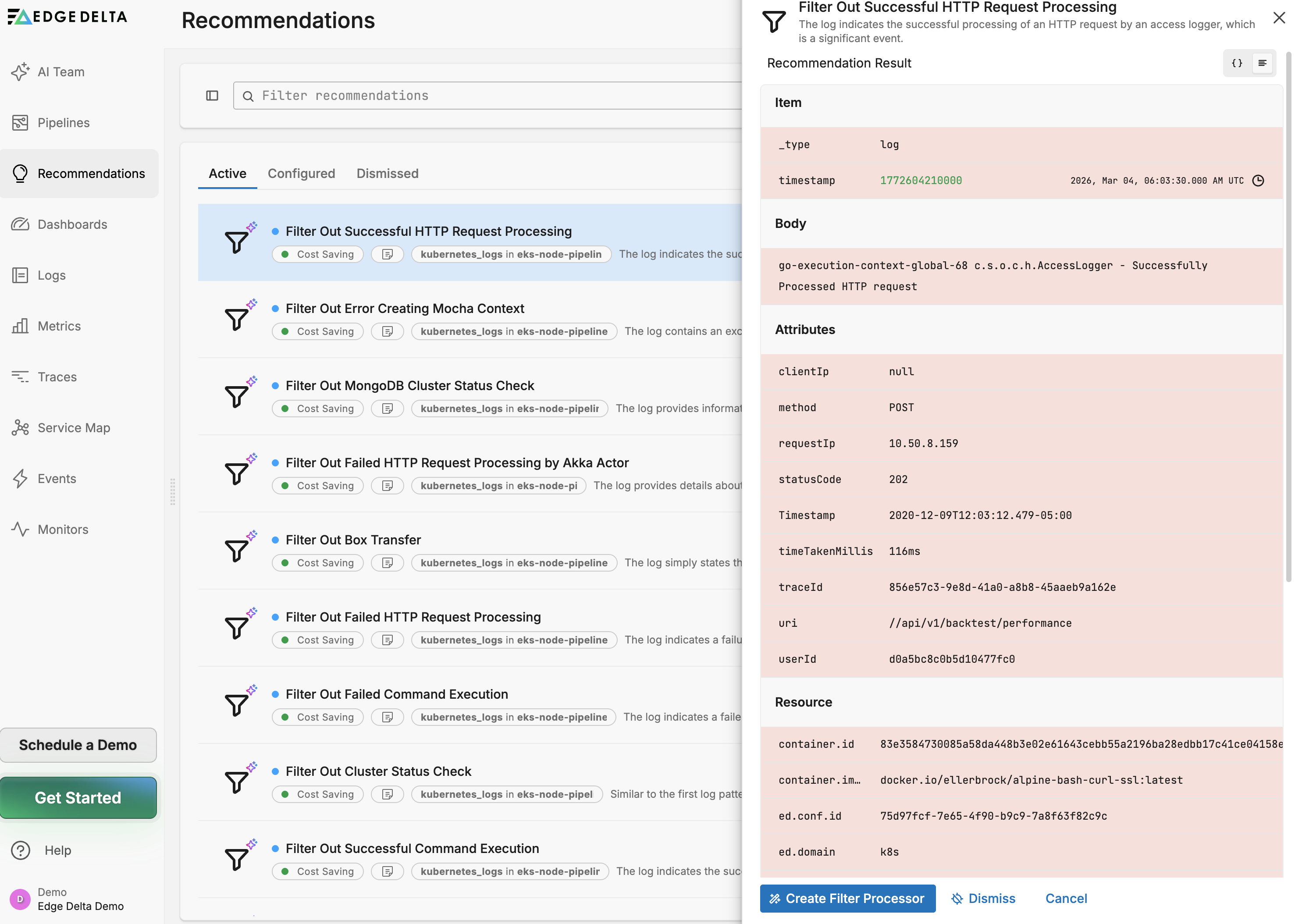
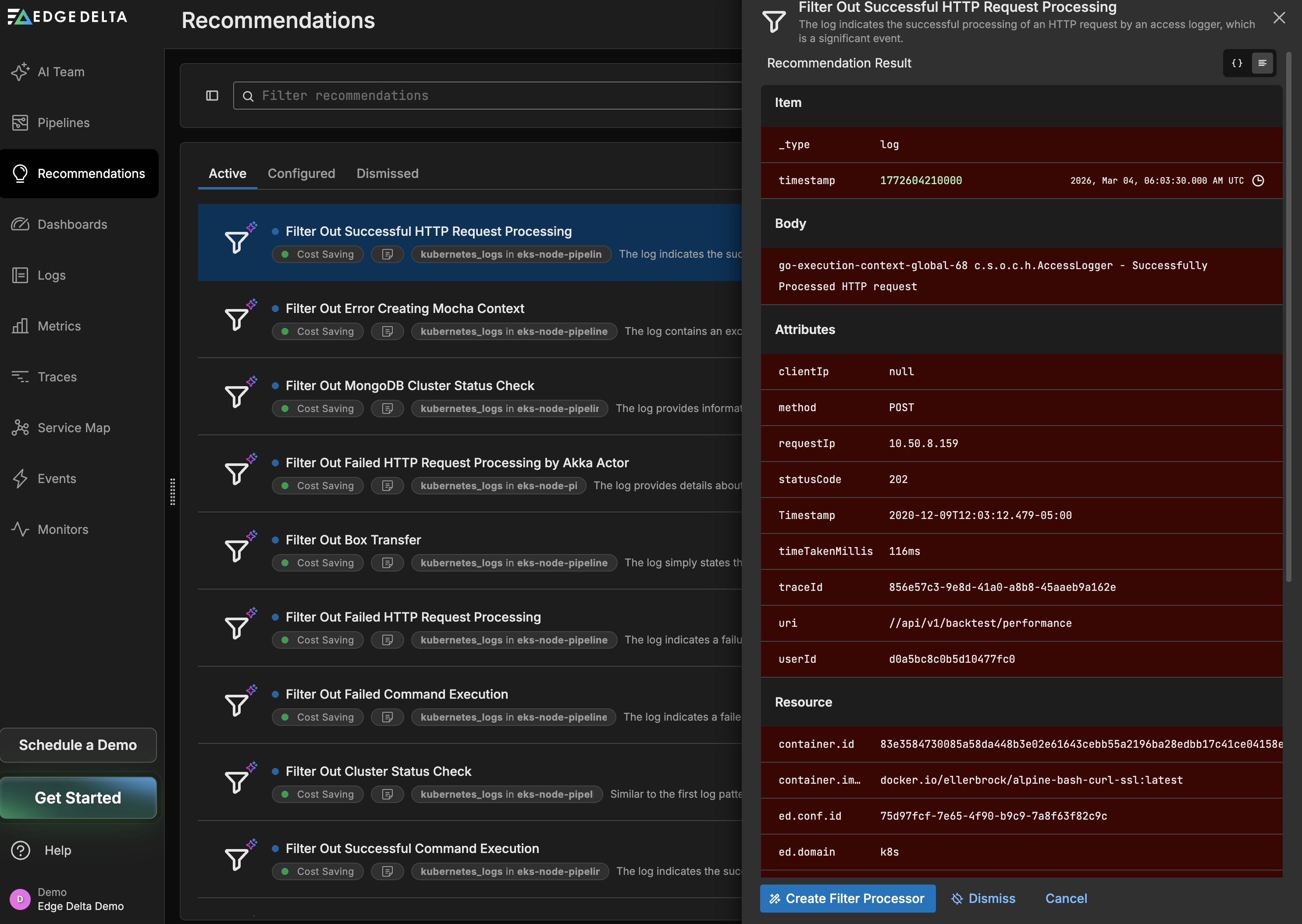
- Review the suggested processors. Each recommendation includes a description, the affected source, and a sample log.
- Click a recommendation to expand it and review the sample log data. In this example, the “Filter Out Successful HTTP Request Processing” recommendation is expanded, showing the log body and attributes.
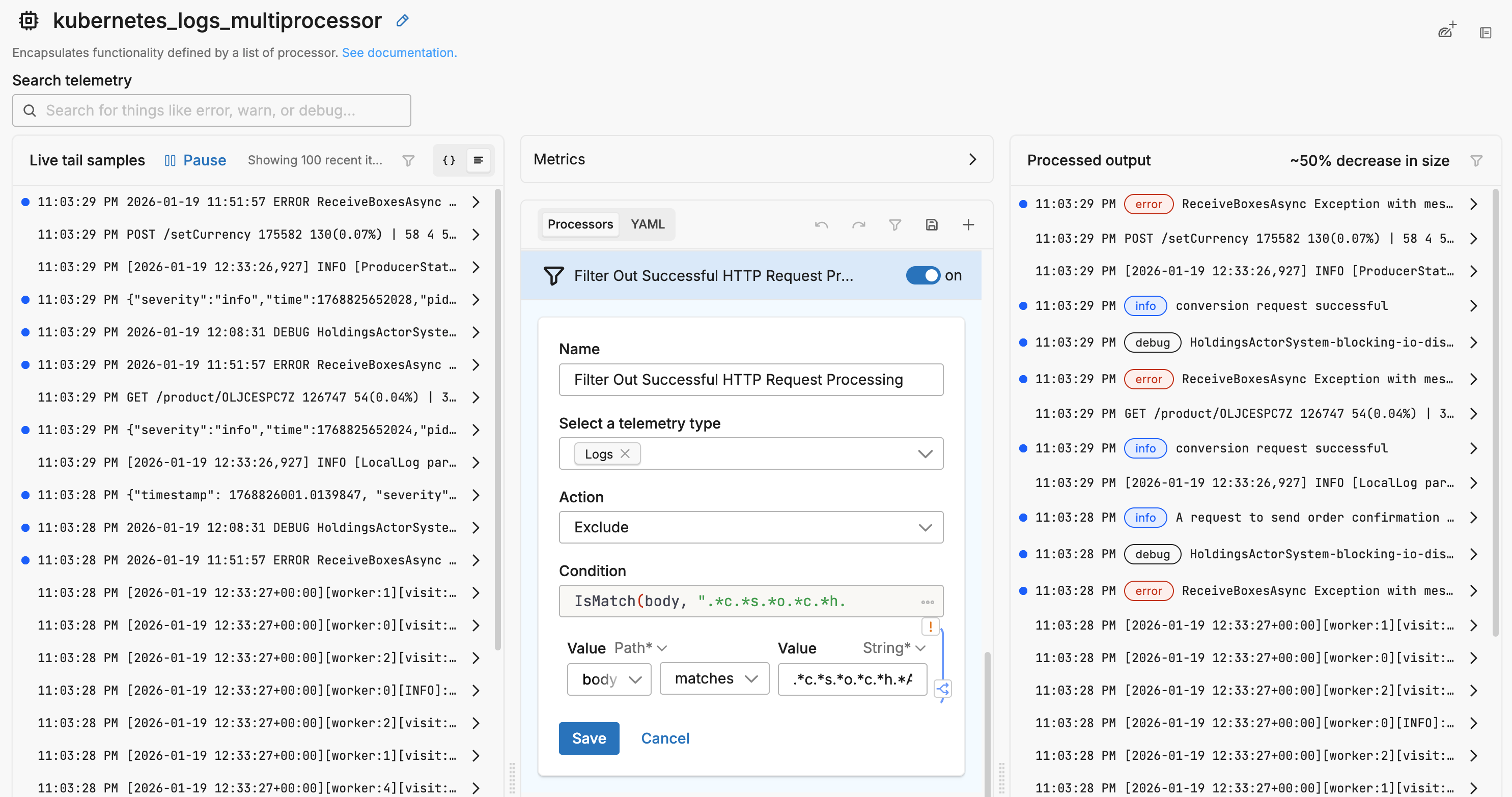
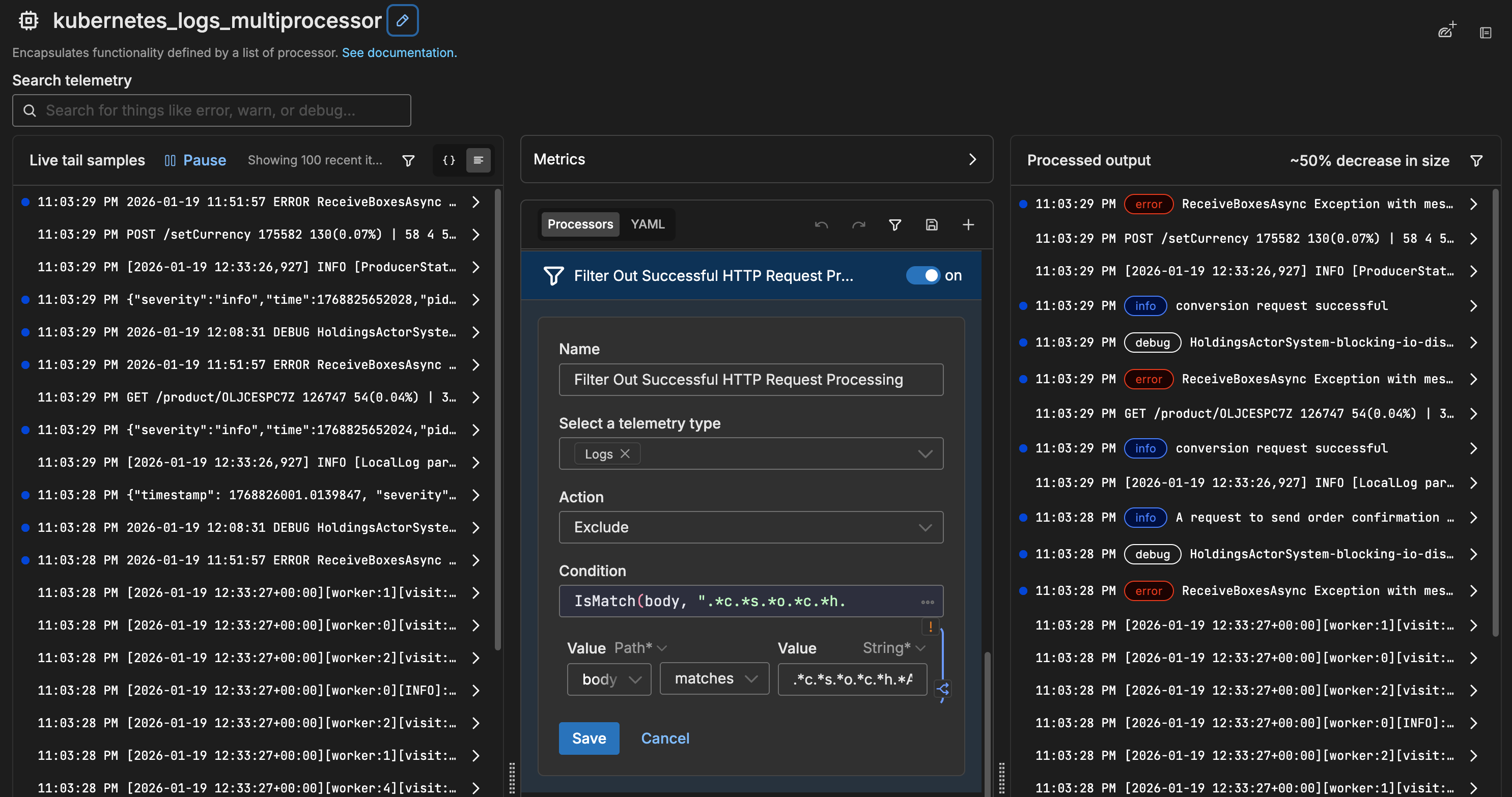
- Click Create Filter Processor. The pipeline editor opens with the processor pre-populated, including the name, action, condition, and telemetry type. In this example, the Filter Processor is configured with the action set to Exclude and a condition using
IsMatch(body, ...)to match the pattern. - Review the processor configuration, then click Save.
- Deploy the pipeline to apply the change.
Use the Filter Out action
You can filter out a pattern directly from the patterns table.
- Open Logs, then select the Patterns tab.
- Find the pattern you want to filter in the table.
- Click the kebab menu (three dots) in the Actions column for that pattern. In this example, the “Box Out from=MochaService to=LatteService” pattern is selected.
- Select Filter out.
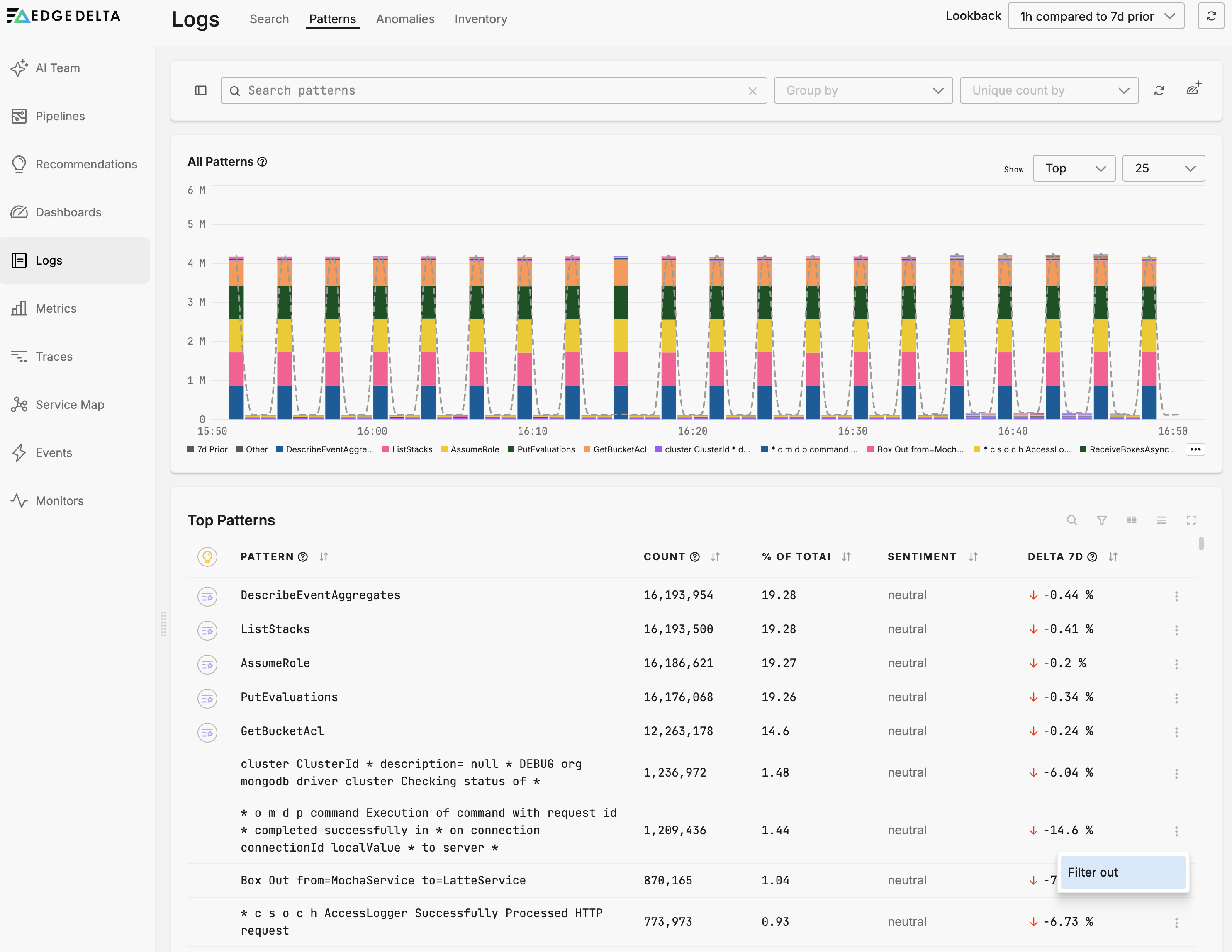
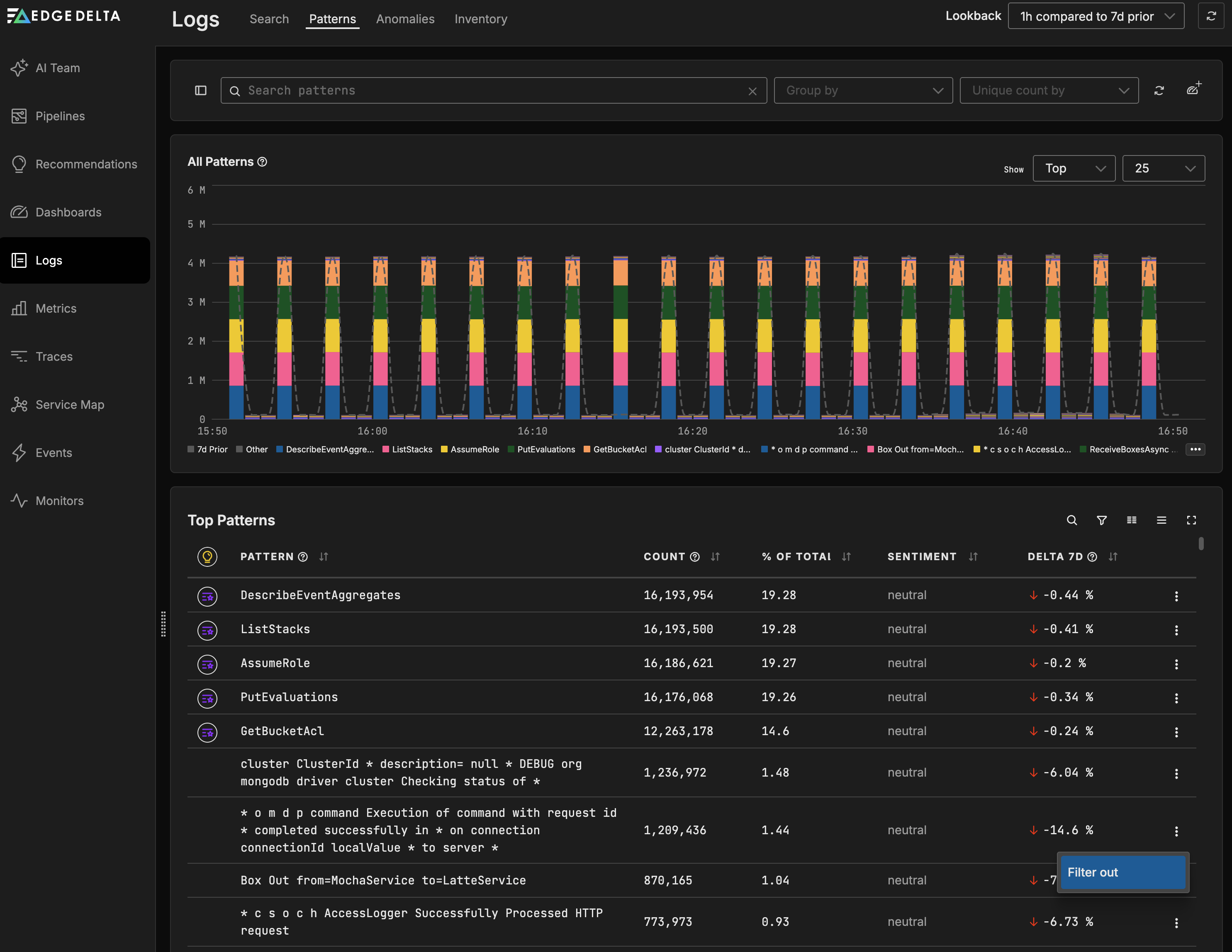
The pipeline editor opens with the relevant multiprocessor in edit mode.
5. Click Add a processor. If recommended processors are available for this pipeline, they appear in the processor list. Select a recommended processor to use a pre-populated configuration. Otherwise, select Filter or another processor type and configure it manually.
6. If configuring manually, set the condition to match the pattern. Use IsMatch(body, "regex") with a regex derived from the pattern template, replacing wildcard segments (*) with .* in the regex. Set the action to Exclude. You can also use the Generate with AI feature on a Custom Processor to create the condition from a natural language description.
7. Click Save, then deploy the pipeline.
Search in Archive
You can open a pattern’s matching logs in Log Search and then create a filter from the search query.
- Open Logs, then select the Patterns tab.
- Click a pattern row to open the pattern details. In this example, the “Box Out from=MochaService to=LatteService” pattern is selected, showing the historical pattern count and cluster samples.
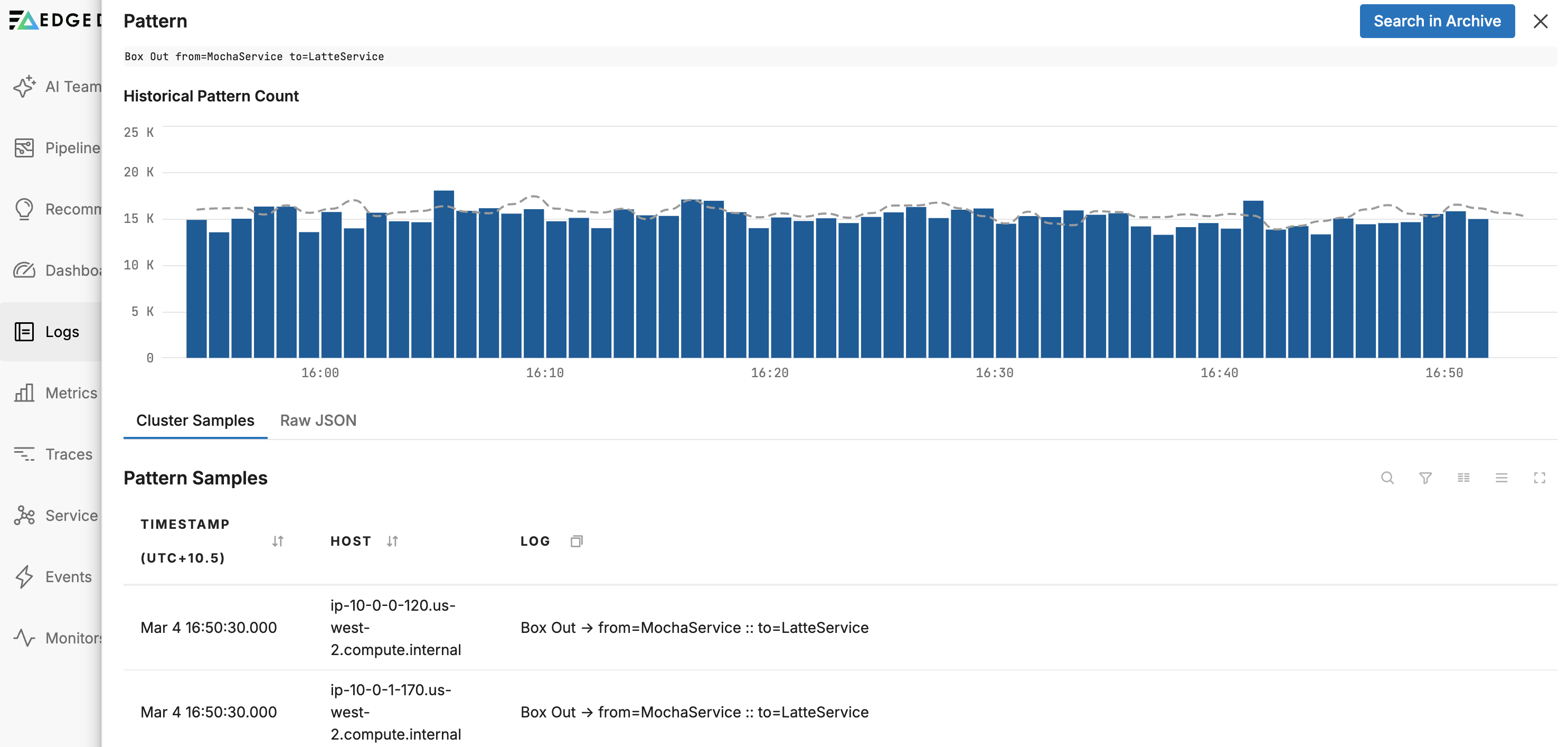
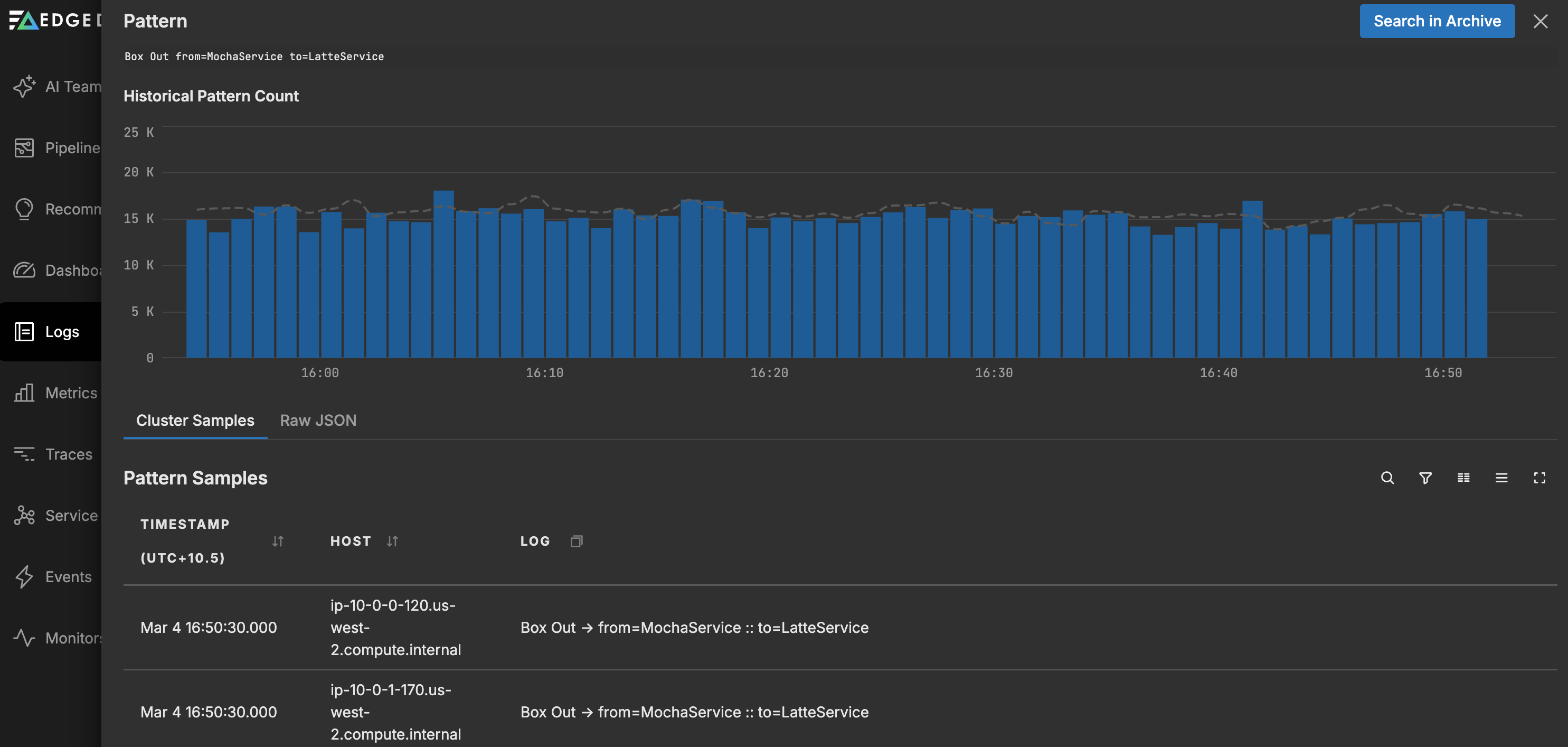
- Review the sample logs to confirm this is the pattern you want to act on.
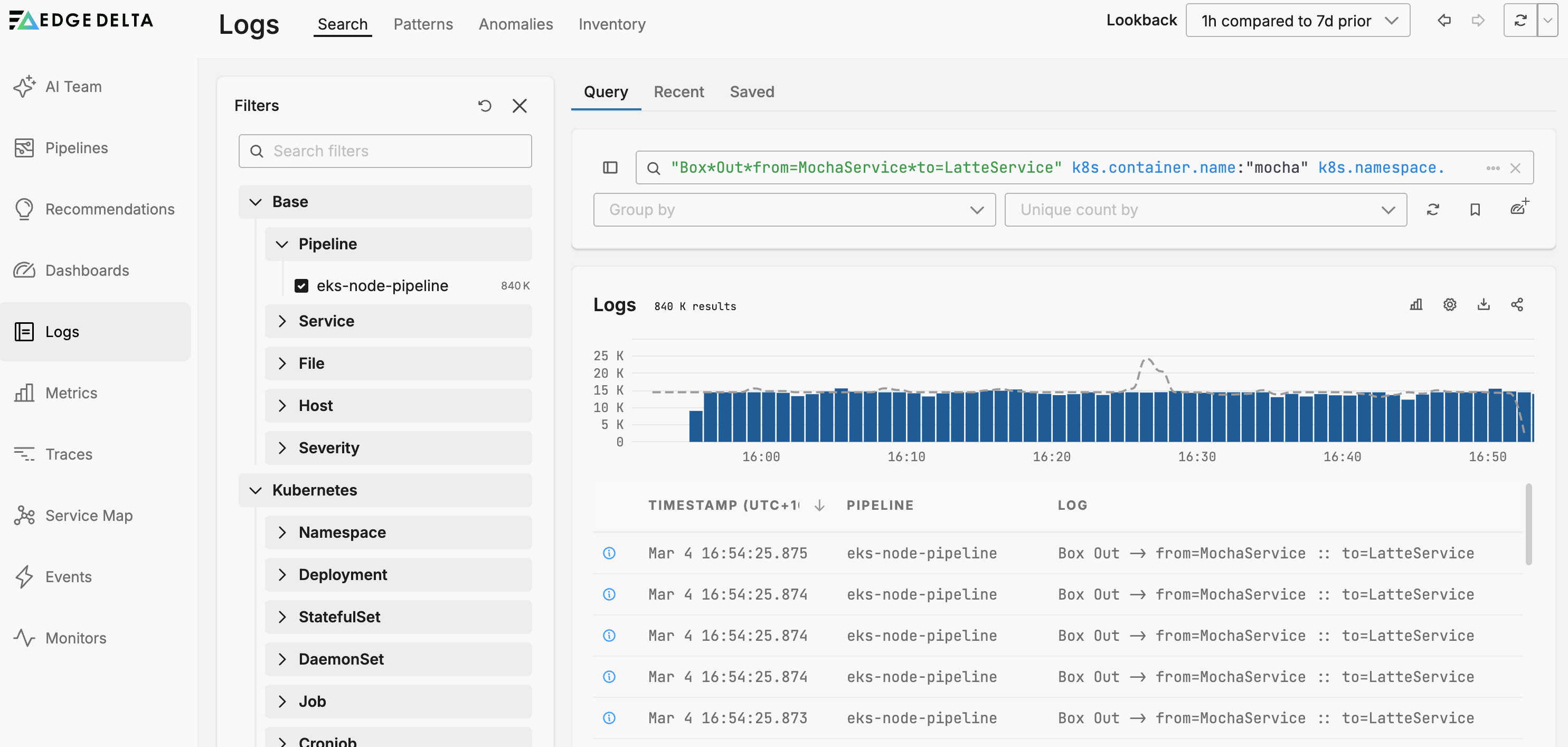
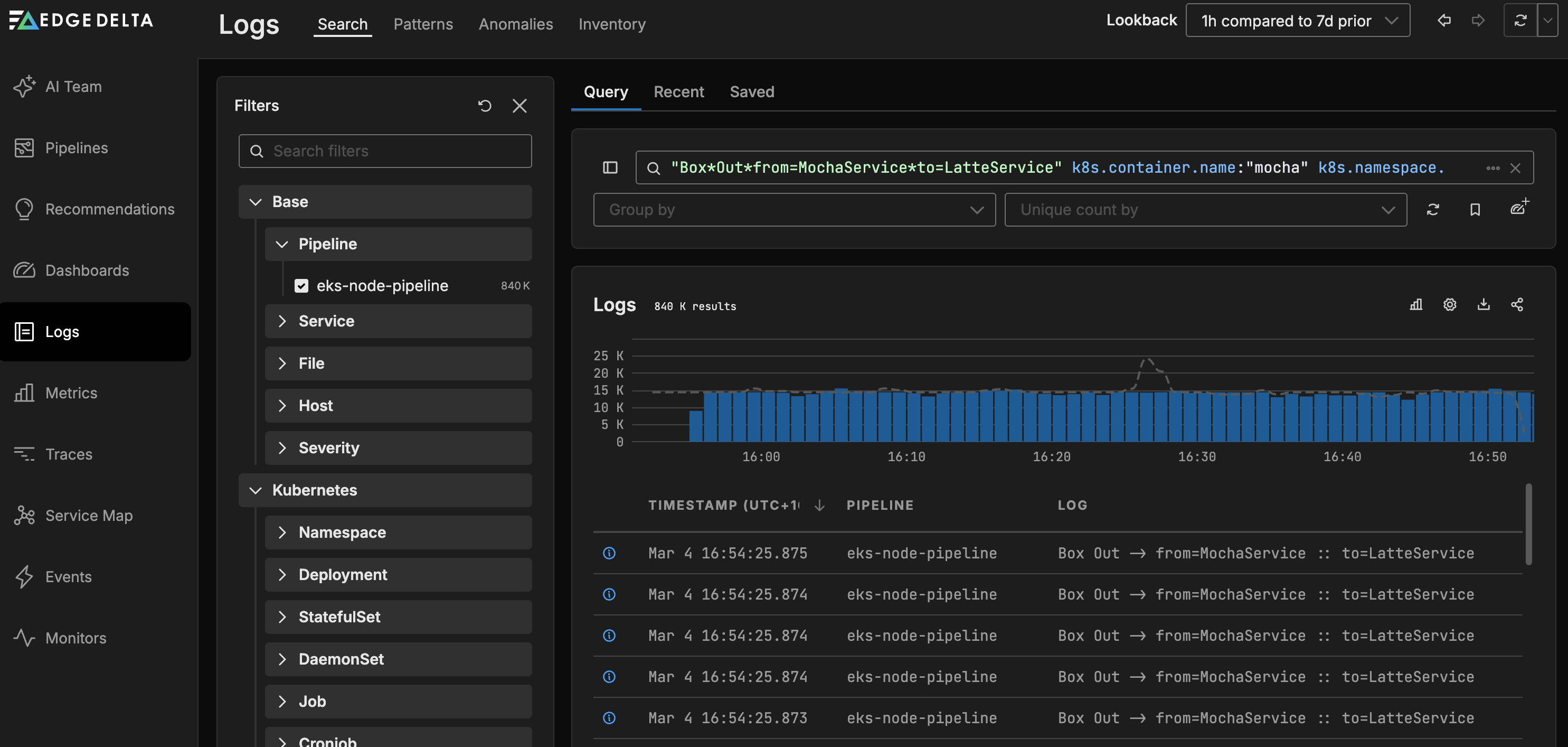
- Click Search in Archive. Log Search opens with a pre-populated CQL query that matches the pattern. In this example, the query is
"Box*Out*from=MochaService*to=LatteService" k8s.container.name:"mocha" k8s.namespace.name:"v1env"along with additional attribute filters.
- Follow the Log Search to Filter guide to translate the CQL query into a Filter Processor.
See also
- Anomaly Detection for details on how Edge Delta identifies log patterns
- Filter Processor
- Sample Processor
- Log Search to Filter for CQL-to-OTTL translation