Edge Delta Redis Enrichment Processor
9 minute read
Overview
The Redis Enrichment processor enriches logs, metrics, and traces with data from a Redis database. This processor provides a visual interface for configuring Redis lookups, enabling you to retrieve values from Redis using keys extracted from your telemetry data.
Common use cases include:
- Enriching logs with user metadata from Redis cache
- Adding configuration values stored in Redis to telemetry
- Looking up CMDB asset information for infrastructure logs
- Correlating distributed traces with session data
The processor supports Redis Standalone, Cluster, and Sentinel deployments, with optional TLS/mTLS for secure connections.
Minimum Agent Version: v2.5.0
Configuration
Configure the Redis connection, select the command to execute, and specify the key to look up. You can optionally save the command output to a field in your telemetry data.
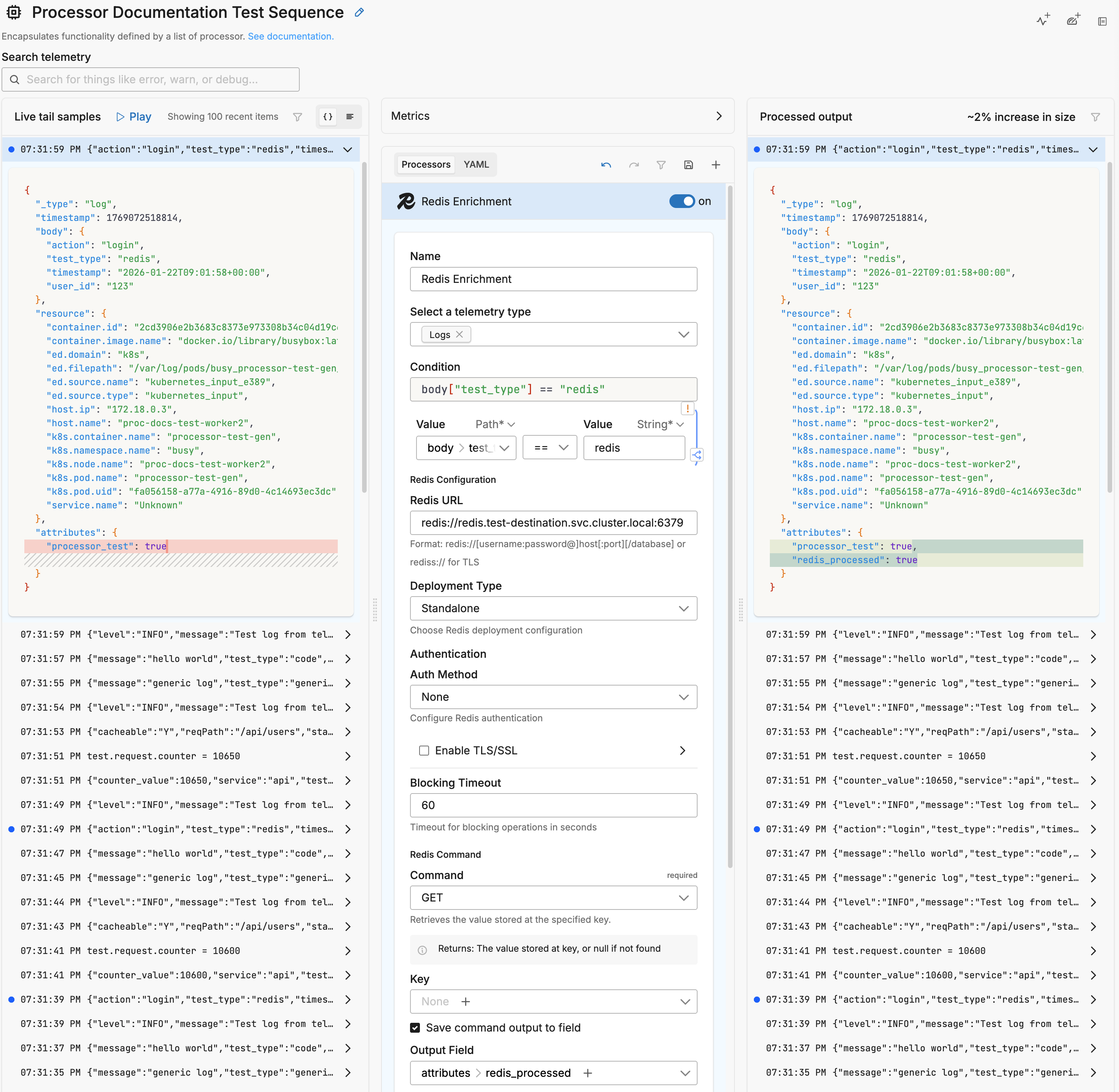
The processor generates an OTTL transform using the EDXRedis function:
- name: Multiprocessor
  type: sequence
  processors:
  - type: ottl_transform
    metadata: '{"id":"abc123","type":"redis","name":"Redis Enrichment"}'
    data_types:
    - log
    statements: |-
      set(cache["cmd"], [{"command": "get", "key": attributes["user_id"], "outField": "user_data"}])
      set(cache["result"], EDXRedis({"url": "redis://localhost:6379"}, cache["cmd"]))
      set(attributes["user_info"], cache["result"]["user_data"]) where cache["result"]["user_data"] != nil
Example: Enrich Logs with User Data
Suppose your logs contain a user_id field and you want to enrich them with user information stored in Redis.
Consider this log:
{
  "timestamp": "2025-01-15T10:30:00Z",
  "level": "INFO",
  "message": "User login successful",
  "user_id": "user_123"
}
Configure the Redis Enrichment processor to look up the user data using the user_id field as the key. The processor retrieves the value from Redis and adds it as a new attribute.
Output log:
{
  "timestamp": "2025-01-15T10:30:00Z",
  "level": "INFO",
  "message": "User login successful",
  "user_id": "user_123",
  "user_info": "John Doe"
}
Sample Input and Output
This example demonstrates the Redis Enrichment processor looking up user data from Redis based on a user_id field in the log body.
Redis Data:
SET "user:123" "John Doe"
SET "user:456" "Jane Smith"
Configuration:
- type: ottl_transform
  metadata: '{"id":"redis-enrichment-test","type":"redis","name":"Redis Enrichment"}'
  condition: body["test_type"] == "redis"
  data_types:
  - log
  statements: |-
    set(cache["redis_config"], {"url": "redis://redis.test-destination.svc.cluster.local:6379"})
    set(cache["get_cmd"], [{"command": "get", "key": Concat(["user:", String(body["user_id"])], ""), "outField": "user_data"}])
    set(cache["redis_result"], EDXRedis(cache["redis_config"], cache["get_cmd"]))
    set(attributes["redis_processed"], true)
    set(attributes["redis_user_data"], cache["redis_result"]["user_data"])
Sample Input:
{
  "_type": "log",
  "timestamp": 1769070714170,
  "body": {
    "test_type": "redis",
    "user_id": "123",
    "action": "login",
    "timestamp": "2026-01-22T08:31:53+00:00"
  },
  "resource": {
    "k8s.namespace.name": "busy",
    "k8s.pod.name": "processor-test-gen"
  },
  "attributes": {}
}
Sample Output:
{
  "_type": "log",
  "timestamp": 1769070714170,
  "body": {
    "test_type": "redis",
    "user_id": "123",
    "action": "login",
    "timestamp": "2026-01-22T08:31:53+00:00"
  },
  "resource": {
    "k8s.namespace.name": "busy",
    "k8s.pod.name": "processor-test-gen"
  },
  "attributes": {
    "redis_processed": true,
    "redis_user_data": "John Doe"
  }
}
The processor:
- Constructed the Redis key by concatenating
"user:"with theuser_idvalue ("123") to form"user:123" - Executed the GET command against Redis
- Added
redis_processed: trueto indicate the lookup was attempted - Added
redis_user_data: "John Doe"with the value retrieved from Redis
Options
Select a telemetry type
You can specify, log, metric, trace or all. It is specified using the interface, which generates a YAML list item for you under the data_types parameter. This defines the data item types against which the processor must operate. If data_types is not specified, the default value is all. It is optional.
It is defined in YAML as follows:
- name: multiprocessor
  type: sequence
  processors:
  - type: <processor type>
    data_types:
    - log
Condition
The condition parameter contains a conditional phrase of an OTTL statement. It restricts operation of the processor to only data items where the condition is met. Those data items that do not match the condition are passed without processing. You configure it in the interface and an OTTL condition is generated. It is optional.
Important: All conditions must be written on a single line in YAML. Multi-line conditions are not supported.
Comparison Operators
| Operator | Name | Description | Example |
|---|---|---|---|
== | Equal to | Returns true if both values are exactly the same | attributes["status"] == "OK" |
!= | Not equal to | Returns true if the values are not the same | attributes["level"] != "debug" |
> | Greater than | Returns true if the left value is greater than the right | attributes["duration_ms"] > 1000 |
>= | Greater than or equal | Returns true if the left value is greater than or equal to the right | attributes["score"] >= 90 |
< | Less than | Returns true if the left value is less than the right | attributes["load"] < 0.75 |
<= | Less than or equal | Returns true if the left value is less than or equal to the right | attributes["retries"] <= 3 |
matches | Regex match | Returns true if the string matches a regular expression (generates IsMatch function) | IsMatch(attributes["name"], ".*\\.log$") |
Logical Operators
Important: Use lowercase and, or, not - uppercase operators will cause errors!
| Operator | Description | Example |
|---|---|---|
and | Both conditions must be true | attributes["level"] == "ERROR" and attributes["status"] >= 500 |
or | At least one condition must be true | attributes["log_type"] == "TRAFFIC" or attributes["log_type"] == "THREAT" |
not | Negates the condition | not IsMatch(attributes["path"], "^/health") |
Functions
| Function | Description | Example |
|---|---|---|
IsMatch | Returns true if string matches the regex pattern | IsMatch(attributes["message"], "ERROR\|FATAL") |
Field Existence Checks
| Check | Description | Example |
|---|---|---|
!= nil | Field exists (not null) | attributes["user_id"] != nil |
== nil | Field doesn’t exist | attributes["optional_field"] == nil |
!= "" | Field is not empty string | attributes["message"] != "" |
Common Examples
- name: _multiprocessor
  type: sequence
  processors:
  - type: <processor type>
    # Simple equality check
    condition: attributes["request"]["path"] == "/json/view"

  - type: <processor type>
    # Multiple values with OR
    condition: attributes["log_type"] == "TRAFFIC" or attributes["log_type"] == "THREAT"

  - type: <processor type>
    # Excluding multiple values (NOT equal to multiple values)
    condition: attributes["log_type"] != "TRAFFIC" and attributes["log_type"] != "THREAT"

  - type: <processor type>
    # Complex condition with AND/OR/NOT
    condition: (attributes["level"] == "ERROR" or attributes["level"] == "FATAL") and attributes["env"] != "test"

  - type: <processor type>
    # Field existence and value check
    condition: attributes["user_id"] != nil and attributes["user_id"] != ""

  - type: <processor type>
    # Regex matching on attributes
    condition: IsMatch(attributes["path"], "^/api/") and not IsMatch(attributes["path"], "^/api/health")

  - type: <processor type>
    # Regex matching on body (case-insensitive)
    condition: IsMatch(body, "(?i)error")
Common Mistakes to Avoid
# WRONG - Cannot use OR/AND with values directly
condition: attributes["log_type"] != "TRAFFIC" OR "THREAT"

# CORRECT - Must repeat the full comparison
condition: attributes["log_type"] != "TRAFFIC" and attributes["log_type"] != "THREAT"

# WRONG - Uppercase operators
condition: attributes["status"] == "error" AND attributes["level"] == "critical"

# CORRECT - Lowercase operators
condition: attributes["status"] == "error" and attributes["level"] == "critical"

# WRONG - Multi-line conditions
condition: |
  attributes["level"] == "ERROR" and
  attributes["status"] >= 500

# CORRECT - Single line (even if long)
condition: attributes["level"] == "ERROR" and attributes["status"] >= 500
Redis URL
The Redis connection string that specifies the server endpoint. The format varies based on your deployment type:
| Deployment Type | URL Format |
|---|---|
| Standalone | redis://localhost:6379 |
| Standalone with auth | redis://username:password@host:port |
| Cluster | redis://node1:6379,node2:6379,node3:6379 |
| Sentinel | redis://sentinel1:26379,sentinel2:26379 |
| With TLS | rediss://host:port (note the double ’s') |
Deployment Type
Specifies the Redis deployment architecture:
| Option | Description |
|---|---|
| Standalone | Single Redis instance (default) |
| Sentinel | High-availability setup with automatic failover |
| Cluster | Horizontally scaled Redis cluster |
For Sentinel deployments, configure the Sentinel Master Name to match your Sentinel configuration.
Auth Method
Configure authentication for password-protected Redis instances:
| Option | Description |
|---|---|
| None | No authentication is sent to Redis. Use only for Redis instances that don’t require authentication. This does not use cloud service accounts or IAM. |
| Password | Authenticate with password only |
| Username & Password | ACL-based authentication with username and password |
Note: EDXRedis does not support cloud-managed Redis services that use service account or IAM authentication, such as Google Cloud Memorystore, AWS ElastiCache, and Azure Cache for Redis. See EDXRedis Troubleshooting for workarounds.
Enable TLS/SSL
Enable TLS for encrypted connections to Redis. When enabled, use rediss:// URLs for automatic TLS.
TLS Settings
| Setting | Description |
|---|---|
| Validate Server Certificates | Enable server certificate validation |
| CA Certificate Path | Path to CA certificate file for server verification (e.g., /path/to/ca.crt) |
| Client Certificate Path | Path to client certificate for mutual TLS (e.g., /path/to/client.crt) |
| Client Key Path | Path to client private key for mutual TLS (e.g., /path/to/client.key) |
| Server Name (SNI) | Expected server name for certificate validation (e.g., redis.example.com) |
Important: Certificates must include Subject Alternative Names (SANs) for successful TLS handshakes. Common Name (CN) alone is insufficient. See EDXRedis Troubleshooting for TLS configuration details.
Blocking Timeout
Timeout for blocking operations in seconds. Defaults to 60 seconds. This applies to blocking commands like BLPOP or BRPOP.
Command
The Redis command to execute. Common commands include:
| Command | Description |
|---|---|
| GET | Retrieve a string value by key |
| GETSET | Set a new value and return the old value |
| HGET | Get the value of a hash field |
| HGETALL | Get all fields and values in a hash |
| MGET | Get values for multiple keys |
| EXISTS | Check if a key exists |
| TTL | Get the remaining time to live for a key |
For a complete list of supported commands, see EDXRedis Supported Commands.
Key
The Redis key to look up. Use the field builder to construct the key from your telemetry data fields. For example:
body["user_id"]- Use a field from the log bodyattributes["session_id"]- Use an attribute value- Static key like
config:app:settings
Save command output to field
Enable this option to save the Redis command output to a field in your telemetry data.
Output Field
The field path where the command result will be stored. Use the field builder to specify the destination, such as attributes["enriched_data"].
Final
Determines whether successfully processed data items should continue through the remaining processors in the same processor stack. If final is set to true, data items output by this processor are not passed to subsequent processors within the node—they are instead emitted to downstream nodes in the pipeline (e.g., a destination). Failed items are always passed to the next processor, regardless of this setting.
The UI provides a slider to configure this setting. The default is false. It is defined in YAML as follows:
- name: multiprocessor
  type: sequence
  processors:
    - type: <processor type>
    final: true
Troubleshooting
No enrichment occurring
Possible causes:
- Redis connection failed: Verify the Redis URL and that the server is accessible from the agent
- Key doesn’t exist: Check that the key exists in Redis with the expected value
- Authentication failed: Verify credentials if using password authentication
- TLS configuration issues: Ensure certificates include proper SANs
Testing connectivity
Use the PING command to verify connectivity before configuring data lookups:
set(cache["cmd"], [{"command": "ping", "outField": "pong"}])
set(cache["result"], EDXRedis({"url": "redis://localhost:6379"}, cache["cmd"]))
set(attributes["redis.connected"], cache["result"]["pong"] == "PONG")
For detailed troubleshooting guidance, see EDXRedis Troubleshooting.
See Also
EDXRedis Function Reference - Complete documentation for the underlying OTTL function
EDXRedis Troubleshooting - Common issues and solutions