Send Alerts to Microsoft Teams with Power Automate
6 minute read
Overview
This guide explains how to send Adaptive Card alerts from Edge Delta monitors to Microsoft Teams using a Power Automate webhook. Adaptive Cards allow you to create rich, interactive messages with elements like text, images, and fact sets.
This approach uses Power Automate workflows instead of the deprecated Office 365 Connectors. Microsoft is retiring Office 365 Connectors with a migration deadline of March 31, 2026. New Teams integrations should use Power Automate.
Prerequisites
Before you begin, ensure you have the following:
- A Microsoft Teams account with access to the target team and channel
- A Power Automate account with permissions to create workflows
- Access to Edge Delta with permissions to configure Legacy Integrations and monitors
Step 1: Create a Power Automate workflow
Set up a Power Automate workflow that receives webhook requests and posts Adaptive Cards to your Teams channel.
- Go to Power Automate and sign in.
- Click Create > Automated cloud flow.
- Enter a name for the flow (for example, “Edge Delta Teams Alerts”).
- Search for the trigger When a Teams webhook request is received and select it.
- Click Create.
Generate the webhook URL
After creating the flow, configure the trigger to generate a webhook URL:
- In the flow editor, the trigger prompts you to select a Team and Channel.
- Choose your target team and channel.
- Power Automate generates a webhook URL (for example,
https://prod-XX.westus.logic.azure.com/...). - Copy the webhook URL. You will use this when configuring the Legacy Integration in Edge Delta.
Keep the webhook URL secure. It allows anonymous POST requests to your Teams channel.
Add the Parse JSON action
Add an action to parse the incoming webhook payload:
- After the trigger, click + to add a new action.
- Search for Parse JSON and select it from the Data Operations category.
- Configure the action:
- Content: Select Body from the trigger’s dynamic content.
- Schema: Click Use sample payload to generate schema, paste the example payload from Step 2, and click Done.
Add the Apply to each loop
Add a loop to process the attachments array:
- After the Parse JSON action, click + to add a new action.
- Search for Apply to each and add it.
- In Select an output from previous steps, select attachments from the Parse JSON output.
Add the Post card action
Inside the loop, add the action that posts to Teams:
- Inside the Apply to each loop, click + to add a new action.
- Search for Microsoft Teams and select Post card in a chat or channel.
- Configure the action:
- Post as: Select Flow bot.
- Post in: Select Channel.
- Team: Choose your team.
- Channel: Choose your channel.
- Adaptive Card: Switch to the Expression tab and enter:
items('Apply_to_each')['content']
- Click Save to save the workflow.
Step 2: Configure the webhook payload in Edge Delta
Create a Legacy Integration in Edge Delta that sends Adaptive Card payloads to your Power Automate webhook.
- In Edge Delta, click Admin in the navigation bar.
- Click Legacy Integrations.
- Open the Available tab.
- Search for Webhook and select it.
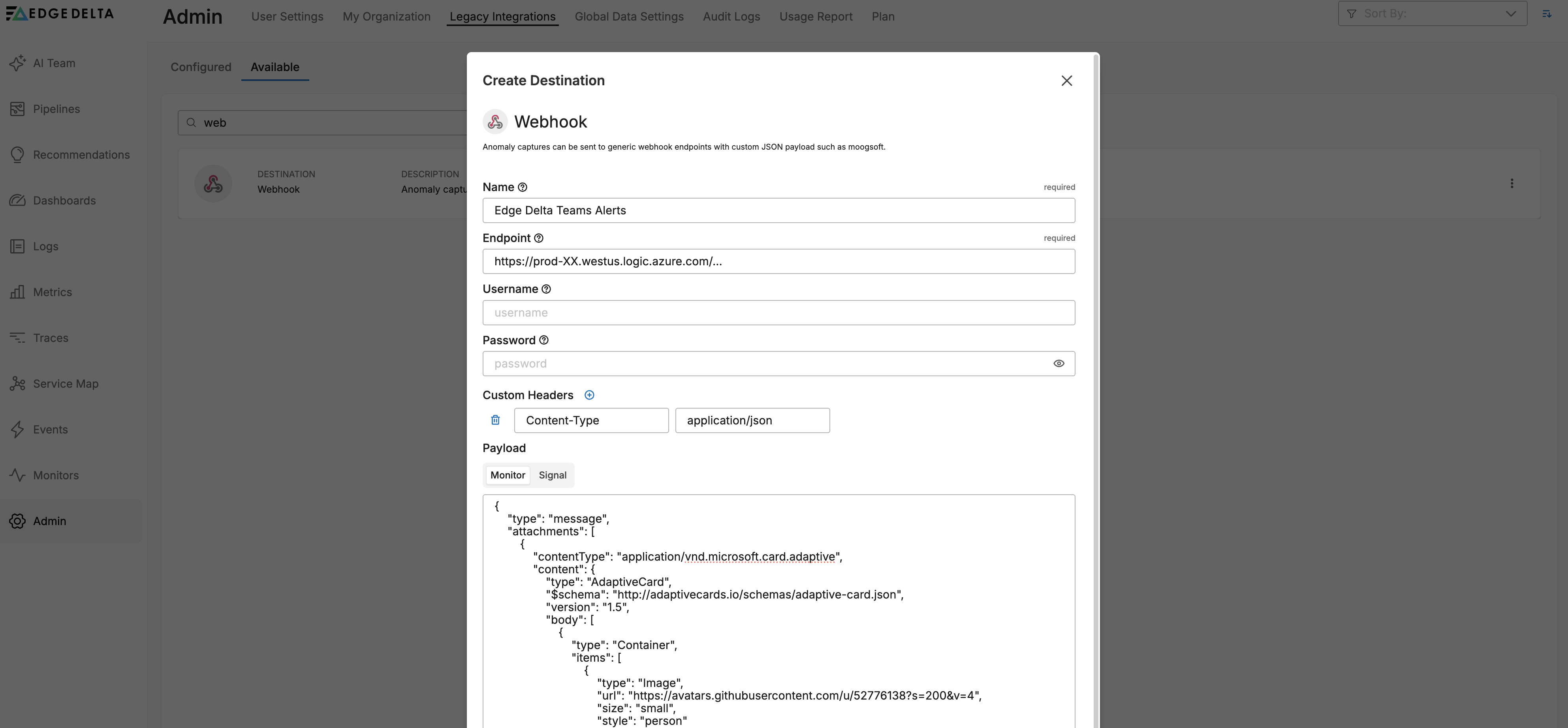
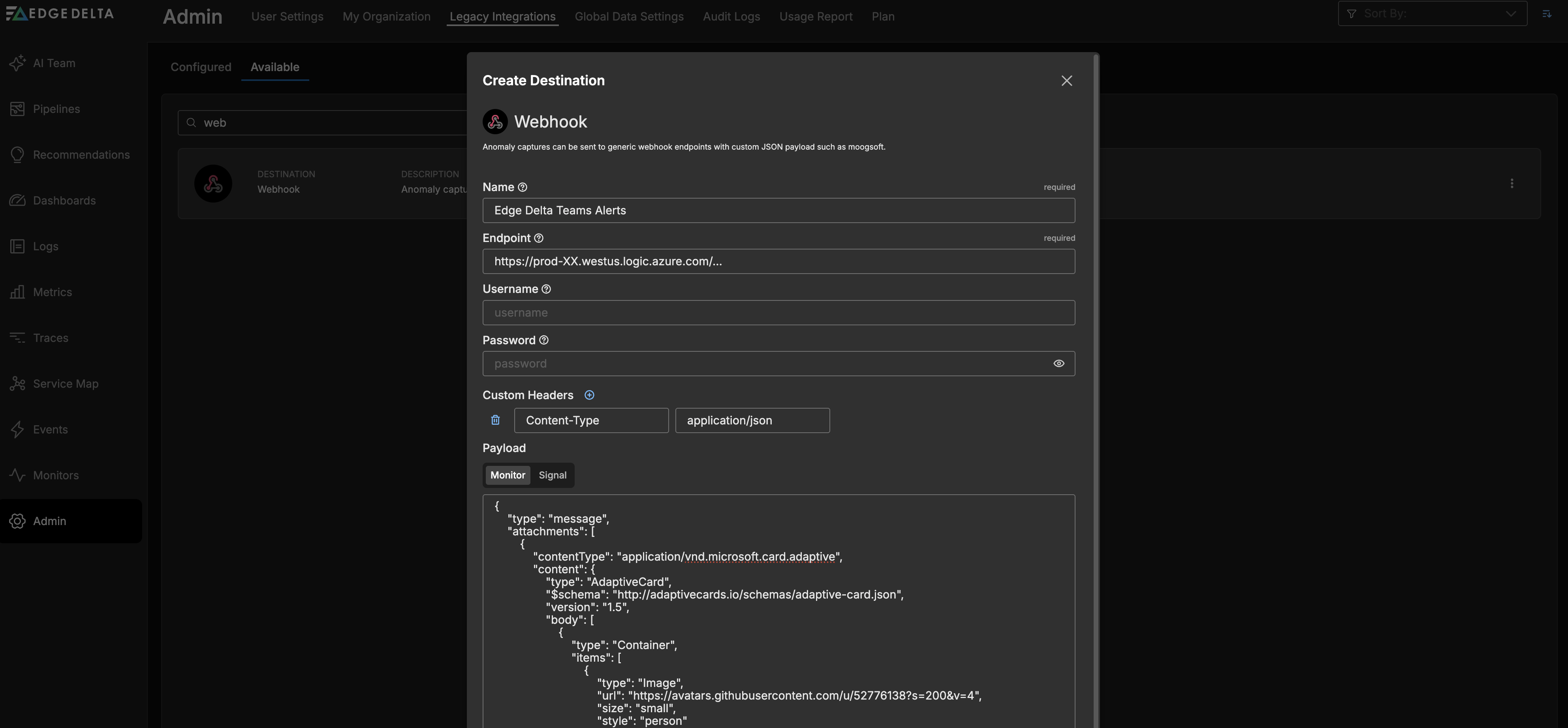
Configure the webhook integration with the following settings:
- Endpoint: Paste the webhook URL from Step 1.
- Headers: Add a header with Name set to
Content-Typeand Value set toapplication/json. - Payload: Paste the Adaptive Card payload (see below).
Adaptive Card payload
Use the following payload template. This creates a rich card with an Edge Delta logo, alert title, message, and event details:
{
    "type": "message",
    "attachments": [
        {
            "contentType": "application/vnd.microsoft.card.adaptive",
            "content": {
                "type": "AdaptiveCard",
                "$schema": "http://adaptivecards.io/schemas/adaptive-card.json",
                "version": "1.5",
                "body": [
                    {
                        "type": "Container",
                        "items": [
                            {
                                "type": "Image",
                                "url": "https://avatars.githubusercontent.com/u/52776138?s=200&v=4",
                                "size": "small",
                                "style": "person"
                            },
                            {
                                "type": "TextBlock",
                                "text": "Alert from Edge Delta",
                                "weight": "bolder",
                                "size": "medium",
                                "color": "accent",
                                "wrap": true
                            }
                        ]
                    },
                    {
                        "type": "TextBlock",
                        "text": "$EVENT_TITLE",
                        "weight": "bolder",
                        "size": "large",
                        "wrap": true
                    },
                    {
                        "type": "TextBlock",
                        "text": "$EVENT_MSG",
                        "wrap": true
                    },
                    {
                        "type": "FactSet",
                        "facts": [
                            {
                                "title": "Event ID",
                                "value": "$EVENT_ID"
                            },
                            {
                                "title": "Event Type",
                                "value": "$EVENT_TYPE"
                            },
                            {
                                "title": "Event Time",
                                "value": "$EVENT_DATE"
                            },
                            {
                                "title": "Event Query",
                                "value": "$EVENT_QUERY"
                            },
                            {
                                "title": "Event Metric",
                                "value": "$EVENT_METRIC"
                            },
                            {
                                "title": "Event Status",
                                "value": "$EVENT_STATUS"
                            },
                            {
                                "title": "Organization ID",
                                "value": "$EVENT_ORG_ID"
                            },
                            {
                                "title": "Event Group (All)",
                                "value": "$EVENT_GROUP_ALL"
                            },
                            {
                                "title": "Specific Group",
                                "value": "$EVENT_GROUP.k8s.namespace.name"
                            },
                            {
                                "title": "Event Value",
                                "value": "$EVENT_EVALUATED_VALUE"
                            }
                        ]
                    },
                    {
                        "type": "TextBlock",
                        "text": "[View Event Details]($EVENT_URL)",
                        "wrap": true
                    }
                ]
            }
        }
    ]
}
Custom image
The payload includes an Edge Delta logo by default. To use a custom image:
- Replace the
urlvalue in the Image element with your image URL. - Ensure the image is publicly accessible (no authentication required).
- Keep the image under 100 KB to avoid rendering issues in Teams.
Step 3: Configure a monitor to use the webhook
Link your webhook integration to a monitor so alerts trigger notifications to Teams.
- Create or edit a threshold monitor.
- In the Notifications section, type
@and select your webhook integration from the autocomplete list. - Save the monitor.
To test the integration, use the Test Notifications button in the monitor configuration. This sends a test alert to verify the complete flow.
Troubleshooting
The following are solutions to common issues with Power Automate webhook integrations.
Parse JSON fails with schema validation error
If the Parse JSON action fails, regenerate the schema:
- Open the Parse JSON action in Power Automate.
- Click Use sample payload to generate schema.
- Paste your exact payload and click Done.
Post card fails with invalid JSON error
If the Post card action fails, verify the Adaptive Card content:
- Add a Compose action inside the Apply to each loop, before the Post card action.
- Set the input to the expression
items('Apply_to_each')['content']. - Run the flow and check the Compose output in the run history.
- Verify the output is valid JSON matching the Adaptive Card structure.
Custom image not rendering
If your custom image does not appear in the card:
- Verify the image URL is publicly accessible by opening it directly in a browser.
- Confirm the image is under 100 KB.
- Try a different image format (PNG or JPG).
Sender appears as unknown user
The sender appears as “Flow bot” by default. To customize the sender identity, create a custom app in the Teams Developer Portal and update the Post as field in the Post card action.
Rate limiting errors
Teams enforces a limit of 4 requests per second. If you receive a 429 error, the monitor is triggering too frequently. Consider adjusting your monitor thresholds or evaluation windows.
Limitations
Keep the following limitations in mind when using this integration:
- Payload size: The payload must be under 28 KB after variable substitution.
- Rate limits: Teams allows a maximum of 4 requests per second per webhook.
- Image hosting: Images must be publicly accessible without authentication.
Related content
- Legacy Integrations
- Monitor Notifications
- Log Threshold Monitor
- Microsoft Teams Destination (pipeline node for direct Teams webhooks)