Slack Connector
Configure the Slack connector to enable AI Team members to send notifications, manage messages, and coordinate team communication in your Slack workspace.
5 minute read
Overview
The Slack connector enables AI Team members to interact with your Slack workspace, providing capabilities for sending messages, managing channels, and coordinating team communication. By connecting Slack to AI Team, AI teammates can post notifications, respond to messages, manage threads, and help coordinate team activities.
The connector provides access to messaging, channel management, and user information, allowing AI teammates to help with incident alerts, deployment notifications, and team coordination.
Add the Slack Connector
To add the Slack connector, you authorize Edge Delta to access your Slack workspace using OAuth.

Prerequisites
Before configuring the connector, ensure you have:
- Slack workspace with admin permissions to install applications
- Ability to authorize OAuth applications
Configuration Steps
- Navigate to AI Team > Connectors in the Edge Delta application
- Find the Slack connector
- Click the connector card
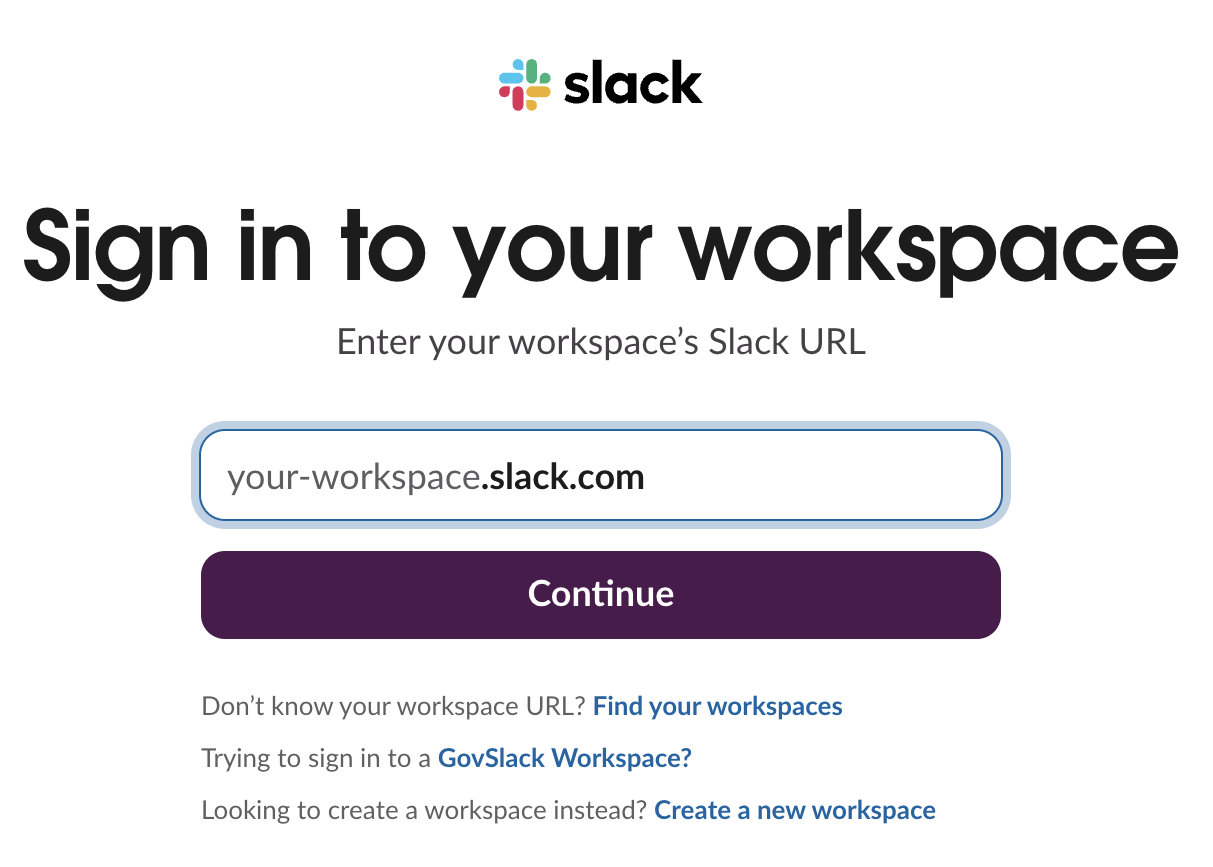
- Authorize the connection in Slack
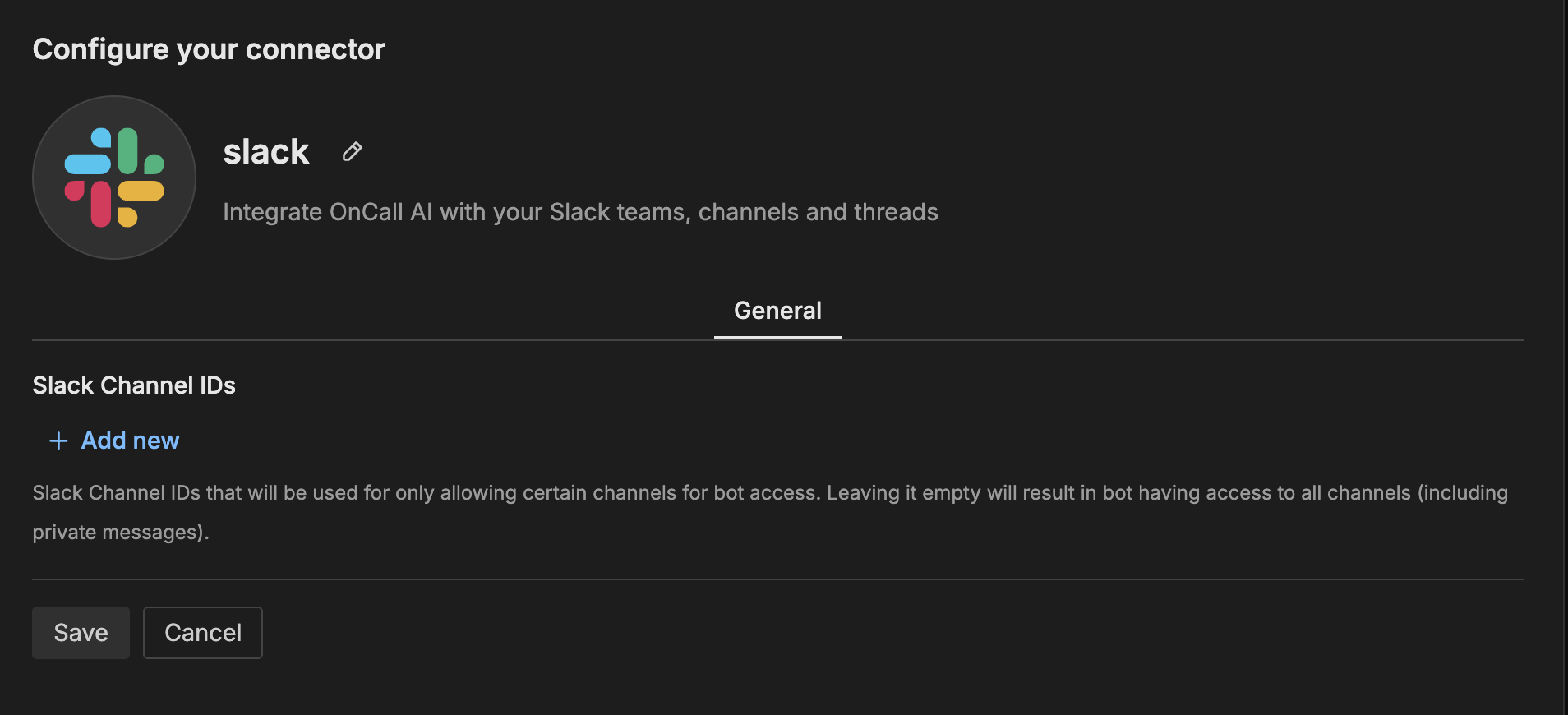
- Optionally configure channel restrictions (see General Options below)
- Click Save
The connector is now available for use by AI Team members who have been assigned this connector.
General Options
Slack Channel IDs
Restrict bot access to specific channels by providing Slack Channel IDs. Leaving this empty allows the bot to access all channels including private messages.
Required: No (defaults to all channels)
Format: Comma-separated channel IDs
Example: C01234ABCDE, C56789FGHIJ
To find a channel ID in Slack, right-click on the channel name and select “Copy link”. The channel ID is the last part of the URL after the final slash.
Tools
slack_list_channels
List public or pre-defined channels in the workspace with pagination.
slack_post_message
Post a new message to a Slack channel.
slack_reply_to_thread
Reply to a specific message thread in Slack.
slack_add_reaction
Add a reaction emoji to a message.
slack_get_channel_history
Get recent messages from a channel.
slack_get_thread_replies
Get all replies in a message thread.
slack_get_users
Get a list of all users in the workspace with their basic profile information.
slack_get_user_profile
Get detailed profile information for a specific user.
How to Use the Slack Connector
The Slack connector integrates with AI Team, enabling AI teammates to send notifications and coordinate team communication based on natural language queries. Once configured, AI teammates can post messages, manage threads, and help with team coordination.
Use Case: Automated Notifications
AI teammates can send alerts and notifications to Slack channels when events occur. For example, when detecting issues or completing tasks, the AI can post messages to relevant channels, create threads for detailed information, and add reactions to indicate status.
Use Case: Incident Coordination
AI teammates can help coordinate incident response by posting alerts, creating threads for discussion, and keeping teams informed. When investigating incidents, the AI can share findings in dedicated channels and update threads as new information becomes available.
Use Case: Team Communication
AI teammates can facilitate team communication by responding to messages, providing information, and managing conversations. When asked questions in Slack, the AI can retrieve relevant information and respond in threads to keep conversations organized.
AI Disclosure
Edge Delta’s Slack connector is powered by AI teammates that autonomously read and write messages in your Slack workspace on your behalf.
What AI teammates do in Slack: Once authorized, AI teammates can post messages, reply to threads, add reactions, and retrieve channel history and user information. Teammates act based on telemetry signals, incoming events, and instructions from human operators. All actions are logged and visible in the Edge Delta audit trail.
Accuracy and reliability: AI teammates can make mistakes. Responses and summaries generated by AI should be reviewed by a human before acting on them in time-sensitive or high-impact situations. Edge Delta does not guarantee the accuracy, completeness, or timeliness of AI-generated content posted to Slack.
Slack data and LLM training: Edge Delta does not use data retrieved from your Slack workspace to train any large language model. Slack message content accessed through this connector is used only to generate responses and coordinate workflows within your environment.
Data retention: Slack data accessed by AI teammates is held in memory for the duration of an active investigation or workflow and is not persisted beyond that session in Edge Delta’s systems. For full details on data handling, see the Edge Delta Trust Center and Edge Delta Privacy Policy.
Model providers: AI inference for Edge Delta’s AI teammates is routed through Edge Delta’s cloud infrastructure. Edge Delta uses third-party model providers that are reviewed for security and compliance. Model provider details are available in the Edge Delta Trust Center.
Security
OAuth tokens: Access tokens issued during authorization are stored encrypted in Edge Delta’s backend. They are never stored in client-side code, source repositories, or logs.
Transport security: All communication between Edge Delta and Slack uses TLS 1.2 or higher. Requests from Slack to Edge Delta are verified using Slack’s signed secrets.
OAuth state parameter: Edge Delta’s OAuth flow uses a state parameter to prevent cross-site request forgery during the authorization process.
Least privilege: The Slack connector requests only the scopes required for the tools listed above. Scope justifications are reviewed as part of the Slack Marketplace listing process.
For a full overview of AI Team security architecture, see Security Controls.
Troubleshooting
Authorization errors: Try disconnecting and reconnecting the OAuth authorization. Ensure you have admin permissions in your Slack workspace to install applications.
Channel access errors: Verify the bot has been invited to private channels. For private channels, use /invite @EdgeDelta in the channel to grant access. Public channels are accessible automatically.
Missing messages: Check that channel IDs are correct if you’ve configured channel restrictions. Verify the bot hasn’t been removed from channels.
Support
Edge Delta provides support for the Slack connector via email at support@edgedelta.com. Support requests receive a response within 2 business days. No external account creation is required to contact support.
For documentation and self-service help, visit AI Team Support.
Next Steps
- Learn about creating custom teammates that can use this connector
- Explore other connectors to integrate additional tools
- Review AI Team security controls
- Edge Delta Privacy Policy