Synthetic Monitor
2 minute read
Overview
A Synthetic Monitor performs periodic health checks against HTTP endpoints to monitor availability and response times. Use synthetic monitors to test API endpoints, URLs, or any HTTP-accessible service and receive alerts when endpoints are slow or unavailable.
Create a Synthetic Monitor
To create a synthetic monitor:
- Click Monitors and select the List tab.
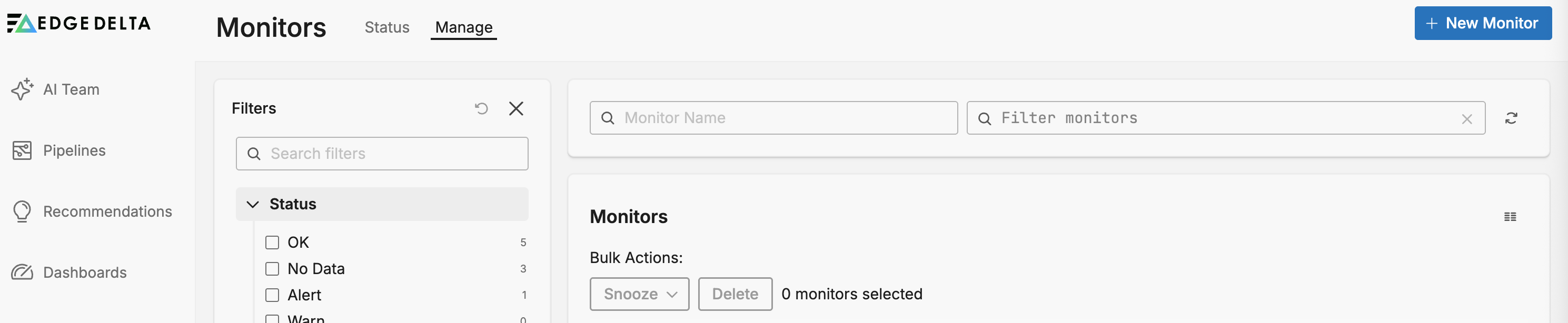
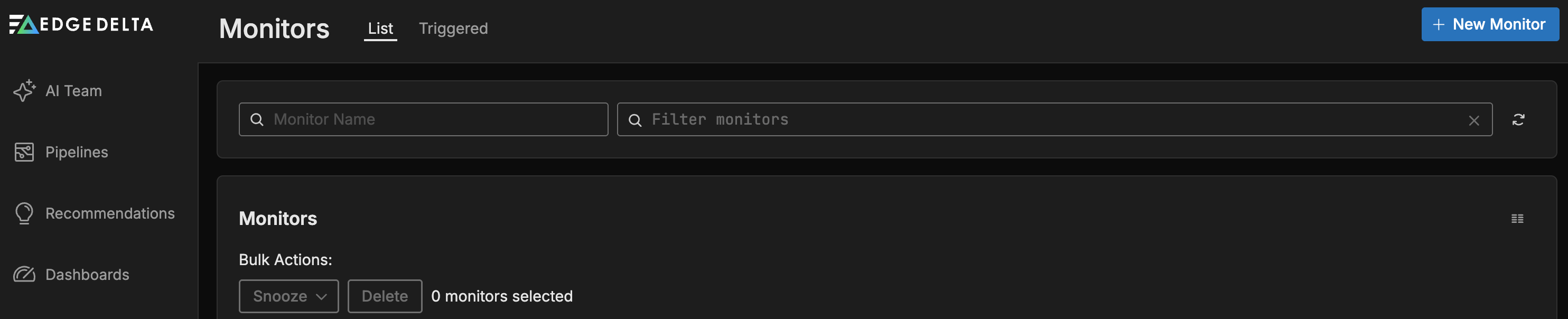
- Click + New Monitor and select Synthetic Monitor.


Configure Synthetic Monitor
The Synthetic Monitor performs periodic health checks against HTTP endpoints to monitor availability and response times. The monitor can test API endpoints, URLs, or any HTTP-accessible service.
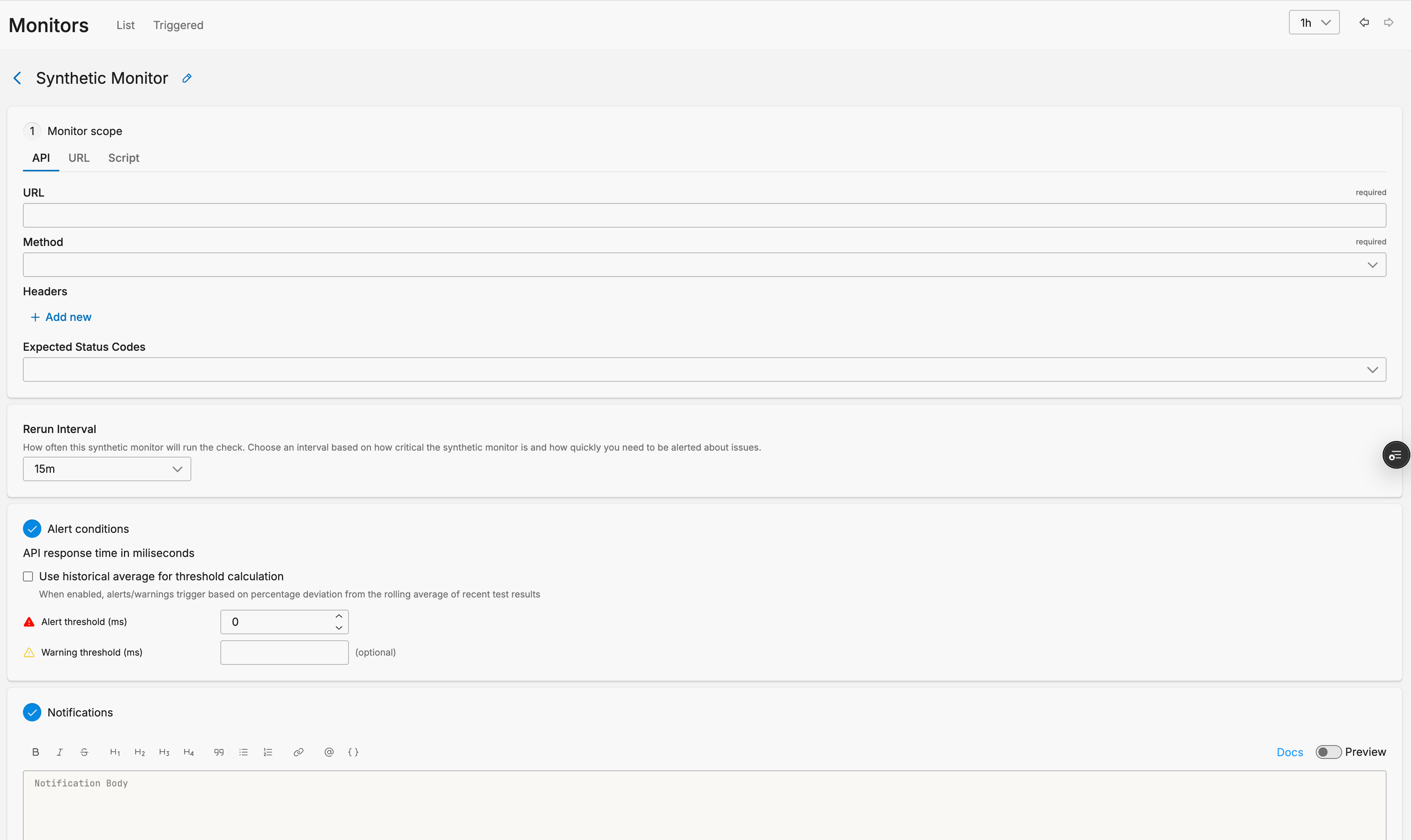
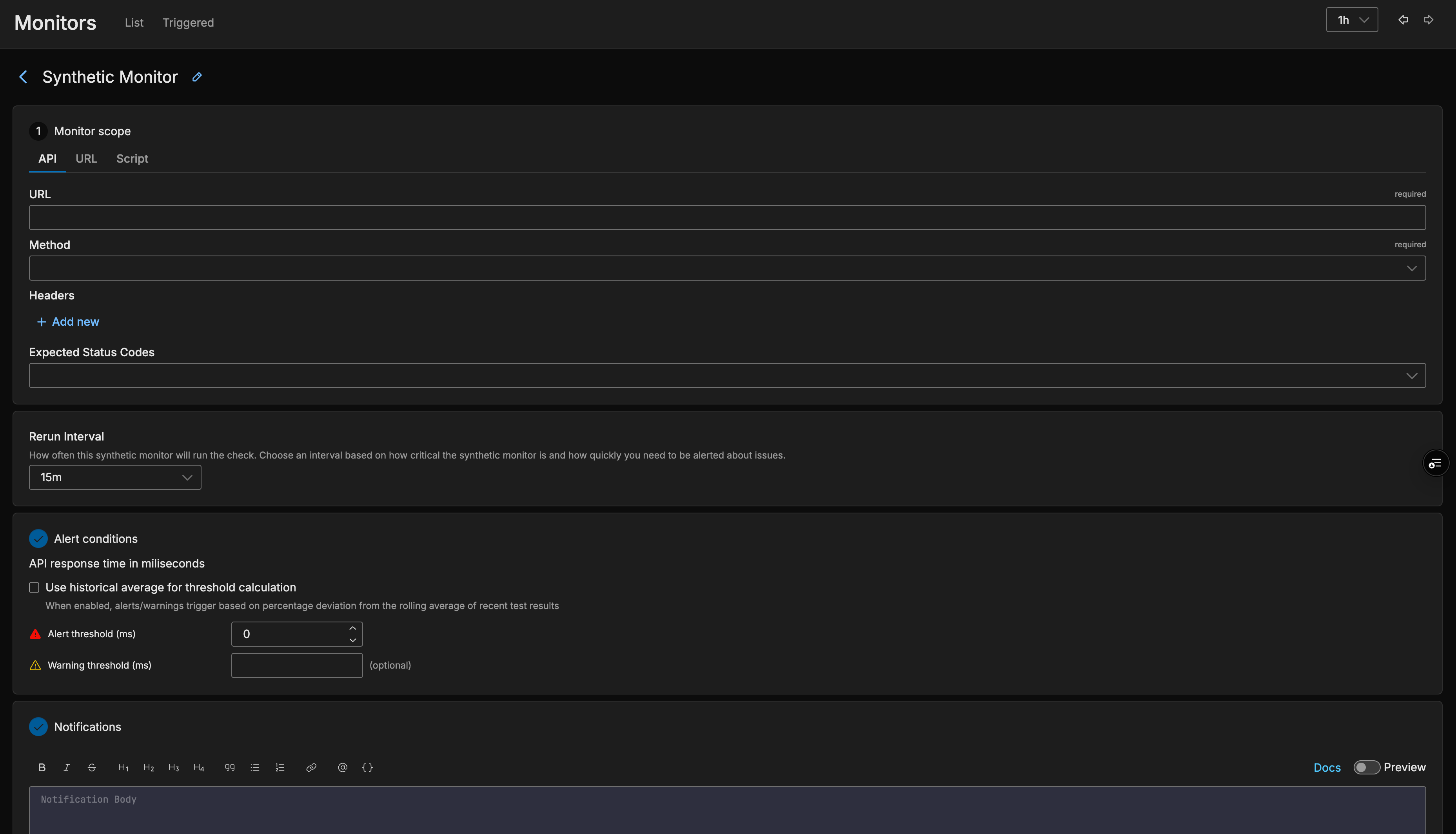
Monitor Scope
The Monitor Scope section defines what you want to monitor and how to test it.
API
Configure API endpoint monitoring with the following options:
- URL: Enter the endpoint URL to monitor (required).
- Method: Select the HTTP method for the request.
- Headers: Add custom HTTP headers for the request.
- Expected Status Codes: Specify which HTTP status codes indicate success.
URL
Configure the URL endpoint that the synthetic monitor tests. The monitor makes HTTP requests to this URL at the specified rerun interval.
Script
Advanced users can configure custom synthetic monitoring scripts for more complex scenarios.
Rerun Interval
The Rerun Interval determines how often the synthetic monitor runs the check. Choose an interval based on how critical the endpoint is and how quickly you need to be alerted about issues.
Alert Conditions
The Alert Conditions section evaluates the API response time in milliseconds. Configure the following options:
- Use historical average for threshold calculation: When enabled, alerts and warnings trigger based on percentage deviation from the rolling average of recent test results. When disabled, alerts and warnings trigger based on absolute response time thresholds in milliseconds.
- Alert threshold (ms): The response time threshold that triggers an alert condition.
- Warning threshold (ms): The response time threshold that triggers a warning (optional).
Notification
For notification configuration options, see Monitor Notifications.
To use source fields in the notification, you must specify them in the Group By field in the Monitor Scope section and in the Group notifications by field in the Notifications section.
See Also
- Monitor Notifications - Configure alert notifications and integrations
- Monitors Overview - Learn about all monitor types in Edge Delta