Version History
2 minute read
Every teammate—specialized and custom—maintains a version history that tracks changes to its configuration over time. When you create a teammate, it starts at version 1. Subsequent changes to version-tracked fields create new versions automatically.
Fields That Create New Versions
Changes to the following fields trigger a new version:
- Name
- Model
- Tools and connectors
- System prompt
Other settings, such as channel assignments or online/offline status, do not create new versions.
Viewing Version History
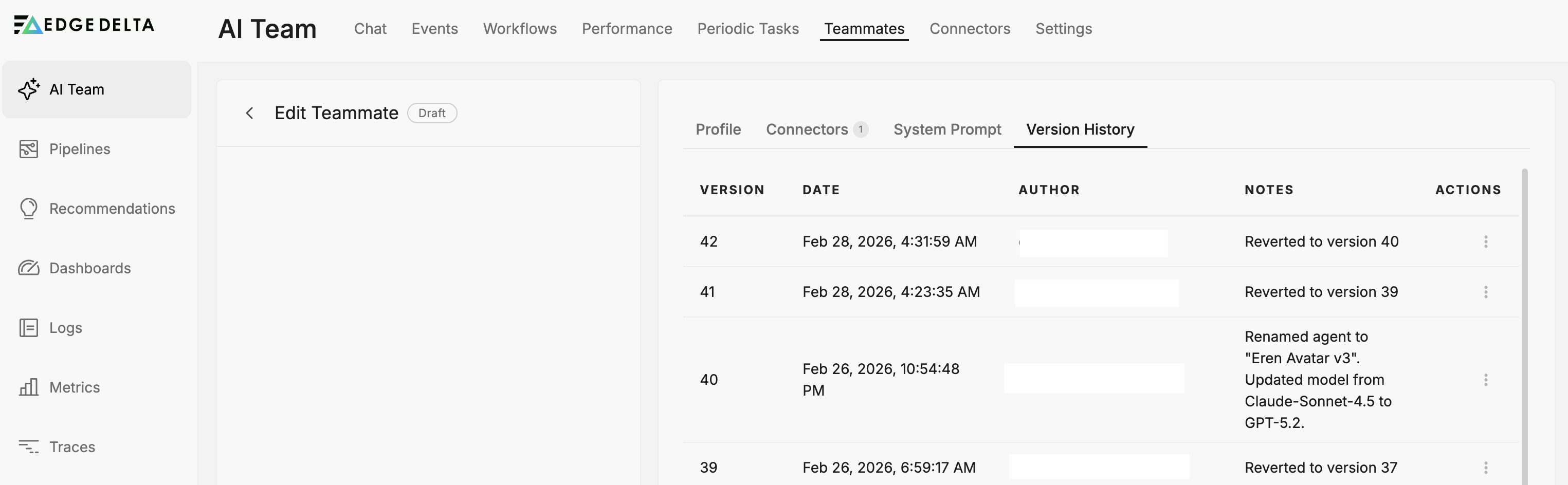
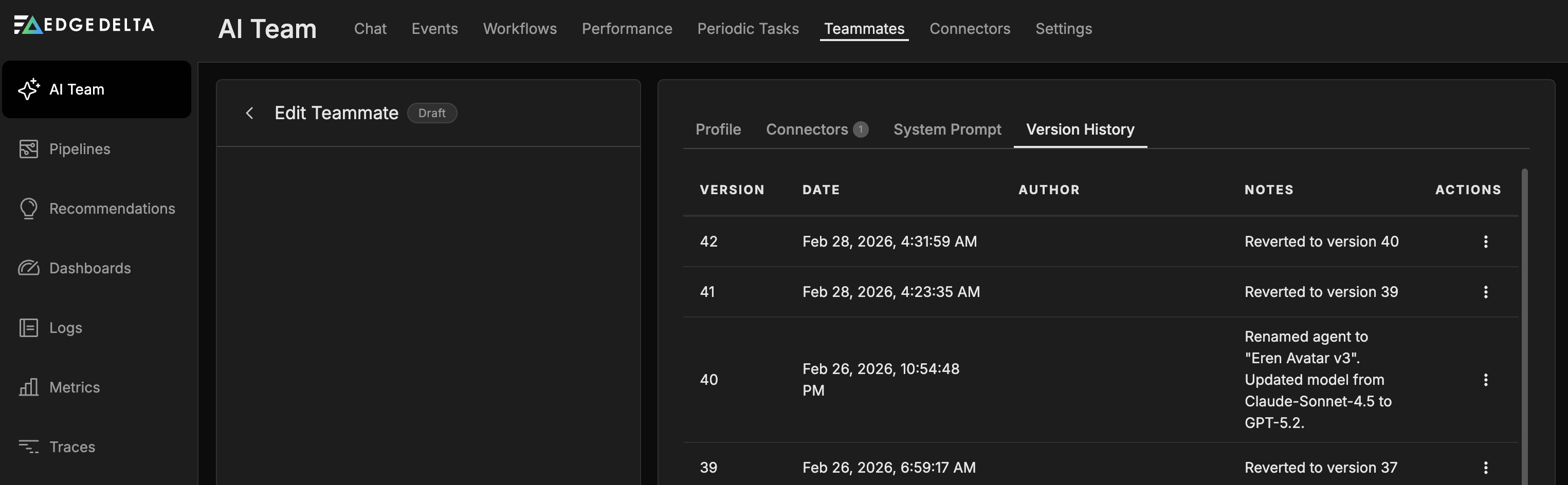
Open a teammate and select the Version History tab to see a table of all versions. The table includes these columns:
- Version — the version number.
- Date — when the version was created.
- Author — the user who made the change.
- Notes — the change notes recorded at save time.
- Actions — a kebab menu with version operations.
Version Notes
When you save changes to a version-tracked field, a Version Notes dialog opens. The platform summarizes your changes automatically and populates a default note. You can accept the generated note or edit it before clicking Save.
Comparing Versions
To compare two versions, click the kebab menu in the Actions column and select Compare Versions. A dialog opens with two side-by-side panes, each with a dropdown to select a version number. The panes display the Name, Model, and System Prompt fields for each version, with changes highlighted in a diff view: deleted text in red on the left, added text in green on the right. Close the dialog to return to the version history table.
Reverting to a Previous Version
Click the kebab menu in the Actions column and select Revert to this Version. The teammate returns to that version’s settings, and the revert creates a new entry in the version history.
Version Indicators in Performance
Version changes surface in the Performance tab as version pills on teammate ranking cards and dot markers on trend charts. Use these indicators to correlate configuration changes with shifts in performance metrics.