Microsoft Teams Actions
3 minute read
Overview
Microsoft Teams actions enable your workflows to interact with Teams channels. You can send messages, reply to threads, and look up user information. All Teams actions require a Microsoft Teams connector configured in AI Team > Connectors.
Configuration
To add a Microsoft Teams action to your workflow:
- Click Add Node and select Action
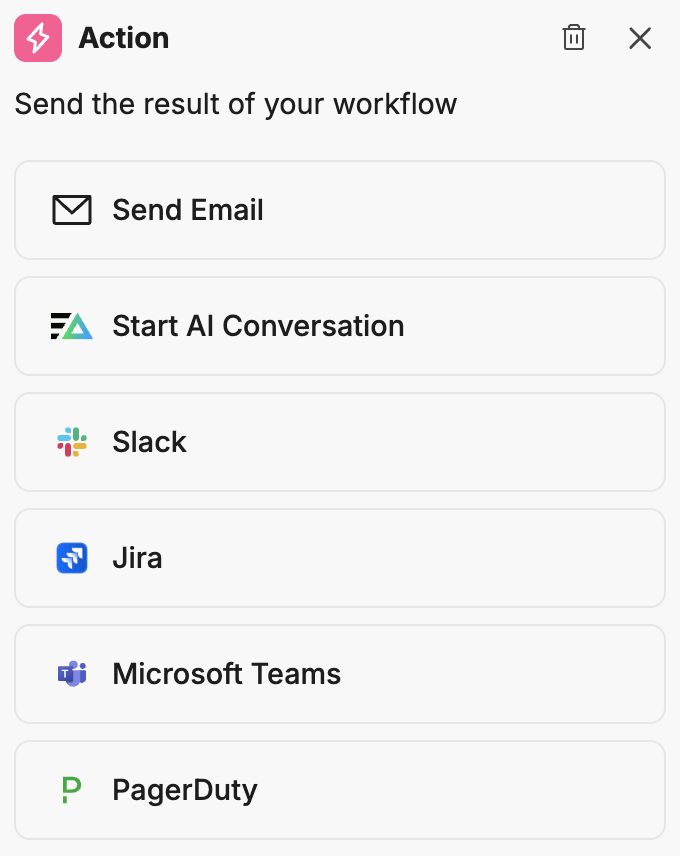
- In the action configuration panel, select Microsoft Teams
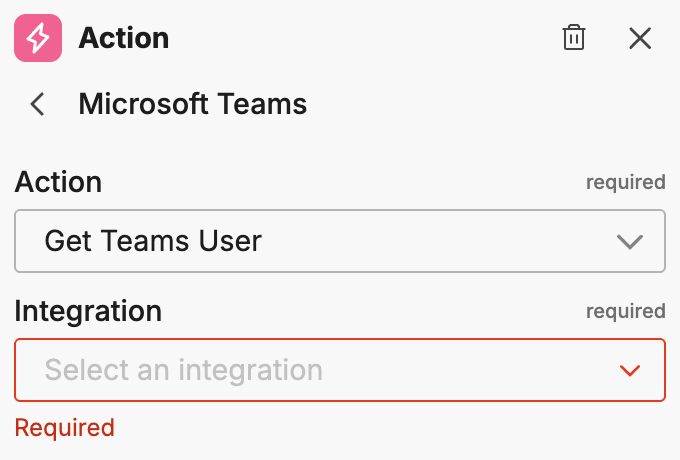
- Select the Integration (your Microsoft Teams connector name)
- Select the Action type
Once you select an integration and action, the action-specific options appear.
Available actions
Get Teams User
Retrieves information about a Teams user.
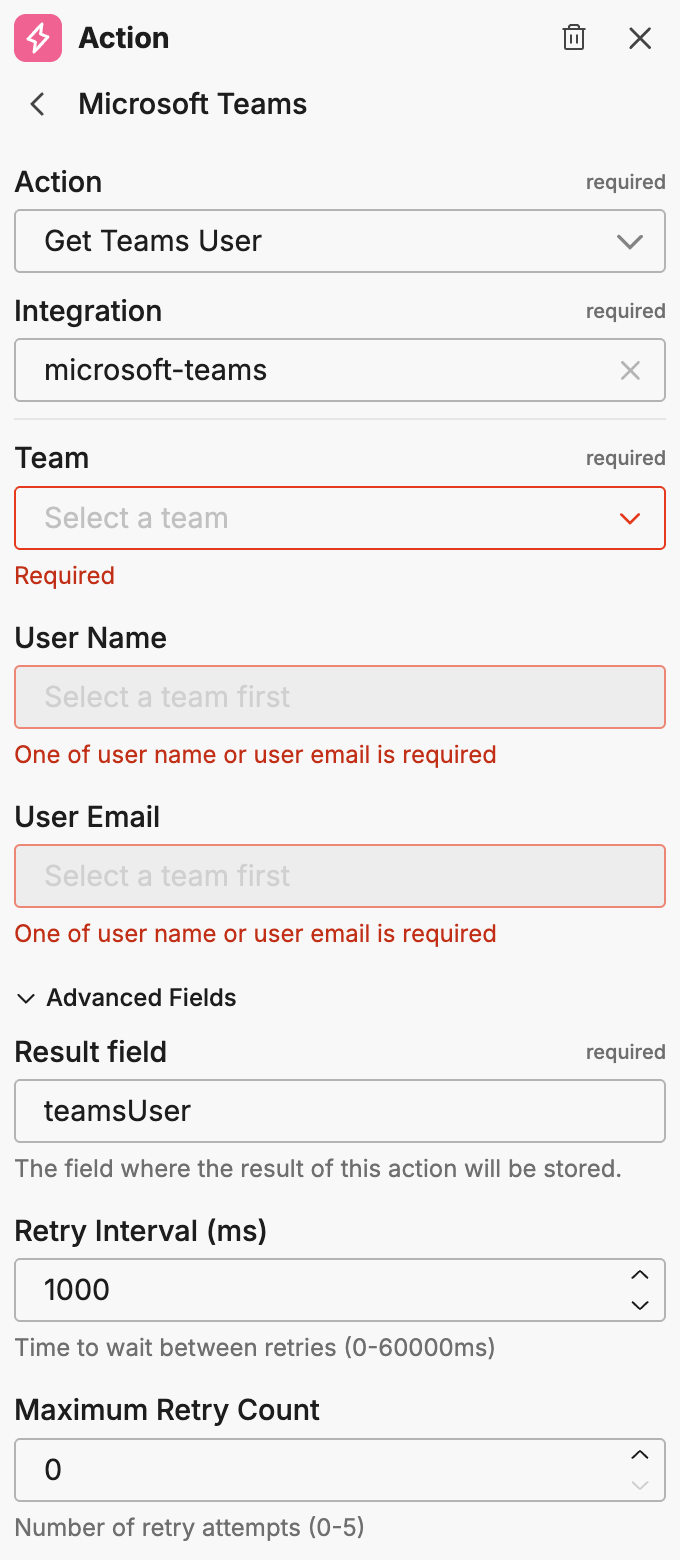
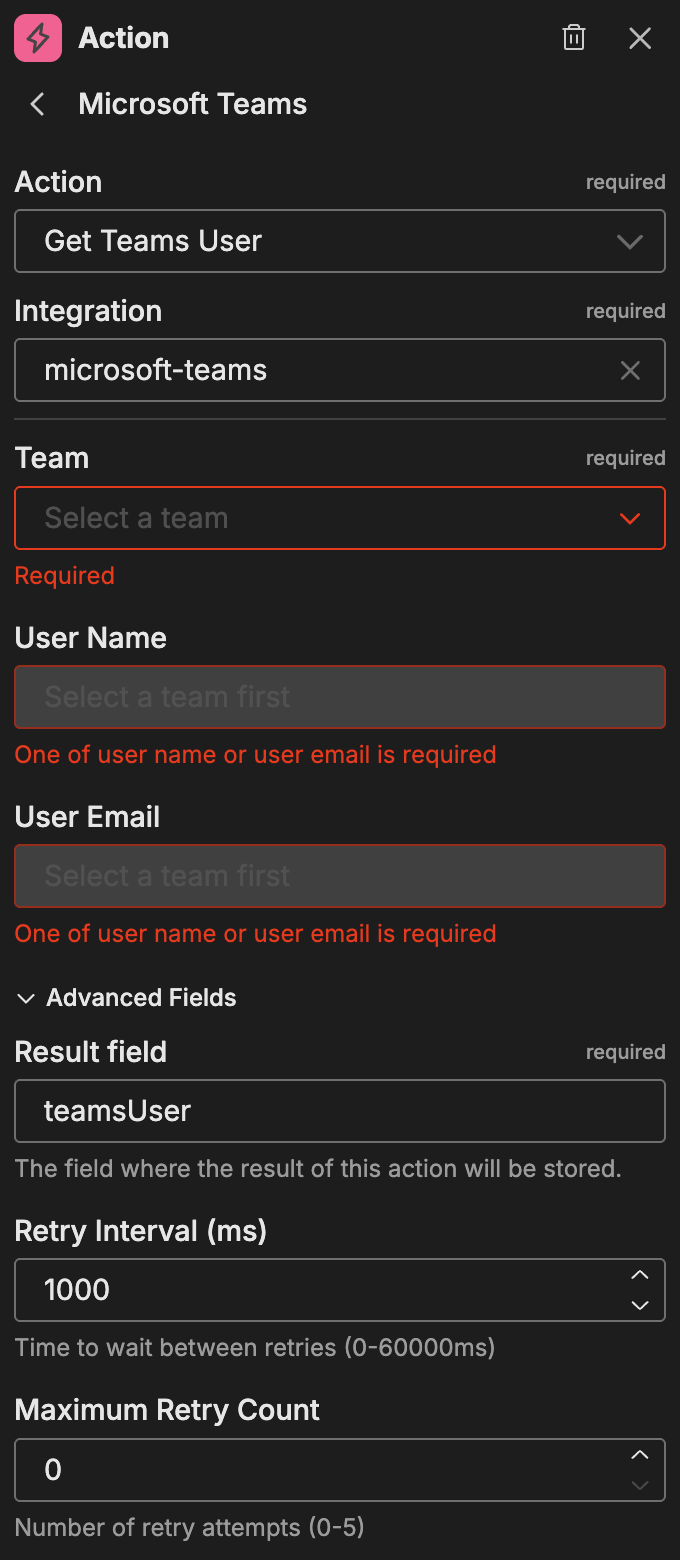
| Option | Description |
|---|---|
| Team | The team to search within |
| Username | The username to look up |
| User Email | The user’s email address |
Advanced fields:
| Option | Description |
|---|---|
| Result Field | The field where the result of this action is stored |
| Retry Interval (ms) | Time between retry attempts |
| Maximum Retry Count | Maximum number of retry attempts |
Send Teams Message
Posts a message to a Microsoft Teams channel.
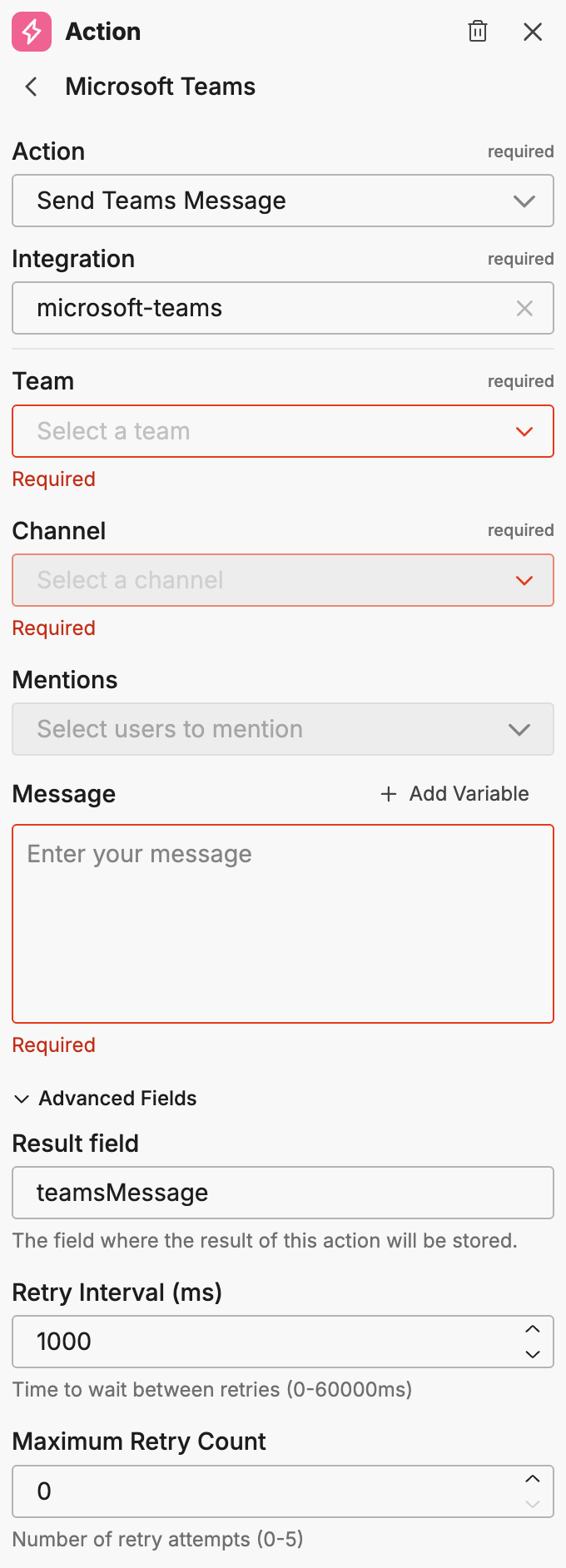
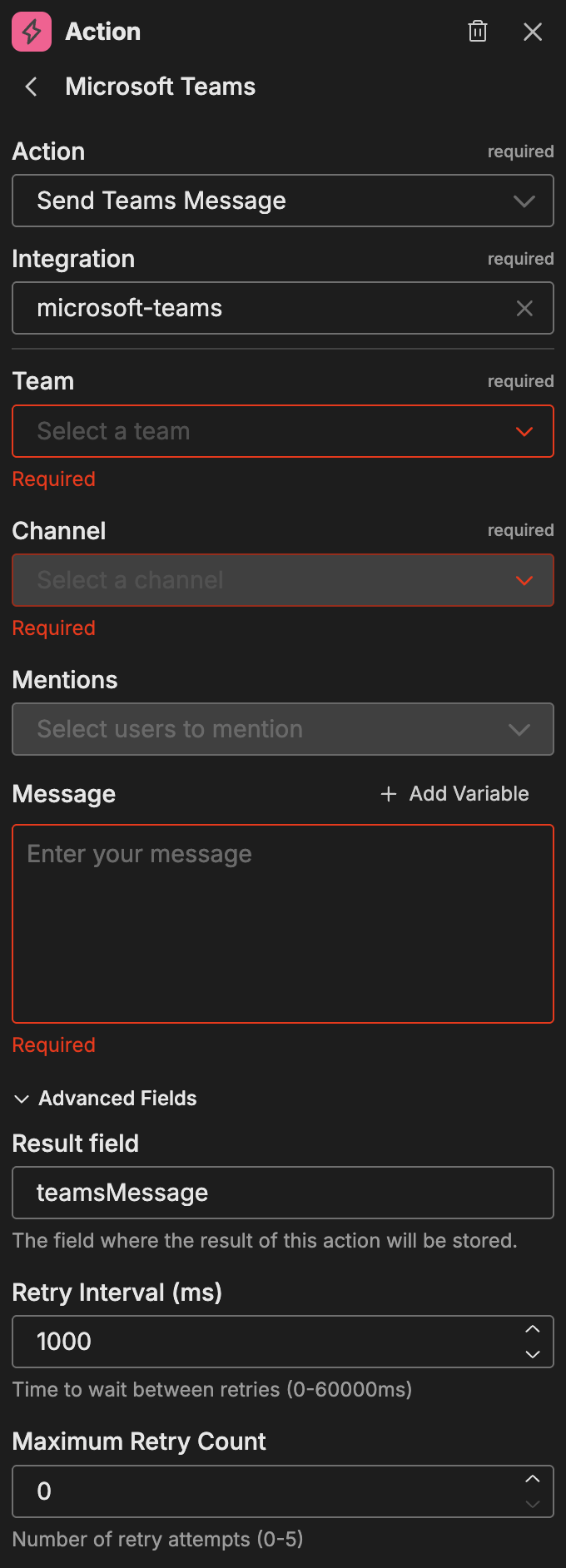
| Option | Description |
|---|---|
| Team | The target team |
| Channel | The target channel within the team |
| Mentions | Select users to mention in the message |
| Message | The message content. The rich text editor supports Markdown formatting with a Preview button to check the rendered result. |
Advanced fields:
| Option | Description |
|---|---|
| Result Field | The field where the result of this action is stored |
| Retry Interval (ms) | Time between retry attempts |
| Maximum Retry Count | Maximum number of retry attempts |
Reply to Teams Message
Replies to an existing message in a Teams channel thread.
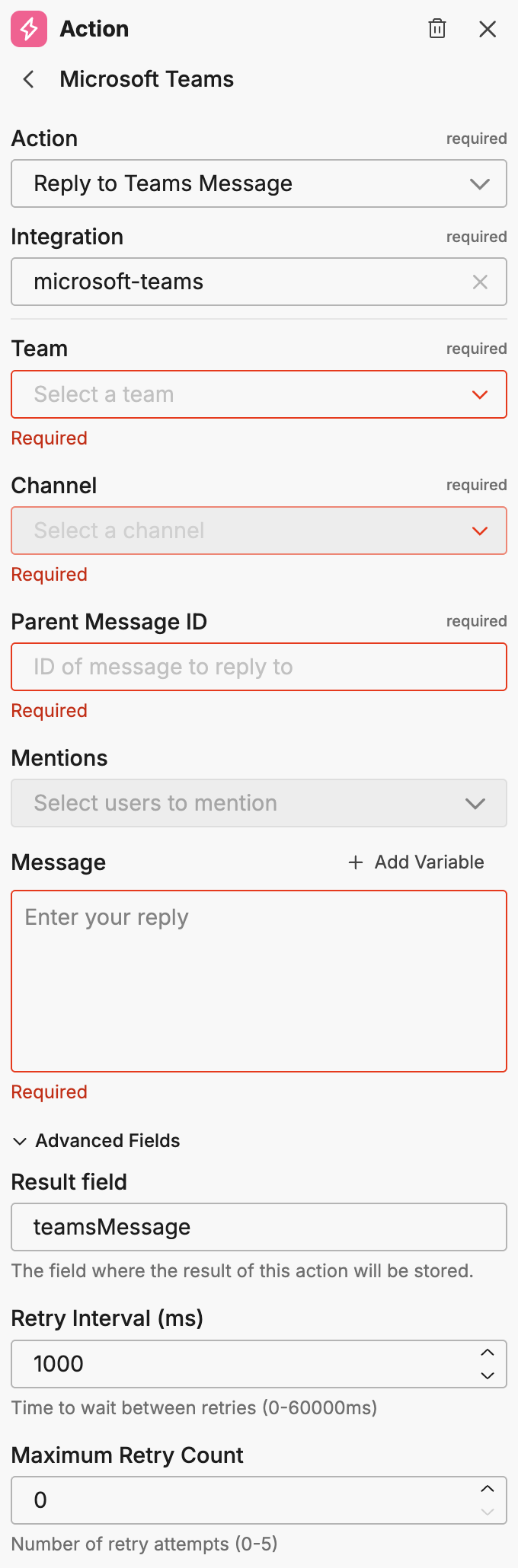
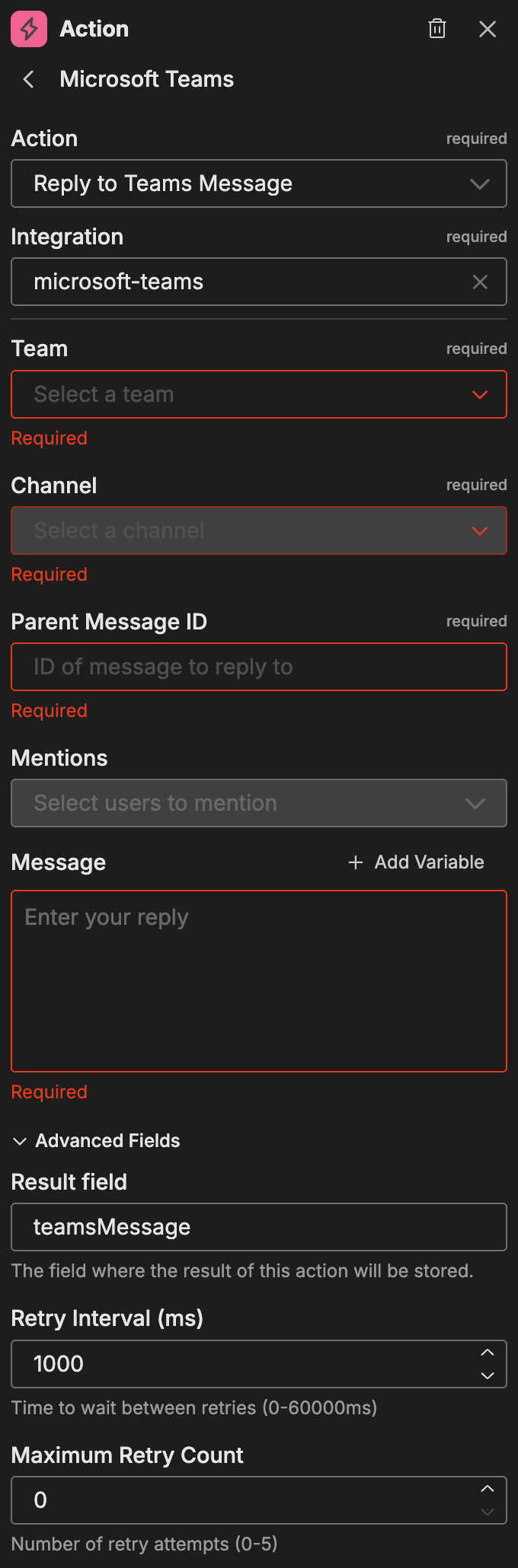
| Option | Description |
|---|---|
| Team | The target team |
| Channel | The target channel within the team |
| Parent Message ID | The ID of the message to reply to |
| Mentions | Select users to mention in the reply |
| Message | The reply content. The rich text editor supports Markdown formatting with a Preview button to check the rendered result. |
Advanced fields:
| Option | Description |
|---|---|
| Result Field | The field where the result of this action is stored |
| Retry Interval (ms) | Time between retry attempts |
| Maximum Retry Count | Maximum number of retry attempts |
Using variables
For fields that support variables (Message), you can insert dynamic content from previous workflow nodes:
- Type
{{in the text field to see variable suggestions - Select from the available variables in the dropdown
Note: You must run the workflow at least once or connect nodes with outputs to see available variables.
Chaining actions
Teams actions can be chained together to build context-aware notifications. For example:
- Get Teams User - Look up a user and store their details in a result field
- Send Teams Message - Send a message mentioning the looked-up user
The Result Field option stores action outputs that downstream nodes can reference as variables. This pattern enables dynamic workflows that adapt to user information or previous action results.
Example use cases
Common patterns for Microsoft Teams actions:
- Alert notifications: Post formatted alerts to monitoring channels with user mentions
- Thread updates: Reply to existing threads with status updates as incidents progress
- User lookup workflows: Fetch user details to personalize notifications
- Escalation chains: Look up on-call users and notify them directly
Related resources
- Workflows Overview - Learn about workflow concepts and node types
- Microsoft Teams Connector - Configure the Teams connector for event triggers
- Slack Actions - Alternative messaging platform actions