Action Node
Configure action nodes to execute operations like sending notifications, creating issues, and interacting with external services.
2 minute read
Overview
Action nodes execute concrete operations as part of your workflow. They typically appear at the end of a workflow to deliver notifications, create records, or interact with external services.
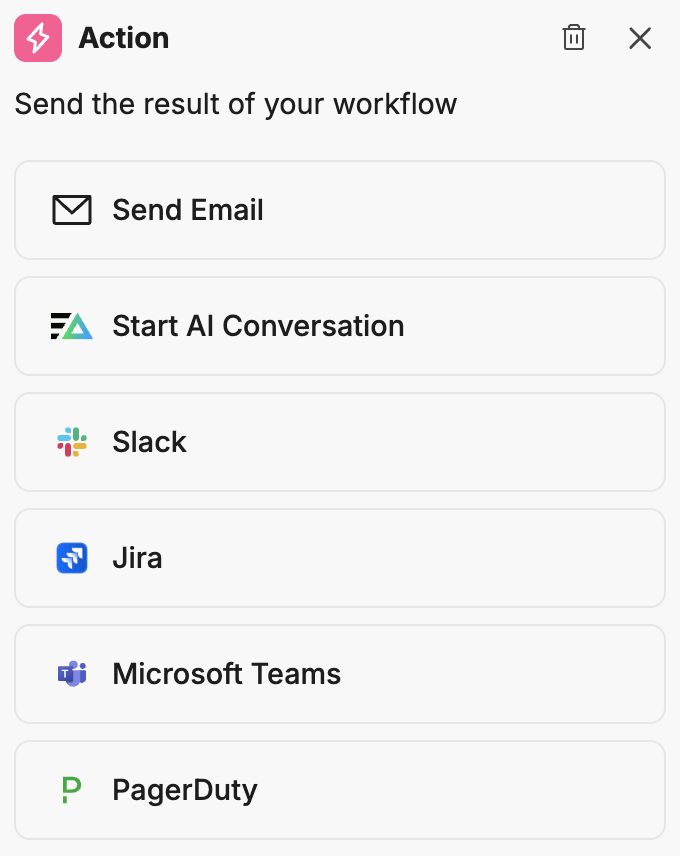
Each action type requires a connector configured in AI Team > Connectors. The Integration dropdown lists available connectors by name. Select an action type to view its configuration options.
Available actions
Send Email
Deliver email notifications to one or more recipients. Configure subject, body, and recipient list with support for dynamic variables.
Start AI Conversation
Create AI-powered conversation threads in a specified channel. Set the thread title, severity, and initial message content.
Slack
Interact with Slack workspaces. Send messages, create channels, manage channel settings, invite users, and archive channels.
Jira
Interact with Jira projects. Create issues, add comments, change statuses, and retrieve issue details.
Microsoft Teams
Interact with Microsoft Teams. Send messages, reply to threads, and look up user information.
PagerDuty
Interact with PagerDuty for incident management. Create incidents, list services, and look up on-call users.
Retry and error handling
Each action node includes Retry Interval and Maximum Retry Count fields in its advanced settings. When an action fails (for example, due to an API timeout, a service being unavailable, or a rate limit), the workflow retries the action up to the configured maximum count, waiting the specified interval between attempts.
If all retries are exhausted and the action still fails, the node is marked as failed and the workflow stops execution at that node. Downstream nodes on the same path do not execute.
To diagnose failures, open the run history panel and click the failed run. The per-node detail view shows what input the action received and the error message returned.
Passing data between actions
See Using variables and Chaining actions in the Workflows Overview for details on passing data between actions.