Note Node
Add documentation and comments to your workflow canvas with the Note node.
2 minute read
Overview
The Note node adds documentation to your workflow canvas. Use it to explain the workflow purpose, document decision logic, or leave notes for other team members.
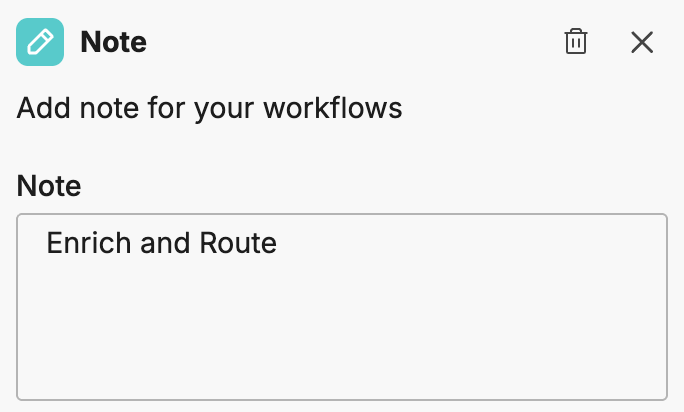
Configuration
To add a Note node to your workflow:
- Click Add Node and select Note
- Enter your documentation text
- Position the note near the relevant nodes
Behavior
Note nodes have no input or output ports and do not participate in the workflow execution flow. They exist purely for documentation purposes.
Use cases
Workflow purpose
Document the overall purpose of the workflow at the canvas level:
This workflow handles critical alerts from the production
monitoring system. It triages alerts, notifies the on-call
engineer, and creates incident tickets for tracking.
Decision logic
Explain the reasoning behind conditional branches:
Severity Routing:
- Critical: Immediate page to on-call
- High: Slack notification to team channel
- Medium/Low: Batch into daily digest
Configuration notes
Document integration requirements or configuration dependencies:
Requires:
- PagerDuty integration configured
- #incidents Slack channel exists
- Jira project key: OPS
Change history
Track modifications to the workflow:
v2 changes:
- Added MS Teams notification path
- Changed severity threshold from 3 to 2
Best practices
Use notes effectively:
- Position notes near relevant nodes: Place notes close to the logic they describe
- Keep notes concise: Focus on the “why” rather than the “what”
- Update notes when logic changes: Outdated documentation is worse than no documentation
- Use consistent formatting: Establish patterns for how you document workflows
Related resources
- Workflows Overview - Learn about workflow concepts and node types