Start Node
3 minute read
Overview
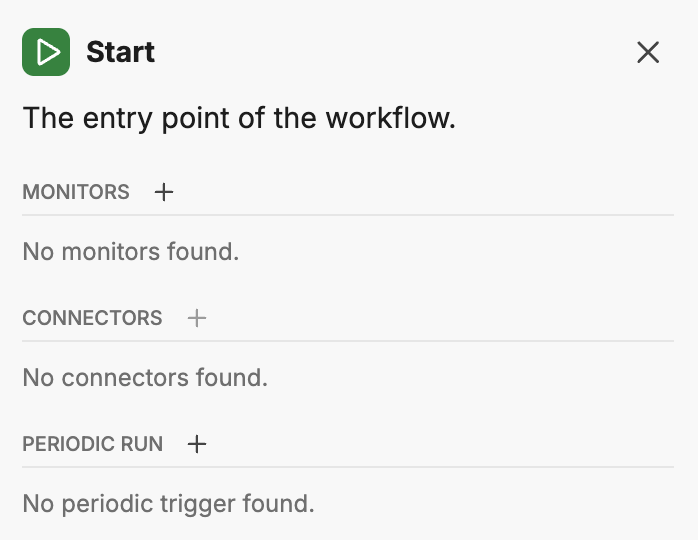
The Start node is the entry point for every workflow. It defines when the workflow executes and what data is available to downstream nodes. Every workflow must have exactly one Start node.
Trigger types
Configure the Start node to respond to one or more trigger types.
Monitors
Run the workflow when a monitor fires an alert.
To connect a monitor:
- Click Add Monitor to see the connection instructions
- Navigate to the monitor you want to connect
- In the monitor’s notifications section, type
@and select this workflow
The monitor’s alert data becomes available as variables for downstream nodes.
Connectors
Run the workflow when events arrive from a configured connector.
Select the connector and event type that should trigger the workflow. The available event types depend on which connectors are configured in your organization. See Connectors for setup instructions.
Example connector events:
| Connector | Example events |
|---|---|
| GitHub | PR created, PR merged, issue opened, deployment status changed |
| PagerDuty | Incident triggered, incident resolved, incident acknowledged |
| Slack | Message received, reaction added |
| CircleCI | Build completed, build failed |
| Sentry | Issue created, issue resolved |
| Linear | Issue created, issue updated |
| LaunchDarkly | Flag changed |
| Jenkins | Build completed |
| GitLab | Pipeline completed, merge request created |
The connector event payload becomes available as variables for downstream nodes.
Periodic run
Run the workflow on a recurring schedule.
Configure the schedule using a cron expression. Examples:
| Schedule | Cron expression |
|---|---|
| Every day at 9:00 AM | 0 9 * * * |
| Every 6 hours | 0 */6 * * * |
| Every Monday at 8:00 AM | 0 8 * * 1 |
| Every 15 minutes | */15 * * * * |
Periodic workflows are useful for:
- Scheduled health checks and infrastructure reviews
- Daily, weekly, or monthly report generation
- Compliance audits and security posture checks
- Capacity planning and cost monitoring
- AI-assisted reviews (pair with a Start AI Conversation action to create interactive review threads; see the Periodic AI review pattern)
For a working example, the Default Company Page Daily Summary workflow runs daily at 9:00 AM to check synthetic monitor health and email results.
Best practices for periodic workflows
Choose the right frequency. Start conservatively and increase frequency if findings are actionable. High-frequency schedules (every 15 minutes) suit critical systems requiring rapid detection. Daily schedules work well for status summaries and trend monitoring. Weekly or monthly schedules suit compliance reviews and aggregated reports.
Design actionable prompts. Define clear success criteria in the teammate prompt (“no pods in CrashLoopBackOff” rather than “check Kubernetes”). Specify what constitutes a finding worth reporting and include context that helps prioritize results. If a periodic workflow generates noise without driving decisions, adjust the prompt or reduce frequency.
Pair with If/Else for conditional actions. Use an If/Else node after the teammate analysis to branch on findings. For example, only send an email when the teammate detects issues, and skip notifications when everything is healthy.
Manual execution
You can trigger any workflow manually using the Run Manual button in the workflow editor toolbar. This is useful for testing workflows or running ad-hoc automation.
Viewing run sources
The workflow list displays the run source for each execution, showing whether it was triggered:
- Manually
- By a periodic schedule
- By a monitor event
- By a connector event
Related resources
- Workflows Overview - Learn about workflow concepts and node types
- Connectors - Configure connectors for workflow triggers