Edge Delta Microsoft Sentinel Destination
11 minute read
Overview
You can configure Edge Delta agents to prepare log and custom telemetry and send it for downstream processing by Microsoft Sentinel. Preparing the telemetry data for security information and event management (SIEM) ensures uniform data representation for analysis, correlation, and alerting across various types and sources of data.
This node requires Edge Delta agent version v1.25.0 or higher.
Prerequisites
The Sentinel Destination requires the Microsoft Sentinel pack. See Send Logs to Microsoft Sentinel for more details about using the packs and configuring Azure.
Example Configuration
This configuration sends logs to the Custom-CommonSecurityLog stream on the https://democo.eastus-1.ingest.monitor.azure.com endpoint.
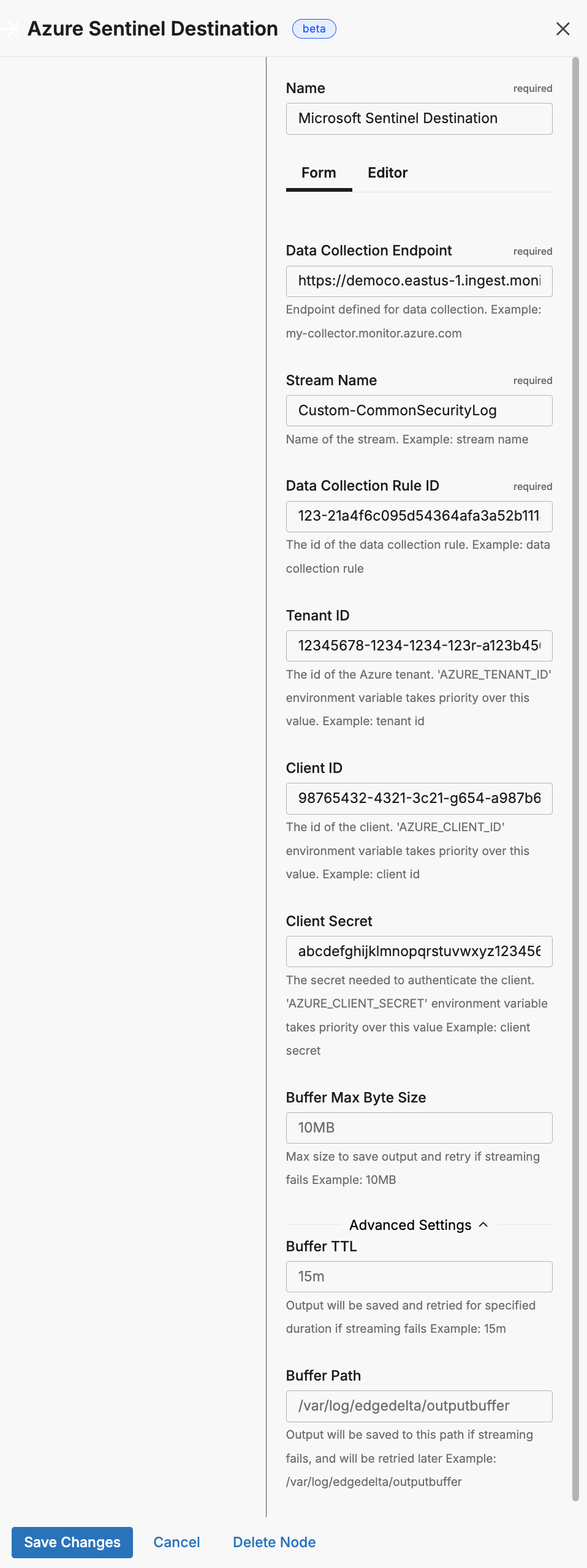
- name: Microsoft Sentinel Destination
  type: azure_sentinel_output
  stream_name: Custom-CommonSecurityLog
  data_collection_endpoint: https://democo.eastus-1.ingest.monitor.azure.com
  data_collection_rule_id: 123-21a4f6c095d54364afa3a52b111432ea
  tenant_id: 12345678-1234-1234-123r-a123b456c789
  client_id: 98765432-4321-3c21-g654-a987b654c321
  client_secret: abcdefghijklmnopqrstuvwxyz12345678910111
Required Parameters
name
A descriptive name for the node. This is the name that will appear in pipeline builder and you can reference this node in the YAML using the name. It must be unique across all nodes. It is a YAML list element so it begins with a - and a space followed by the string. It is a required parameter for all nodes.
nodes:
  - name: <node name>
    type: <node type>
type: azure_sentinel_output
The type parameter specifies the type of node being configured. It is specified as a string from a closed list of node types. It is a required parameter.
nodes:
  - name: <node name>
    type: <node type>
stream_name
You use the stream_name parameter to specify the identifier for the incoming data stream within the Log Analytics workspace. It is configured as a string and is required. See how to get the stream_name here.
Note: You must configure one Azure Destination node per stream name.
data_collection_endpoint
You use the data_collection_endpoint parameter to configure Edge Delta with the endpoint exposed by Azure Monitor for ingesting logs (configured earlier). It is specified as a string and is required. See how to get the data_collection_endpoint here.
data_collection_rule_id
You use the data_collection_rule_id to specify the unique identifier for the Data Collection Rule (DCR), which controls ingestion and forwarding to a destination (configured earlier). It is specified as a string and is required. See how to get the data_collection_rule_id here.
tenant_id
You use the tenant_id parameter to specify the GUID for your Azure AD tenant. It is specified as a string and is required. This parameter can be defined in the node configuration but a best practice is to use secrets management with an environment variable, in which case the AZURE_TENANT_ID environment variable takes priority over this value. See how to get the tenant_id here.
client_id
You use the client_id parameter to specify the GUID for the application or service principal registered in Azure AD and authorized to make API calls. It is specified as a string and is required. This parameter can be defined in the node configuration but a best practice is to use secrets management with an environment variable, in which case the AZURE_CLIENT_ID environment variable takes priority over this value. See how to get the client_id here.
client_secret
You use the client_secret parameter to specify the secret associated with your client ID. It is specified as a string and is required. This parameter can be defined in the node configuration but a best practice is to use secrets management with an environment variable, in which case the AZURE_CLIENT_SECRET environment variable takes priority over this value. See how to get the client_secret here.
This field supports secret references for secure credential management. Instead of hardcoding sensitive values, you can reference a secret configured in your pipeline.
To use a secret in the GUI:
- Create a secret in your pipeline’s Settings > Secrets section (see Secrets)
- In this field, select the secret name from the dropdown list that appears
To use a secret in YAML:
Reference it using the syntax: '{{ SECRET secret-name }}'
Example:
field_name: '{{ SECRET my-credential }}'
Note: The secret reference must be enclosed in single quotes when using YAML. Secret values are encrypted at rest and resolved at runtime, ensuring no plaintext credentials appear in logs or API responses.
Optional Parameters
disabled
The disabled parameter disables the node in the pipeline. When set to true, the agent ignores the node at startup. You can toggle nodes on or off in the pipeline builder. It is specified as a boolean, defaults to false, and is optional.
nodes:
  - name: <node name>
    type: <node type>
    disabled: true
persistent_queue
The persistent_queue configuration enables disk-based buffering to prevent data loss during destination failures or slowdowns. When enabled, the agent stores data on disk and automatically retries delivery when the destination recovers.
Complete example:
persistent_queue:
  path: /var/lib/edgedelta/outputbuffer
  mode: error
  max_byte_size: 1GB
  drain_rate_limit: 1000
How it works:
- Normal operation: Data flows directly to the destination (for
errorandbackpressuremodes) or through the disk buffer (foralwaysmode) - Destination issue detected: Based on the configured
mode, data is written to disk at the configuredpath - Recovery: When the destination recovers, buffered data drains at the configured
drain_rate_limitwhile new data continues flowing - Completion: Buffer clears and normal operation resumes
Key benefits:
- Data durability: Logs preserved during destination outages and slowdowns
- Agent protection: Slow backends don’t cascade failures into the agent cluster
- Automatic recovery: No manual intervention required
- Configurable behavior: Choose when and how buffering occurs based on your needs
Learn more: Buffer Configuration - Conceptual overview, sizing guidance, and troubleshooting
path
The path parameter specifies the directory where buffered data is stored on disk. This parameter is required when configuring a persistent queue.
Example:
persistent_queue:
  path: /var/lib/edgedelta/outputbuffer
Requirements:
- Required field - persistent queue will not function without a valid path
- The directory must have sufficient disk space for the configured
max_byte_size - The agent process must have read/write permissions to this location
- The path should be on a persistent volume (not tmpfs or memory-backed filesystem)
Best practices:
- Use dedicated storage for buffer data separate from logs
- Monitor disk usage to prevent buffer from filling available space
- Ensure the path persists across agent restarts to maintain buffered data
max_byte_size
The max_byte_size parameter defines the maximum disk space the persistent buffer is allowed to use. Once this limit is reached, any new incoming items are dropped, ensuring the buffer never grows beyond the configured maximum.
Note: This limit is total storage for the persistent queue, not per-worker. If you configure
max_byte_size: 1GBand the destination has 15 workers, the buffer uses 1GB total, not 15GB.
Example:
persistent_queue:
  path: /var/lib/edgedelta/outputbuffer
  max_byte_size: 1GB
Sizing guidance:
- Small deployments (1-10 logs/sec): 100MB - 500MB
- Medium deployments (10-100 logs/sec): 500MB - 2GB
- Large deployments (100+ logs/sec): 2GB - 10GB
Calculation example:
Average log size: 1KB
Expected outage duration: 1 hour
Log rate: 100 logs/sec

Buffer size = 1KB × 100 logs/sec × 3600 sec = 360MB
Recommended: 500MB - 1GB (with safety margin)
Important: Set this value based on your disk space availability and expected outage duration. The buffer will accumulate data during destination failures and drain when the destination recovers.
mode
The mode parameter determines when data is buffered to disk. Three modes are available:
error(default) - Buffers data only when the destination returns errors (connection failures, HTTP 5xx errors, timeouts). During healthy operation, data flows directly to the destination without buffering.backpressure- Buffers data when the in-memory queue reaches 80% capacity OR when destination errors occur. This mode helps handle slow destinations that respond successfully but take longer than usual to process requests.always- Uses write-ahead-log behavior where all data is written to disk before being sent to the destination. This provides maximum durability but adds disk I/O overhead to every operation.
Example:
persistent_queue:
  path: /var/lib/edgedelta/outputbuffer
  mode: error
  max_byte_size: 1GB
Mode comparison:
| Mode | Protects Against | Trade-off | Recommended For |
|---|---|---|---|
error | Destination outages and failures | No protection during slow responses | Reliable destinations with consistent response times |
backpressure | Outages + slow/degraded destinations | Slightly more disk writes during slowdowns | Most production deployments |
always | All scenarios including agent crashes | Disk I/O on every item reduces throughput | Maximum durability requirements |
Why choose error mode:
The error mode provides the minimal protection layer needed to prevent data loss when destinations temporarily fail. Without any persistent queue, a destination outage means data is lost. With error mode enabled, data is preserved on disk during failures and delivered automatically when the destination recovers.
Why choose backpressure mode:
The backpressure mode provides everything error mode offers, plus protection against slow destinations. When a destination is slow but not completely down:
- Without
backpressure: Data delivery becomes unreliable, and the backend’s slowness propagates to the agent—the agent can get stuck waiting before sending subsequent payloads - With
backpressure: The agent spills data to disk and continues processing, isolating itself from the slow backend
This prevents a slow destination from cascading failures into your agent cluster. For most production environments, backpressure provides the best balance of protection and performance.
Why choose always mode:
The always mode is designed for customers with extremely strict durability requirements. It forces the agent to write every item to disk before attempting delivery, then reads from disk for transmission. This guarantees that data survives even sudden agent crashes or restarts.
Important: This mode introduces a measurable performance cost. Each agent performs additional disk I/O on every item, which reduces overall throughput. Most deployments do not require this level of durability—this feature addresses specialized needs that apply to a small minority of customers.
Only enable always mode if you have a specific, well-understood requirement where the durability guarantee outweighs the throughput reduction.
strict_ordering
The strict_ordering parameter controls how items are consumed from the persistent buffer.
When strict_ordering: true, the agent runs in strict ordering mode with a single processing thread. This mode always prioritizes draining buffered items first—new incoming data waits until all buffered items are processed in exact chronological order. When strict_ordering: false (default), multiple workers process data in parallel, and new data flows directly to the destination while buffered data drains in the background.
Example:
persistent_queue:
  path: /var/lib/edgedelta/outputbuffer
  mode: always
  strict_ordering: true
parallel_workers: 1
Default value: false
Important: Strict ordering is a specialized feature needed by a very small minority of deployments. Most users should keep the default value of false. Only enable strict ordering if you have a specific, well-understood requirement for exact event sequencing.
Required setting: When strict_ordering: true, you must set parallel_workers: 1. Pipeline validation will fail if parallel_workers is greater than 1 because parallel processing inherently breaks ordering guarantees.
Behavior:
| Value | Processing Model | Buffer Priority | Recovery Latency |
|---|---|---|---|
false (default) | Parallel workers | Buffered data drains in background | Lower - current state visible immediately |
true | Single-threaded | Buffered items always drain first | Higher - queue must drain before new data |
Why the default is false:
In most observability use cases, data freshness is more valuable than strict ordering. When a destination recovers from an outage, operators typically want to see current system state on dashboards immediately, while historical data backfills in the background. The default behavior prioritizes this real-time visibility.
When to enable strict ordering:
Strict ordering is primarily needed by security-focused customers who build systems where events must arrive in the exact delivery order. These customers typically run stateful security streaming engines that depend on precise temporal sequencing.
Specific use cases:
- Stateful security streaming engines - Security systems that maintain state across events and detect patterns based on exact event order
- Audit and compliance logs - Regulatory requirements that mandate audit trails preserve exact temporal sequence
- State reconstruction - Systems that replay events to rebuild state require chronological order
When to keep default (false):
The vast majority of deployments should keep the default:
- Real-time monitoring dashboards - Current state visibility is more important than historical order
- High-volume log ingestion - Faster drain times reduce recovery period
- Stateless analytics - When each log is analyzed independently without temporal correlation
drain_rate_limit
The drain_rate_limit parameter controls the maximum items per second when draining the persistent buffer after a destination recovers from a failure.
Example:
persistent_queue:
  path: /var/lib/edgedelta/outputbuffer
  drain_rate_limit: 1000
Default value: 0 (no limit - drain as fast as the destination accepts)
Why rate limiting matters:
When a destination recovers from an outage, it may still be fragile. Immediately flooding it with hours of backlogged data can trigger another failure. The drain rate limit allows gradual, controlled recovery that protects destination stability.
Choosing the right rate:
| Scenario | Recommended Rate | Reasoning |
|---|---|---|
| Stable, well-provisioned destination | 0 (unlimited) | Minimize recovery time when destination can handle full load |
| Shared or multi-tenant destination | 20-50% of capacity | Leave headroom for live traffic and other tenants |
| Recently recovered destination | 10-25% of capacity | Gentle ramp-up to prevent re-triggering failure |
| Rate-limited destination (e.g., SaaS) | Below API rate limit | Avoid throttling or quota exhaustion |
Impact on recovery time:
Buffer size: 1GB
Average log size: 1KB
Total items: ~1,000,000 logs

At unlimited (0): Depends on destination capacity
At 5000:      ~3.5 minutes to drain
At 1000:      ~17 minutes to drain
At 100:       ~2.8 hours to drain
memory_buffer
This parameter requires Edge Delta agent version v2.12.0 or higher.
The memory_buffer parameter configures the in-memory buffer queue for the destination. The size sub-parameter sets the maximum number of events to hold in the memory buffer queue before blocking. It is specified as an integer, has a default of 1000, and it is optional.
nodes:
  - name: <destination-name>
    type: <destination-type>
    memory_buffer:
      size: 2000